
Quotation Management
Eligibility note: Only enterprise Operators, or enterprise Brokers that manage aircraft, can use the Quotation function.
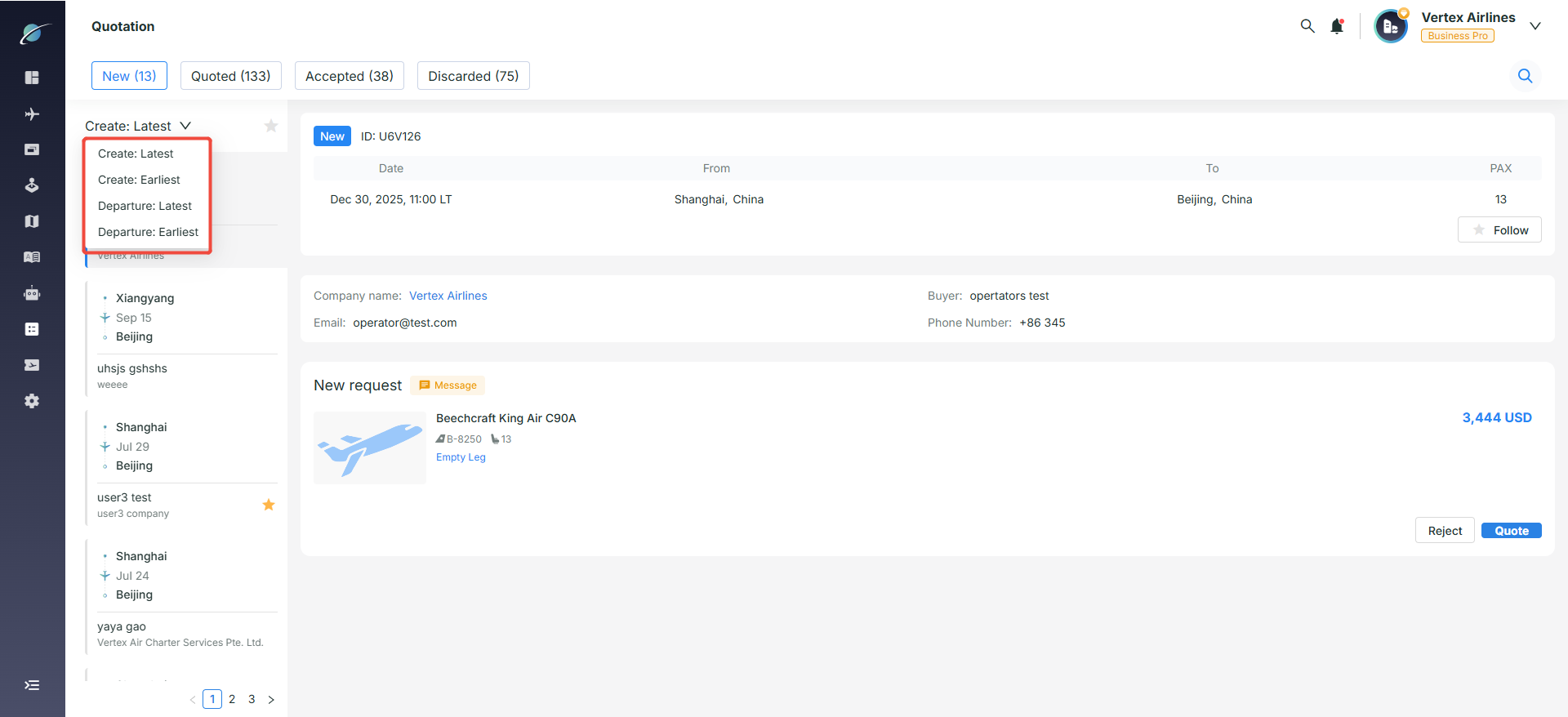
1. Sorting and Filtering
· Status switching: Use the "New / Quoted / Accepted / Discarded" tabs to track orders at different stages.
· Sorting: Sort by "Create" or "Departure" to prioritize urgent requests.
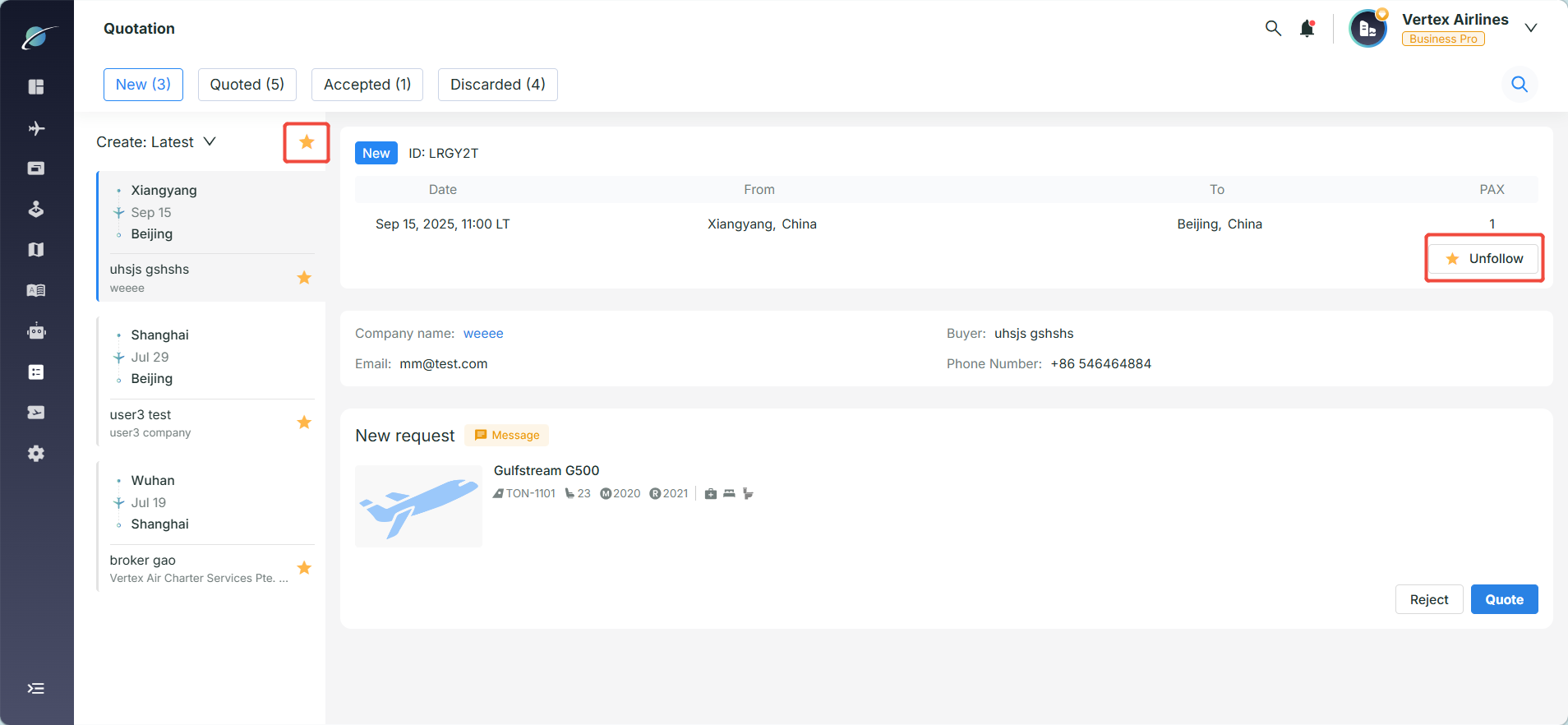
2. Follow and Priority Filtering
· Follow: Click "Follow" to mark high-intent orders.
· Visual priority: Followed orders show a gold icon, and the star filter can display only priority tasks.
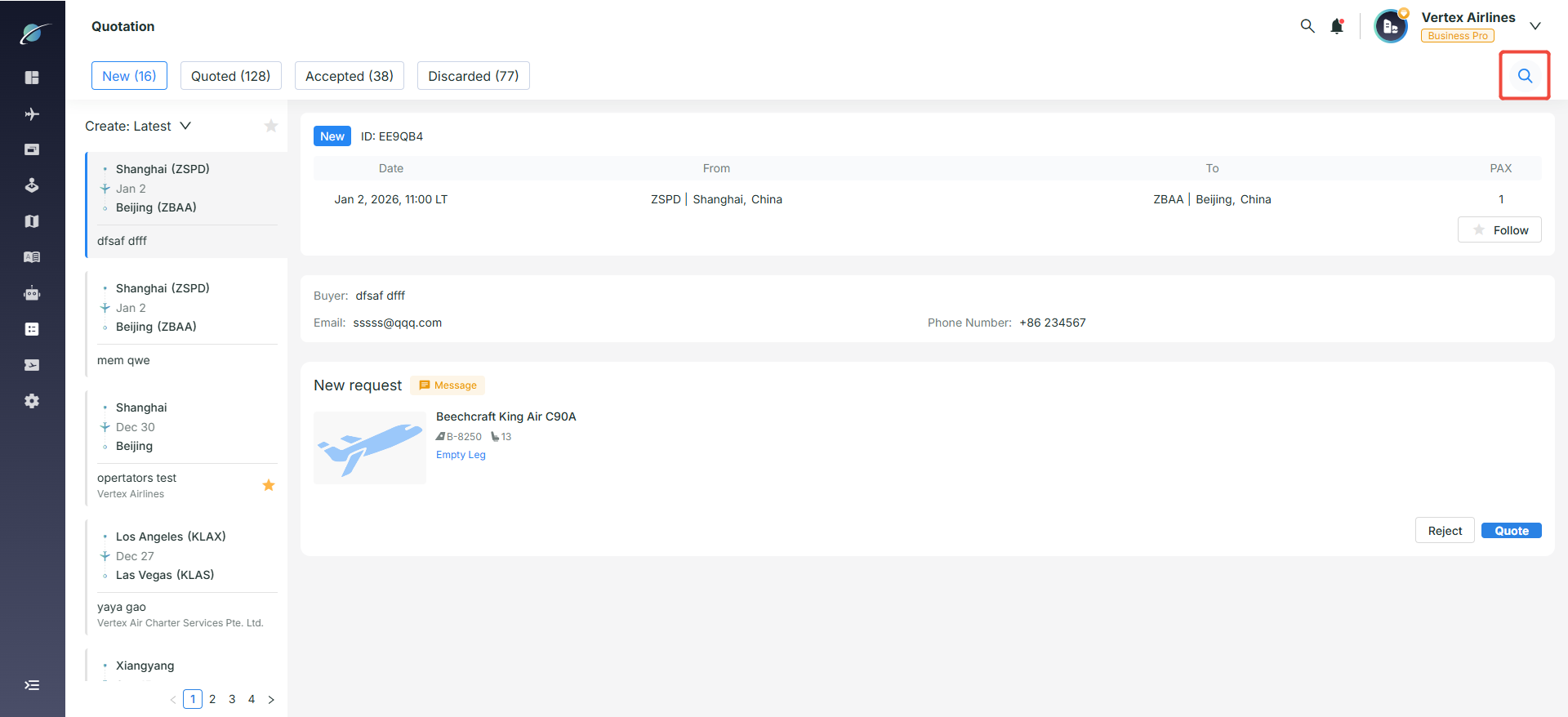
3. Quick Inquiry Search
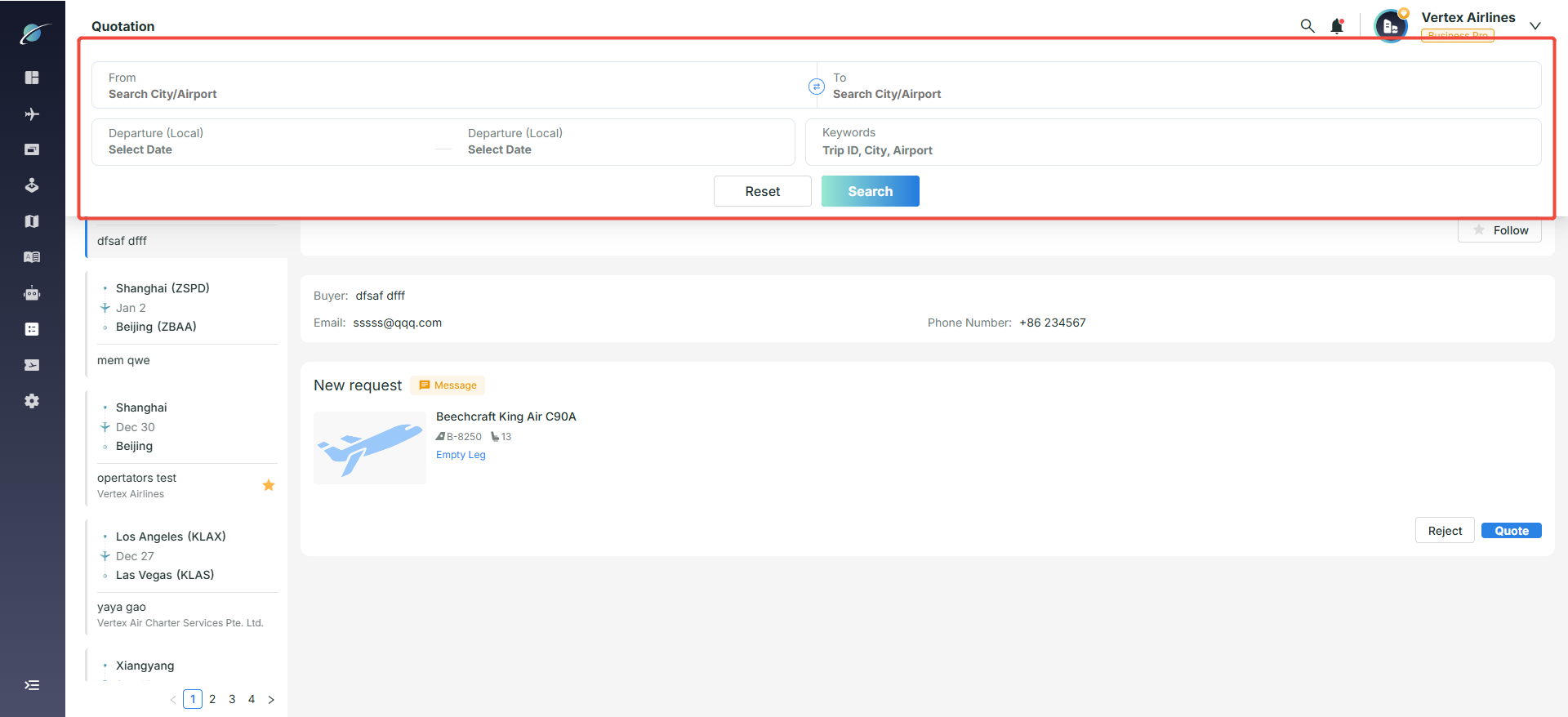
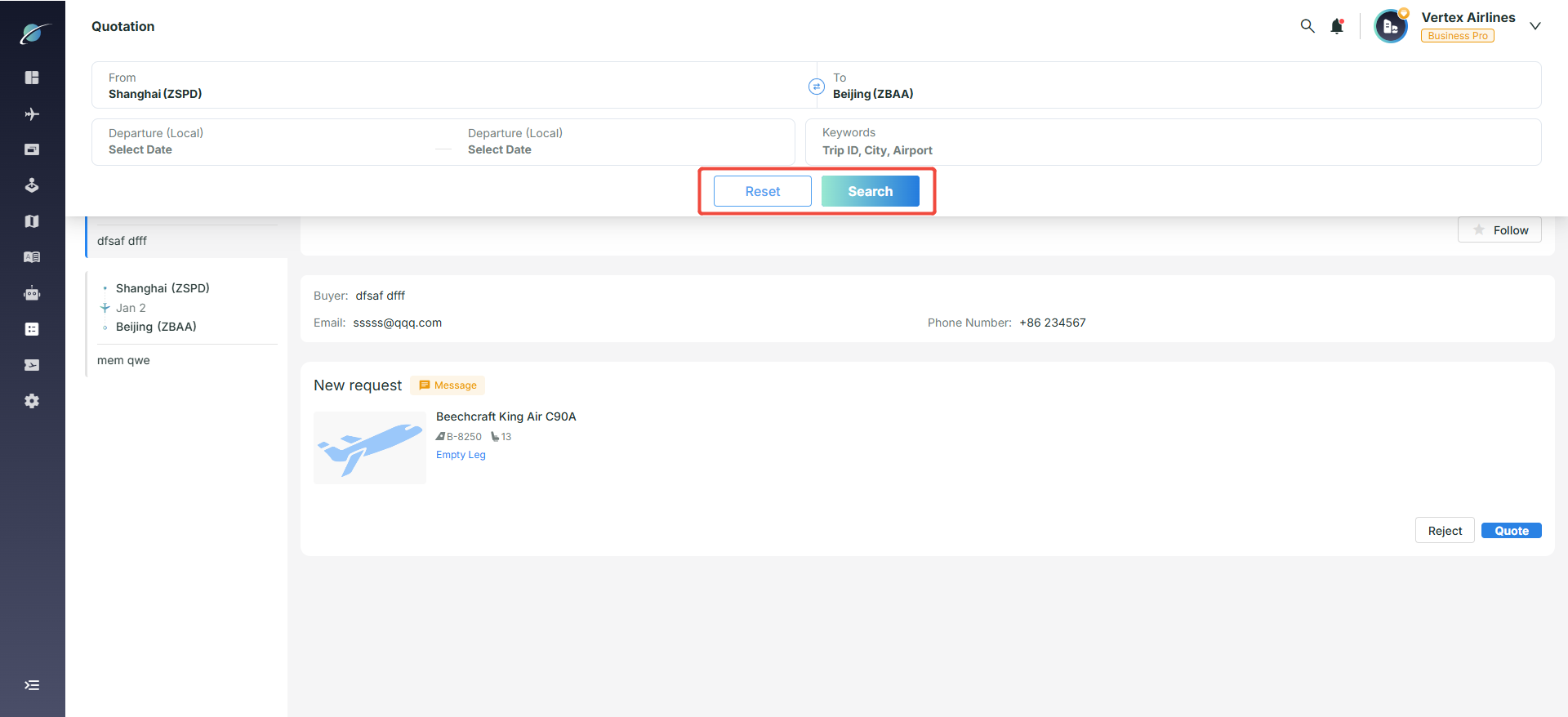
· Click the magnifier icon in the upper-right corner, enter departure and arrival airport/city, time, or keywords, and click "Search" for a precise lookup. Click "Reset" to clear all filters and restore the default list.
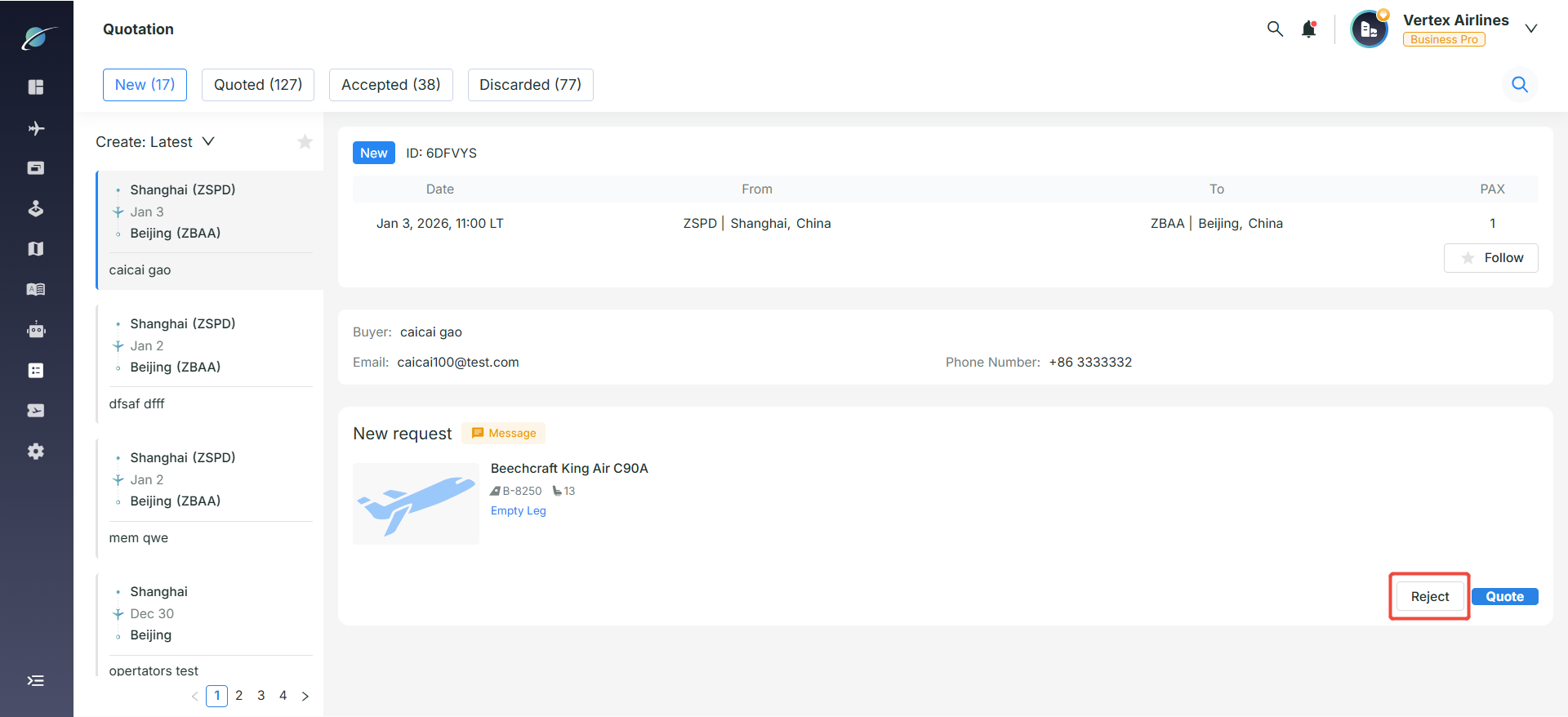
4. Handling New Inquiries
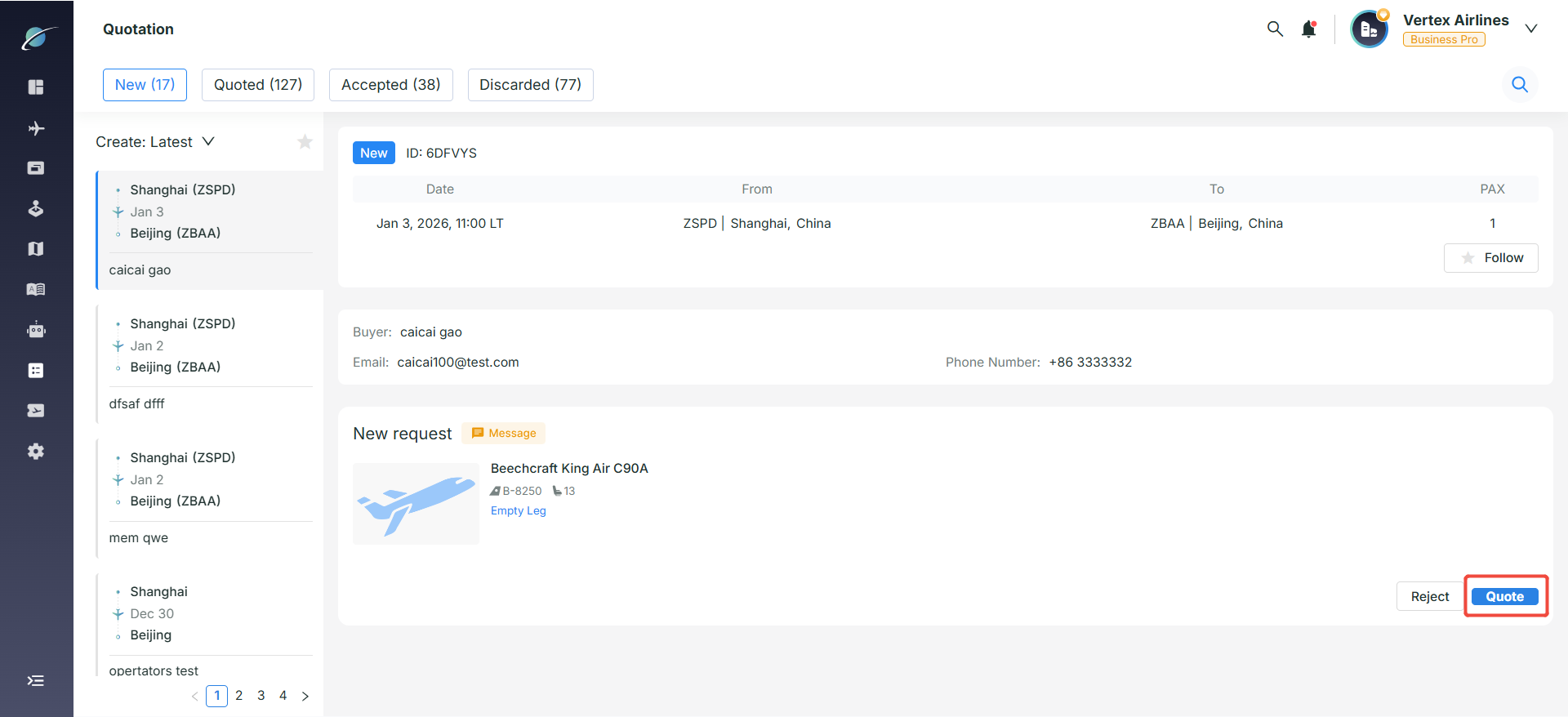
· Reject & Quote: In the core action area, users decide whether to quote the inquiry. "Reject" declines the request, while "Quote" starts the quotation process.
5. Quotation Confirmation Workflow
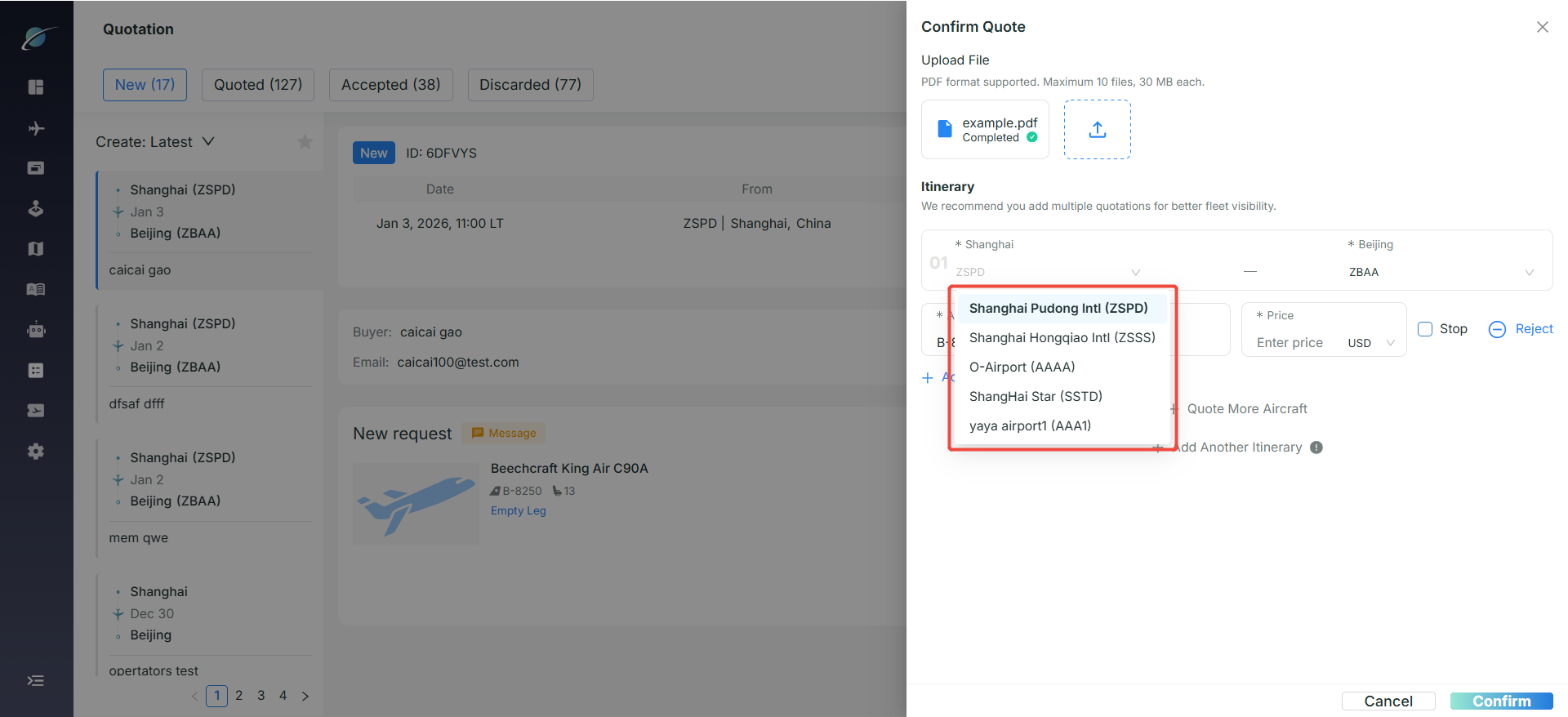
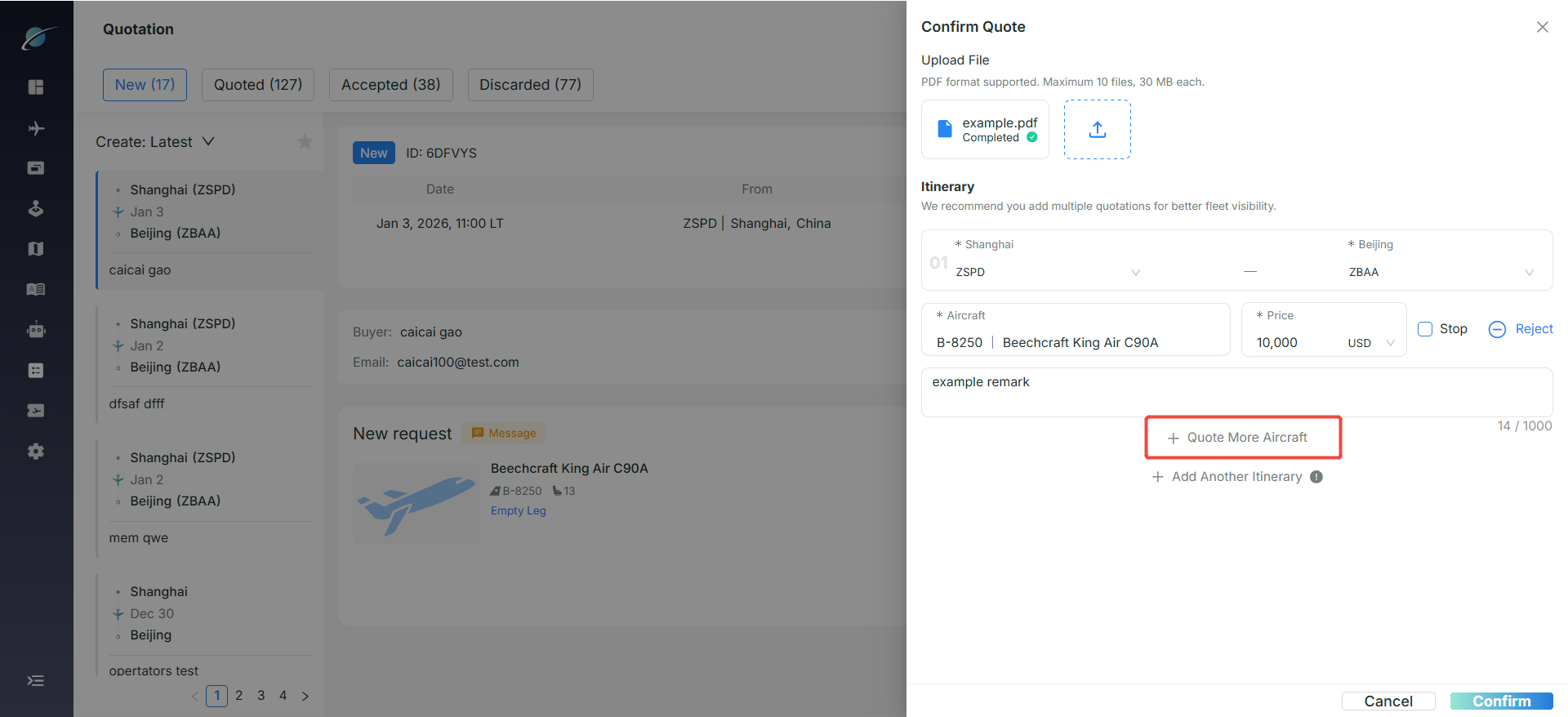
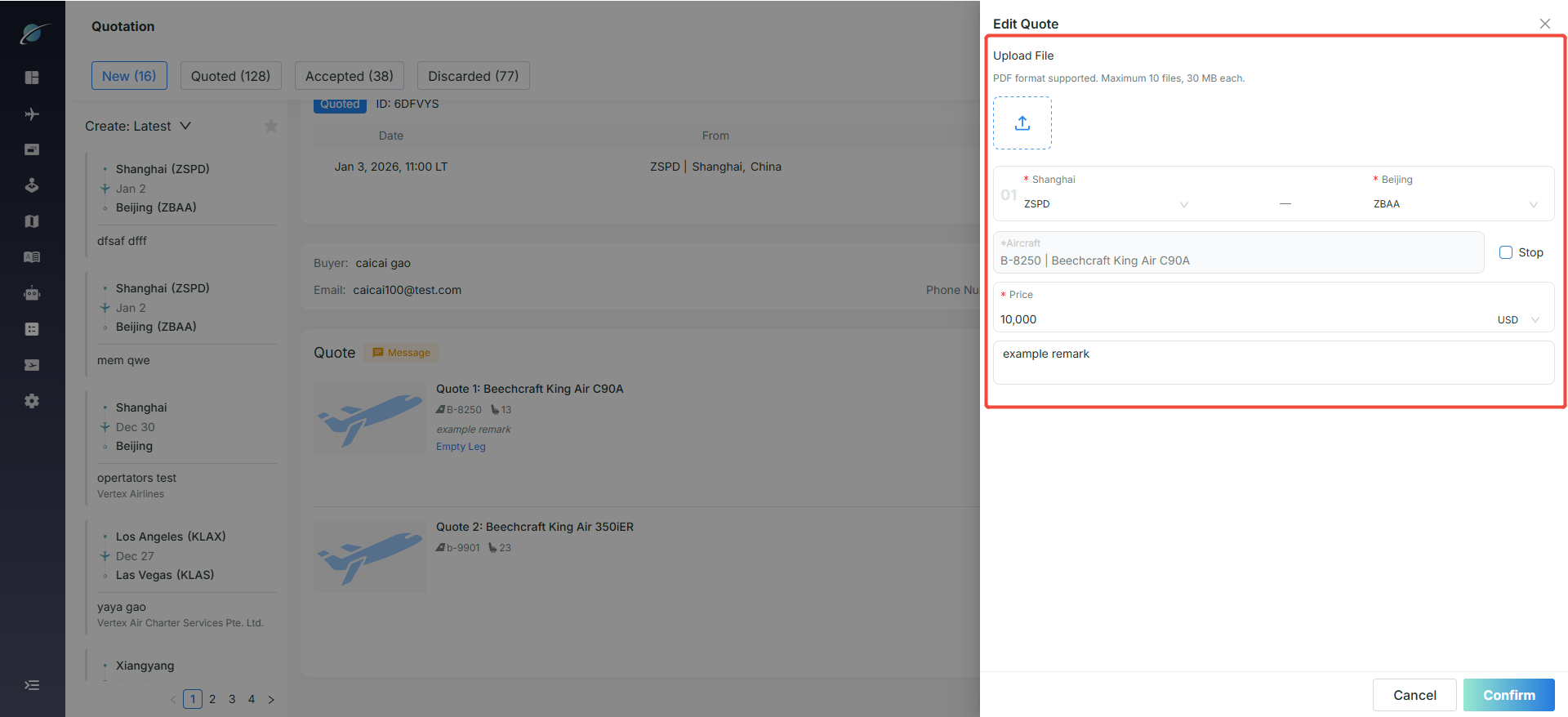
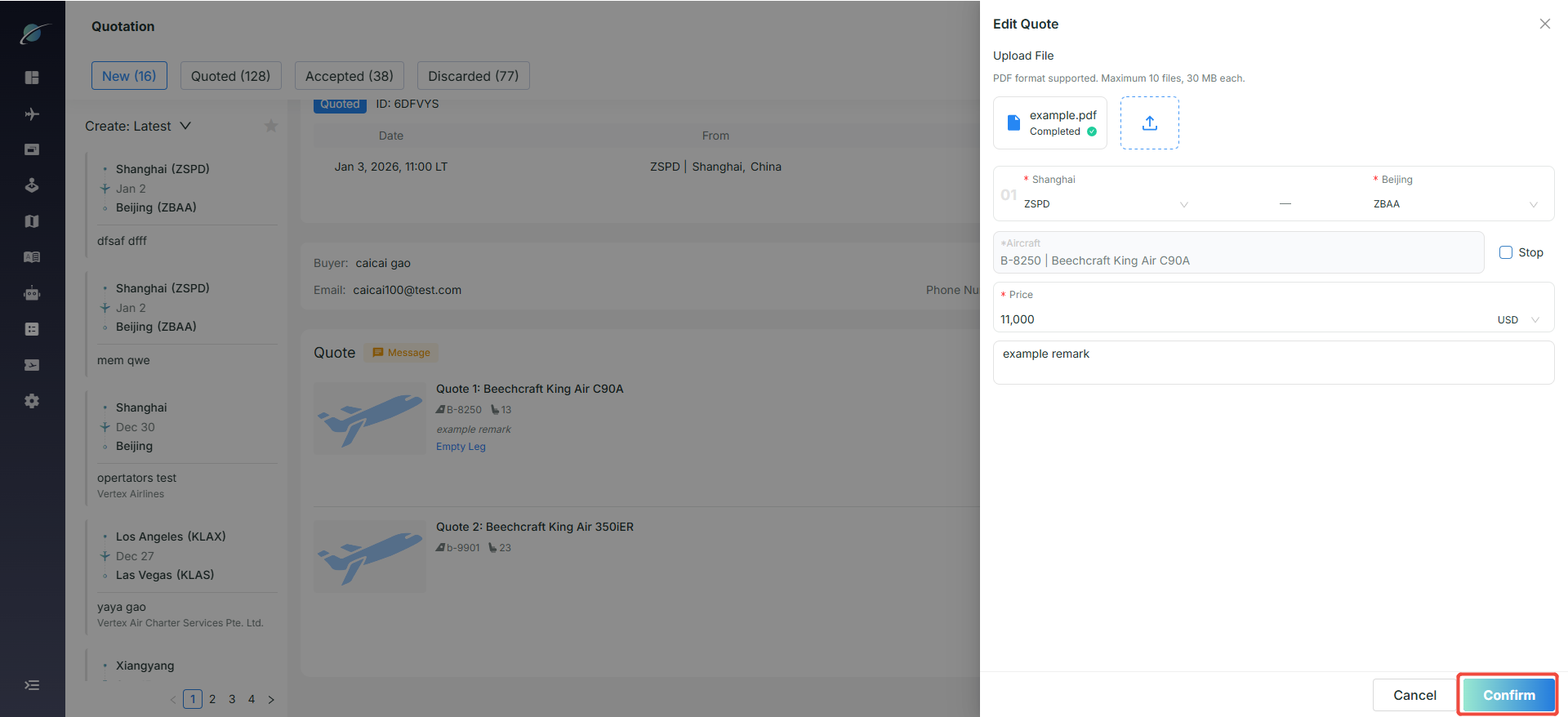
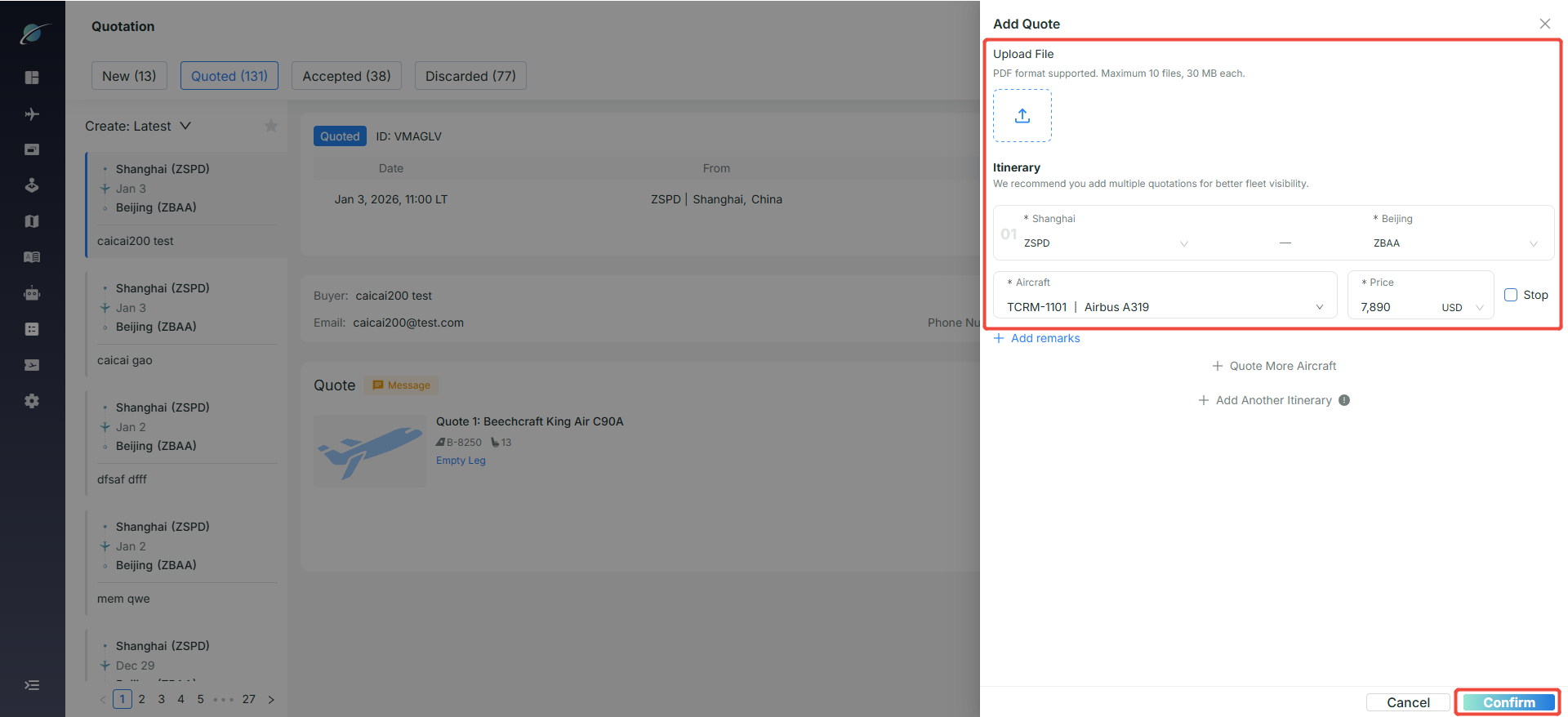
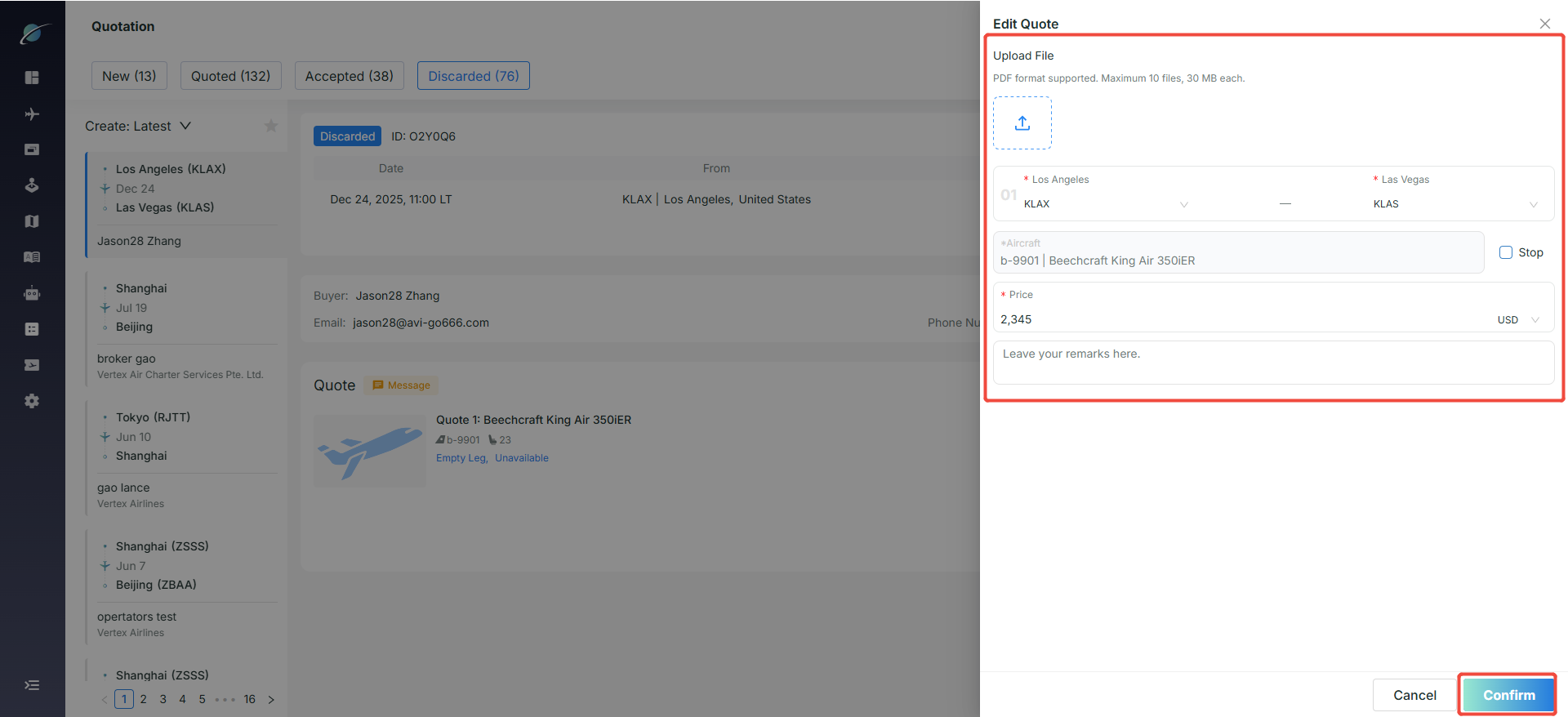
Attachment Upload: Supports uploading quotation files in PDF format, along with terms and conditions attachments or supplementary notes. Up to 10 files can be uploaded, with a maximum size of 30 MB per file.
● Itinerary Management
○ Airport Selection and Switching: To maintain consistency with the original inquiry, manually entered city information cannot be changed. However, users can switch between different airports within the same city (for example, ZSPD can be changed to ZSSS).
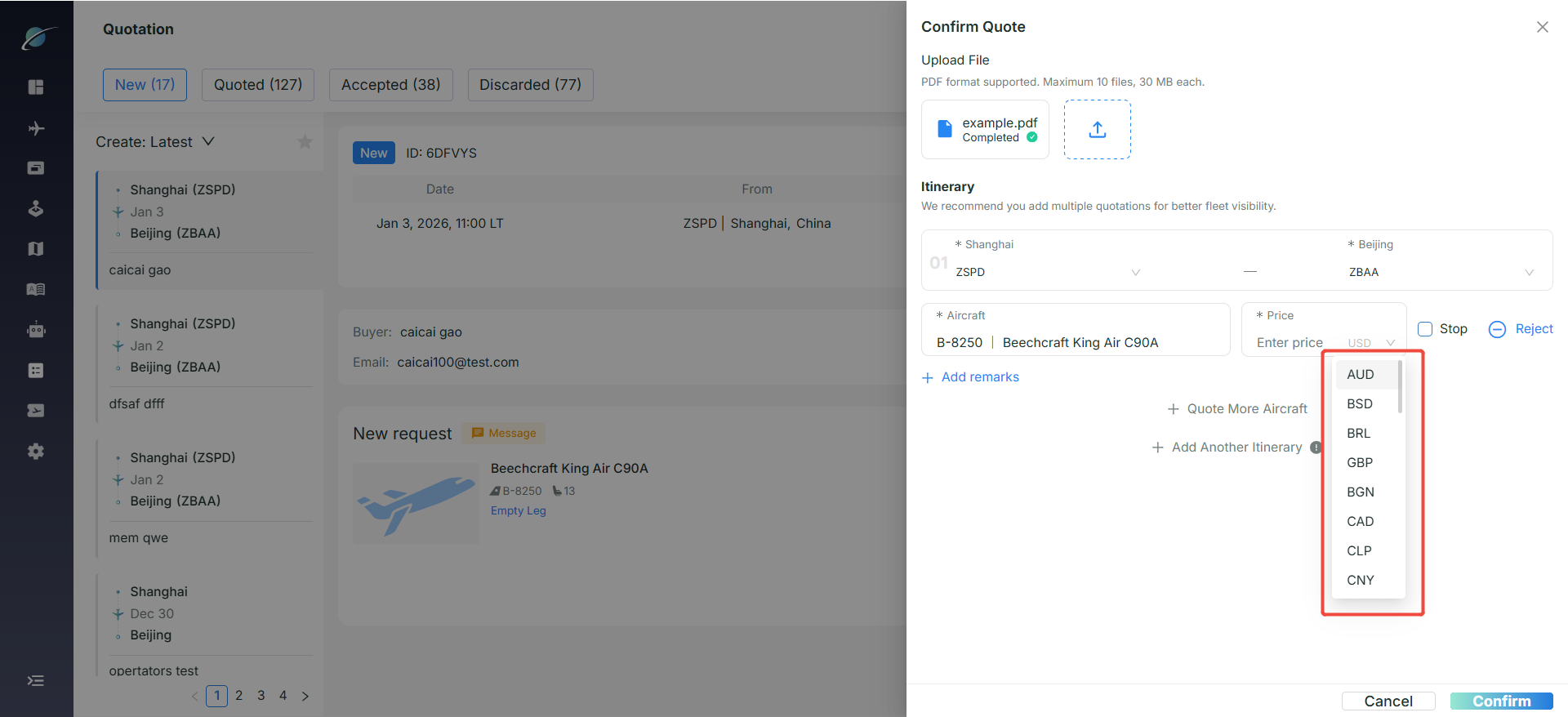
○ Price and Currency Settings: Enter the final quotation amount, with support for multiple currencies such as USD, AUD, and CNY.
○ Flight Status Selection
■ Stop: Select the “Stop” option to mark the flight as a stopover flight.
■ Reject: Click the “Reject” option to decline the quotation for a specific aircraft only, without affecting other options. Rejected quotations can be restored and re-submitted later.
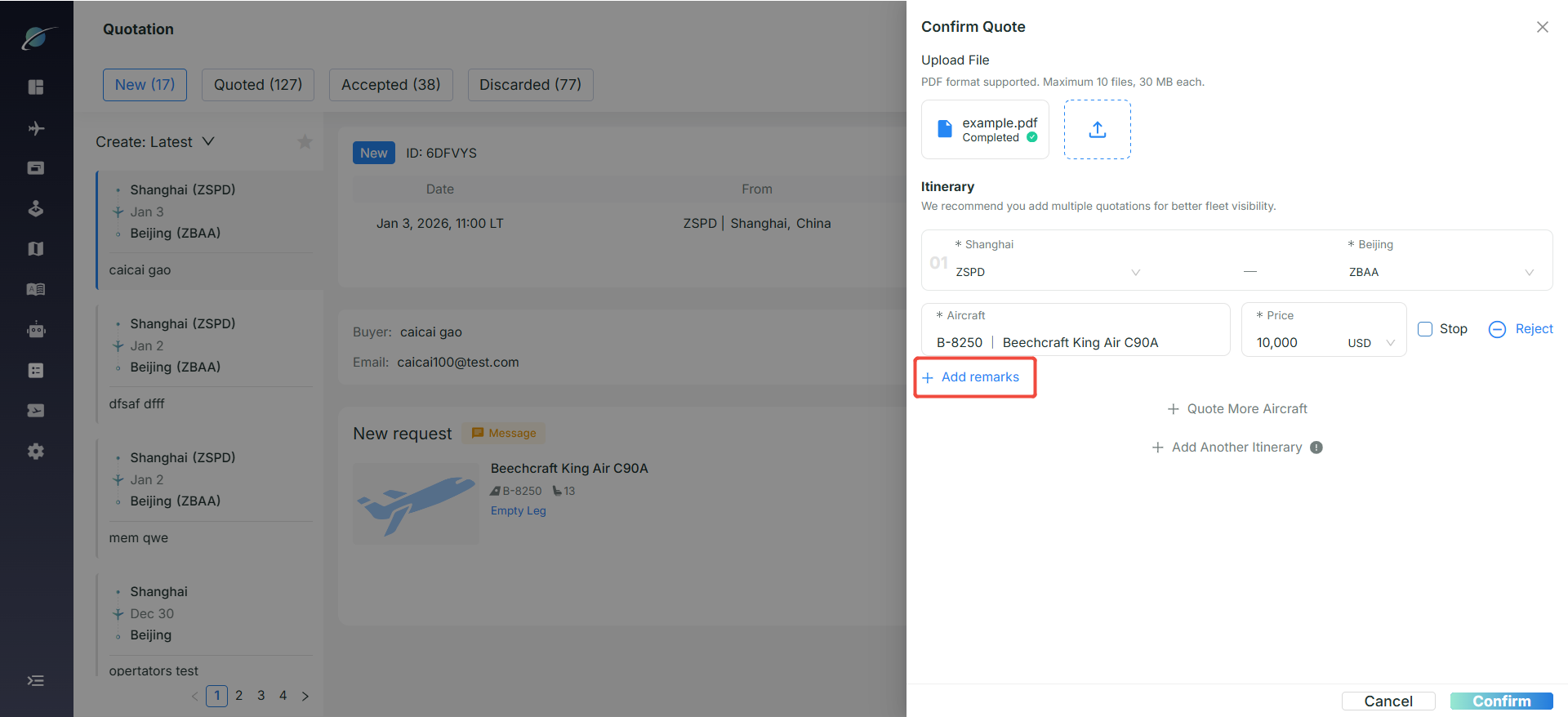
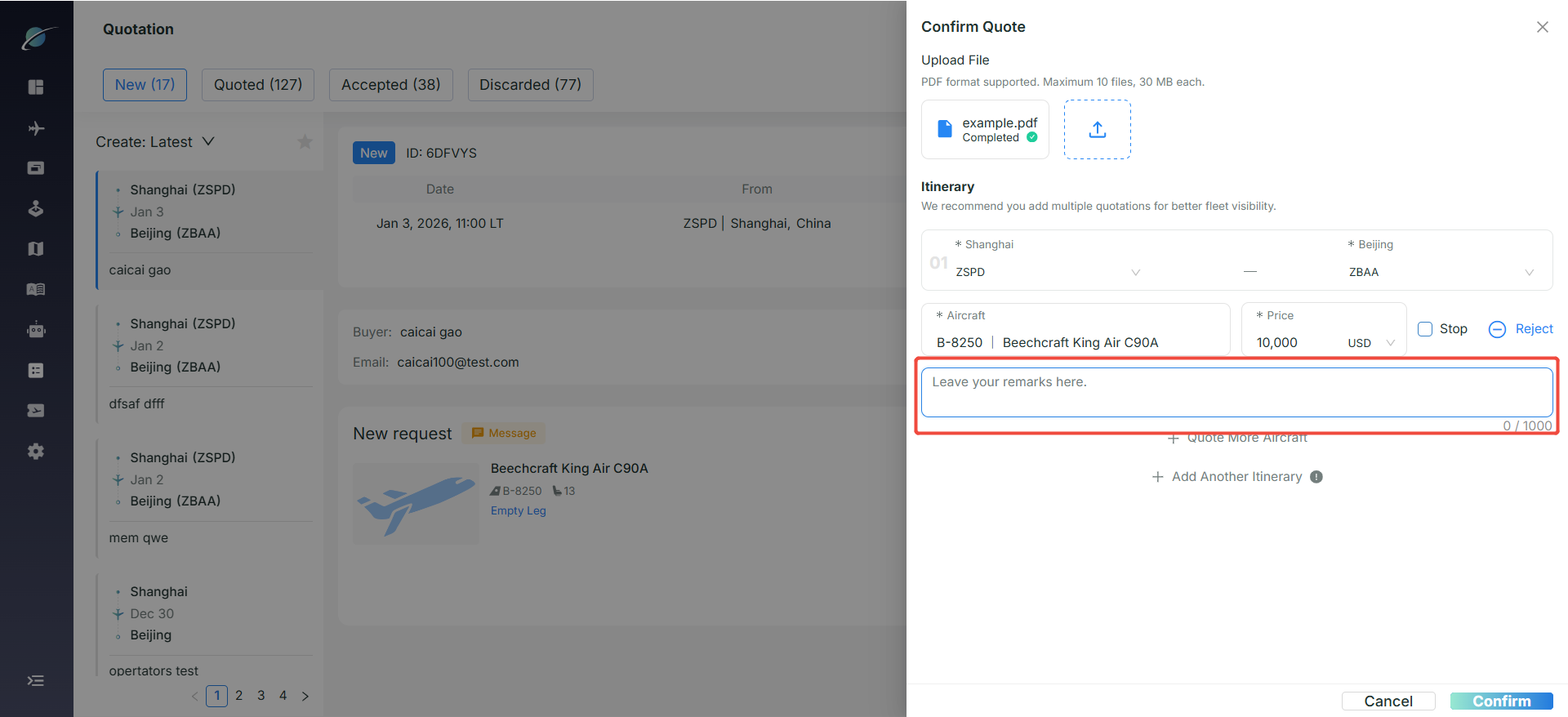
○ Add Remarks: Enter additional notes such as extra fee explanations.
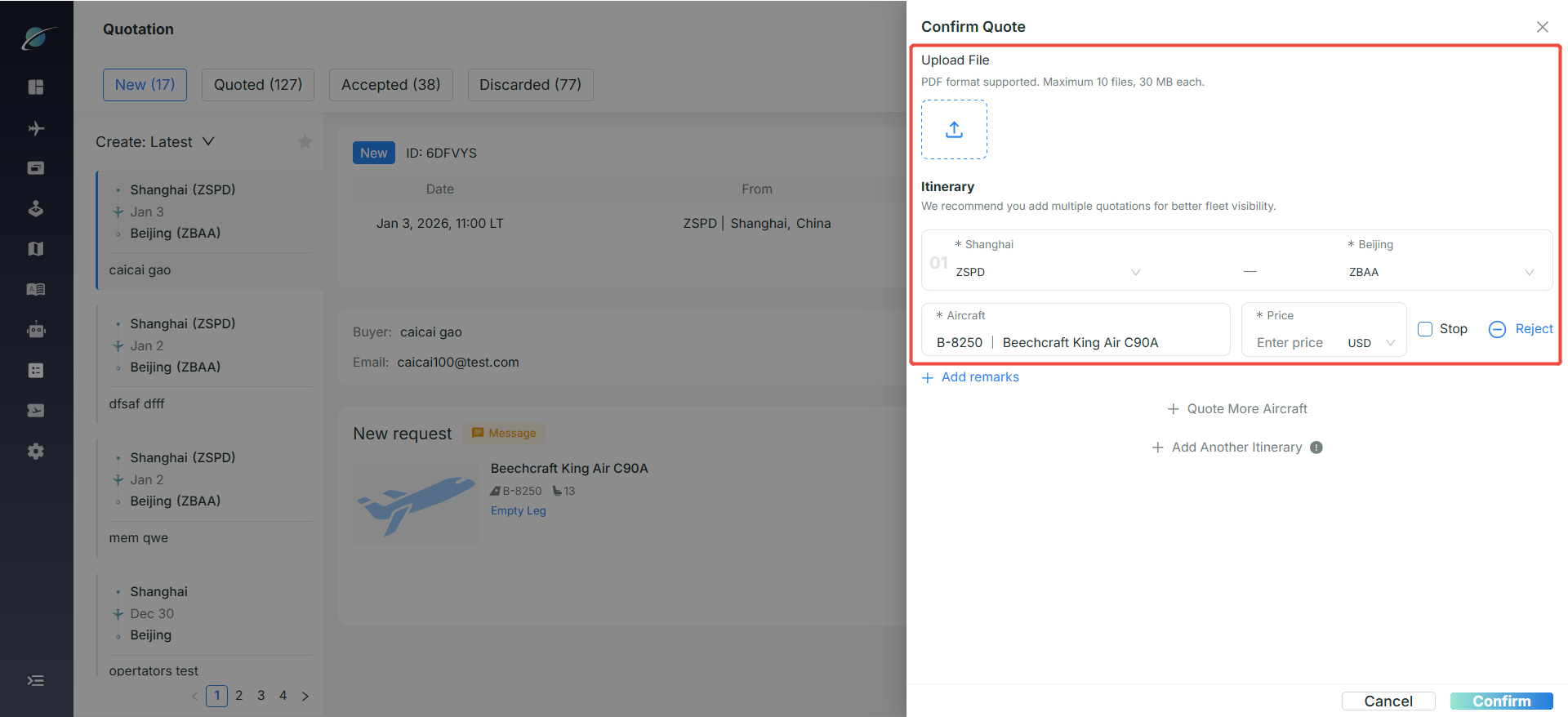
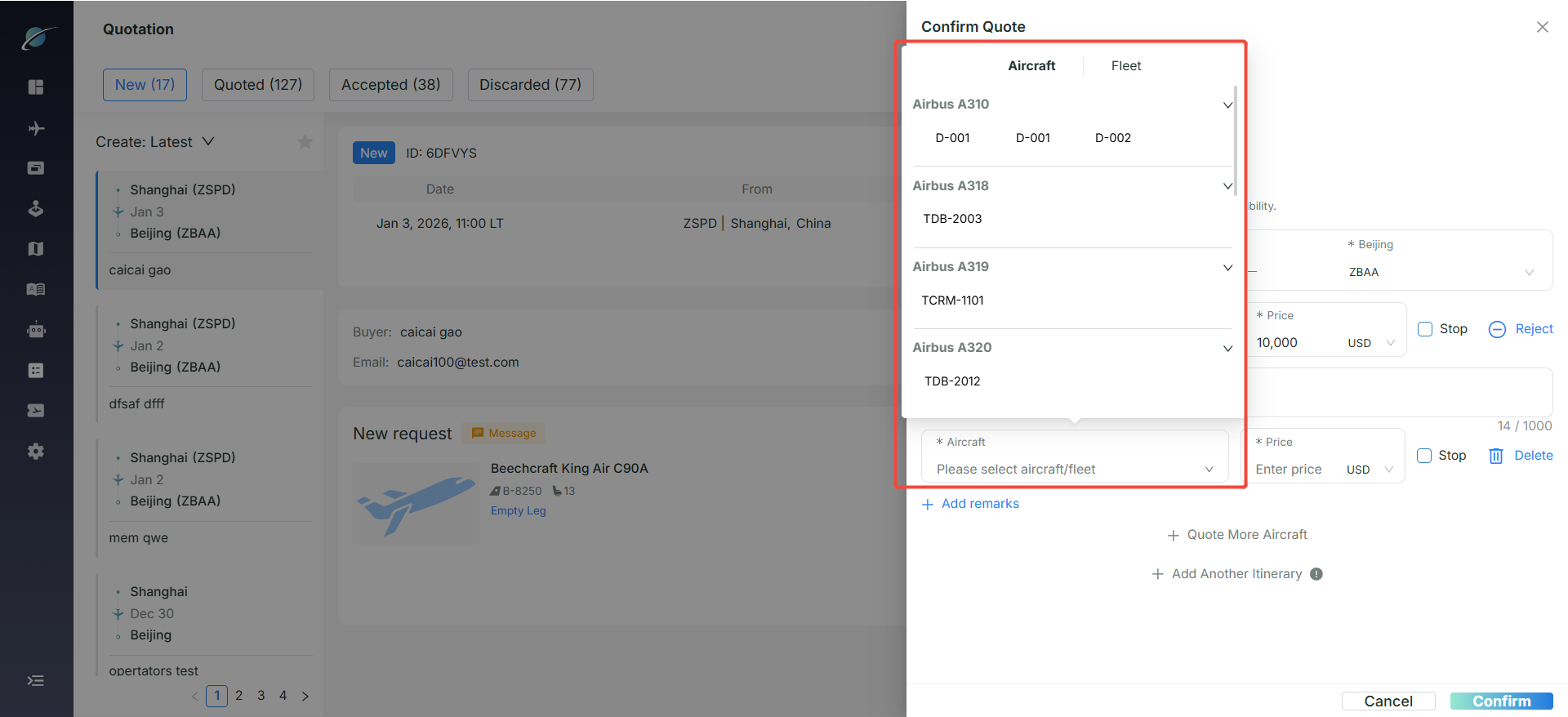
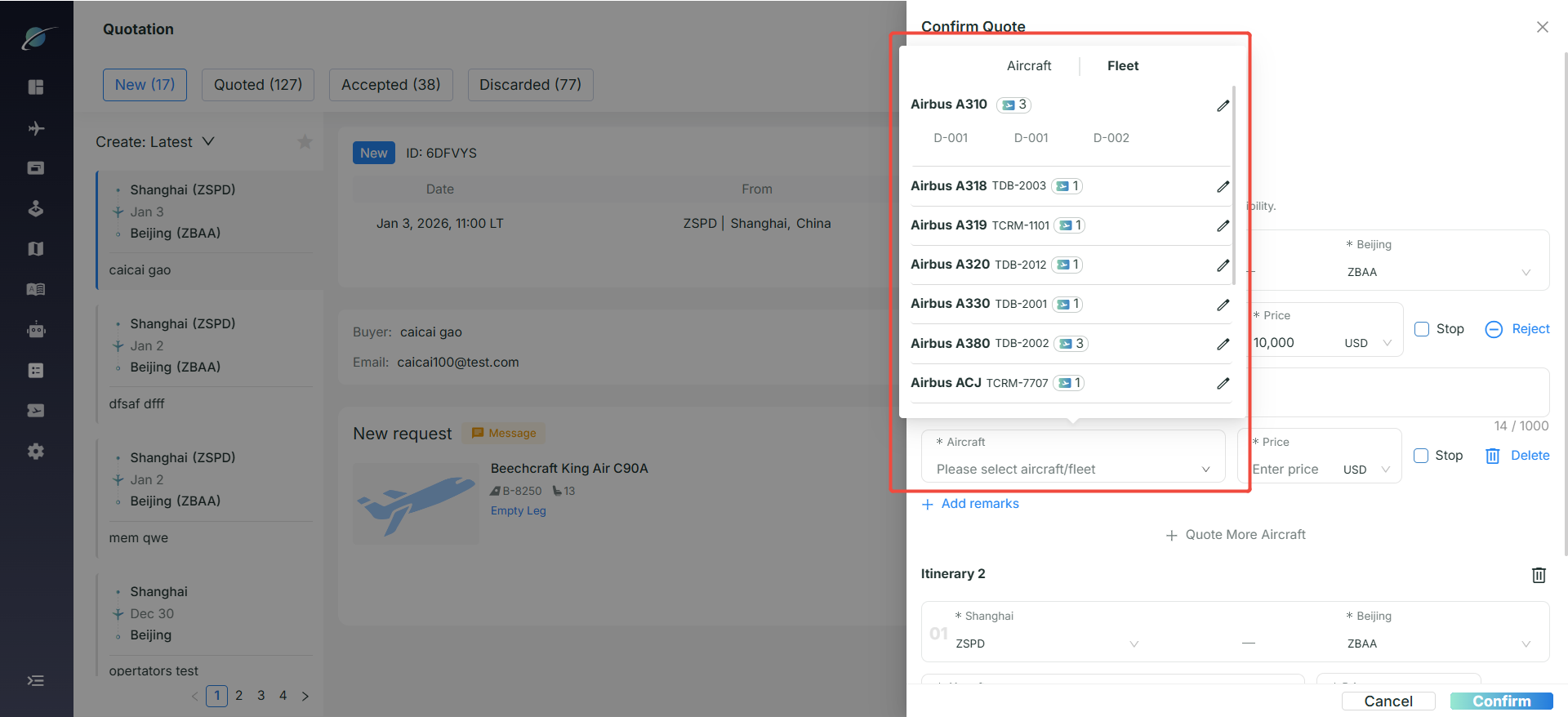
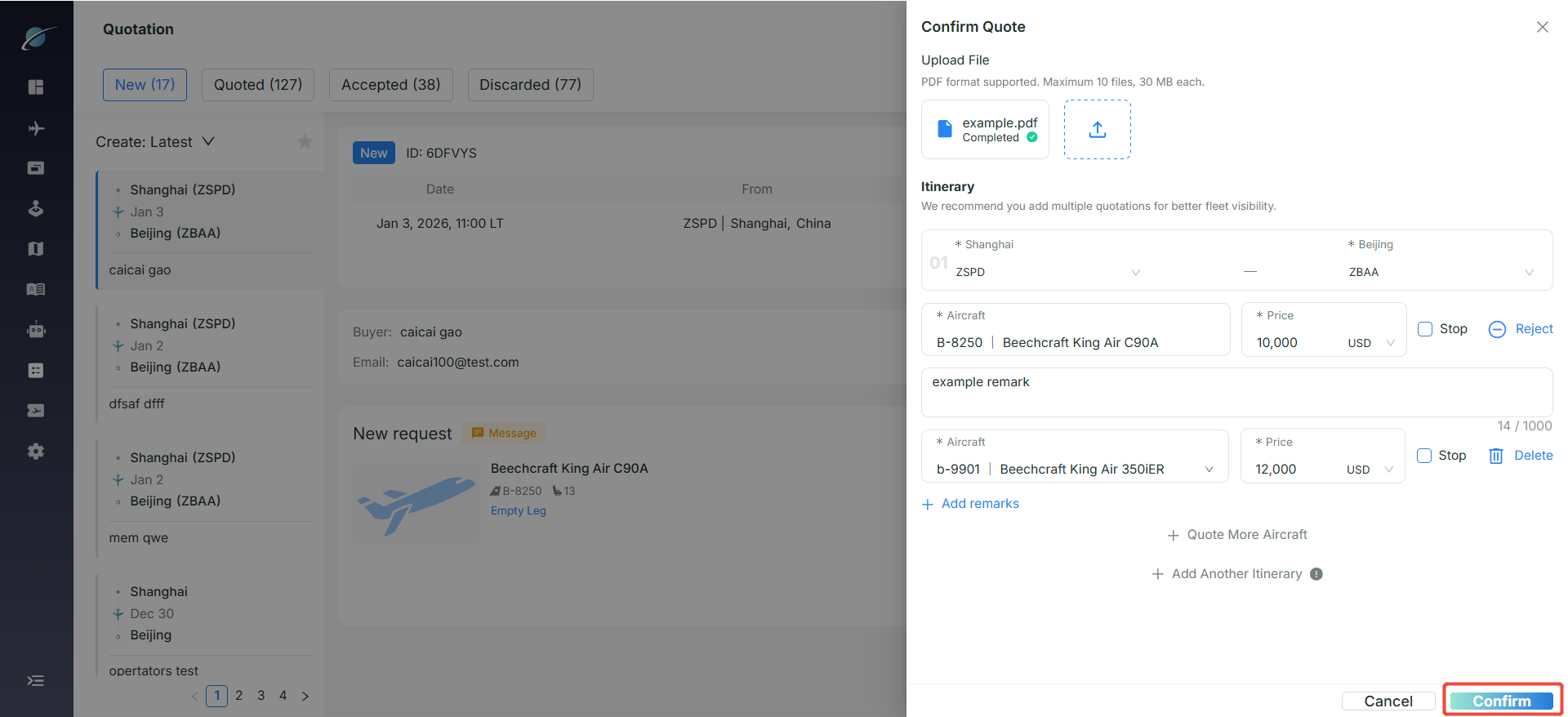
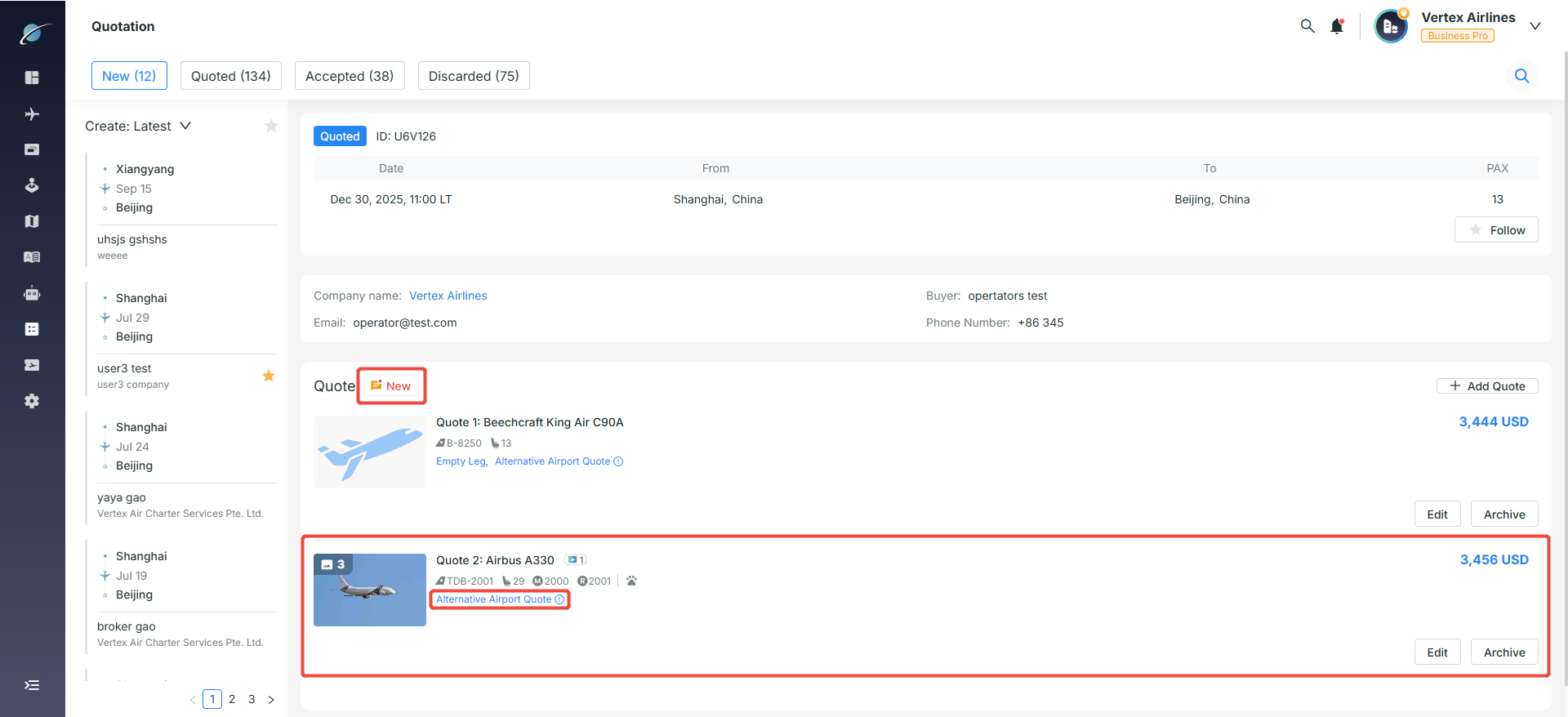
● Multiple Aircraft Quotation: Click “Quote More Aircraft” to add a second aircraft or multiple aircraft under the same itinerary. Each aircraft can have its own price and remarks entered separately.
○ Select by Aircraft Registration: Under the “Aircraft” tab, select a specific aircraft registration number directly. This is suitable when the operating aircraft is clearly identified for the quotation.
○ Select by Fleet: Switch to the “Fleet” tab to select an available aircraft type for the mission. A specific aircraft registration number can also be chosen as a reference display for that aircraft type.
Please note that, in this case, the selected registration number is for reference only; the actual operating aircraft is subject to the operator’s fleet availability, and the broker should confirm it with the operator.
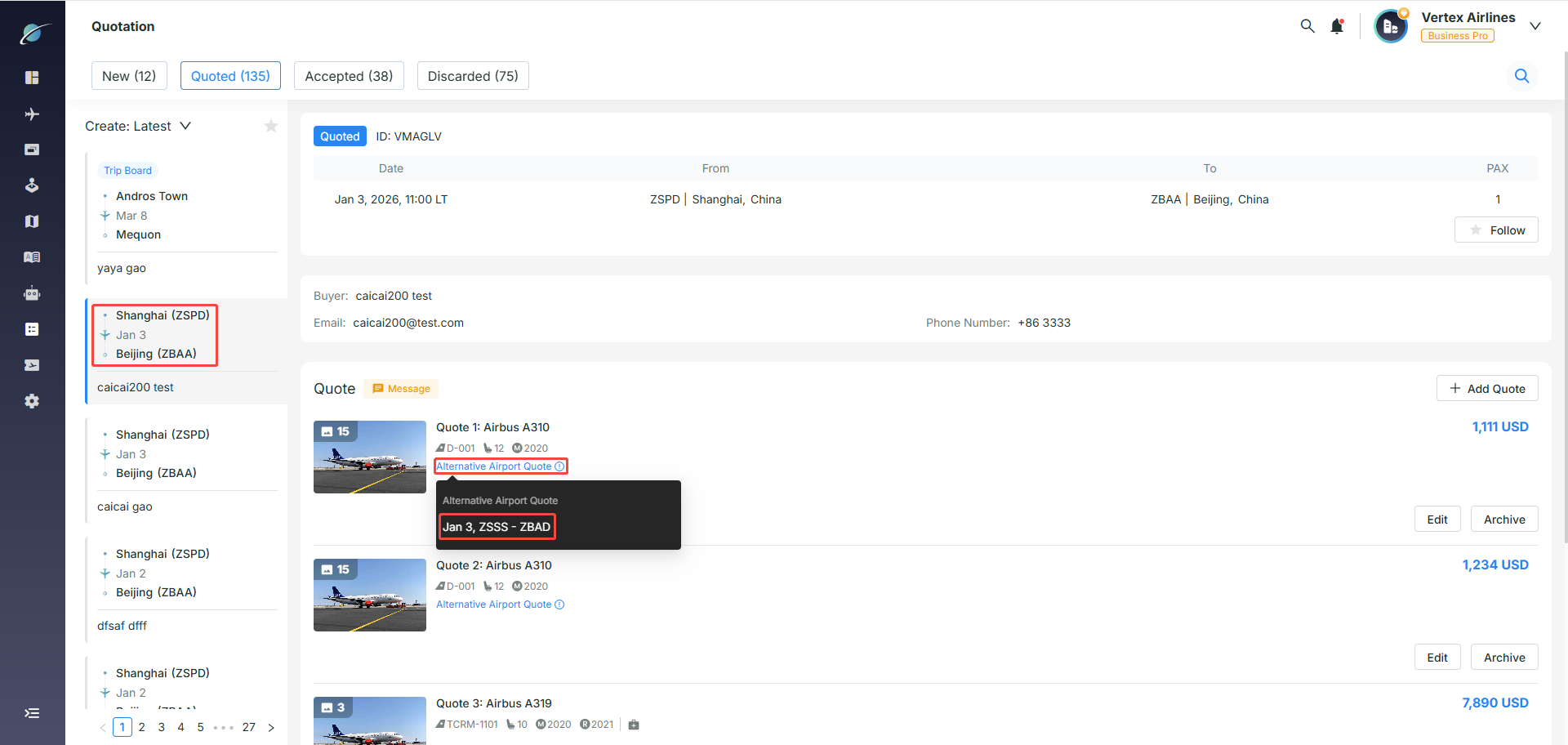
● Alternative Airport Quotation: When the quoted airport is an alternative airport rather than the originally planned airport, an “Alternative Airport Quote” label will appear in the quotation list. Hover over the label to view the actual departure and arrival airports for that quotation.
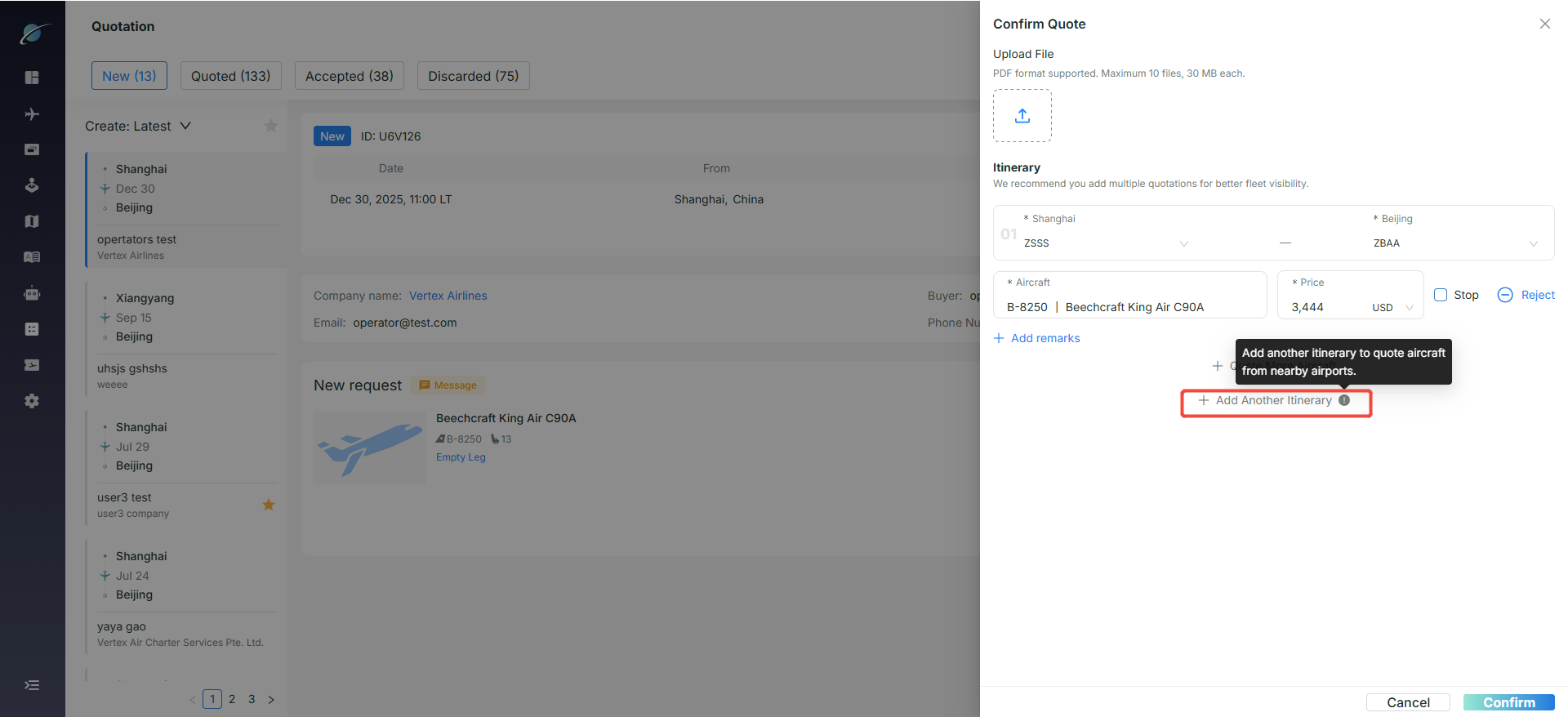
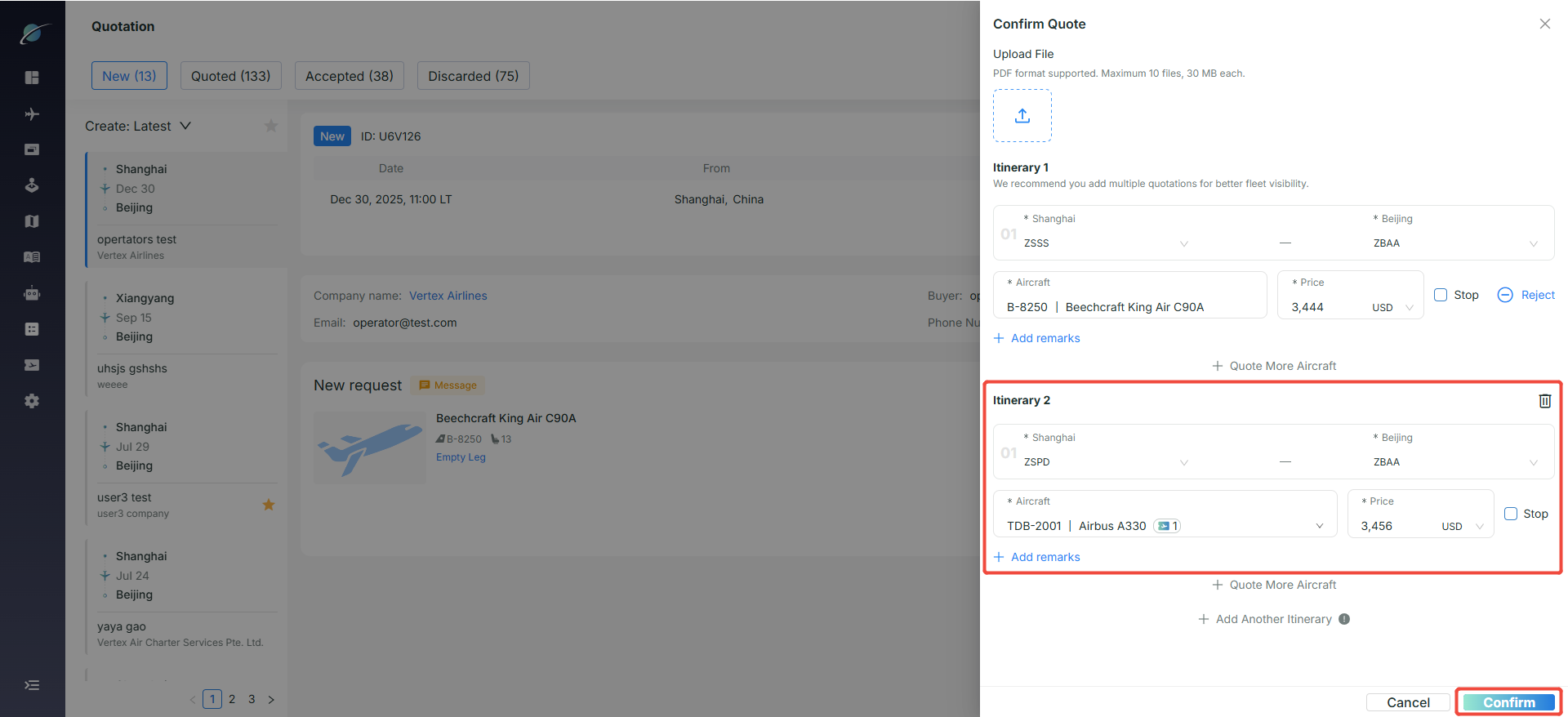
● Multiple Itinerary Quotation: Click “Add Another Itinerary” to add another quotation option. This supports different airport combinations and different aircraft configurations, with separate pricing and remarks for each option.
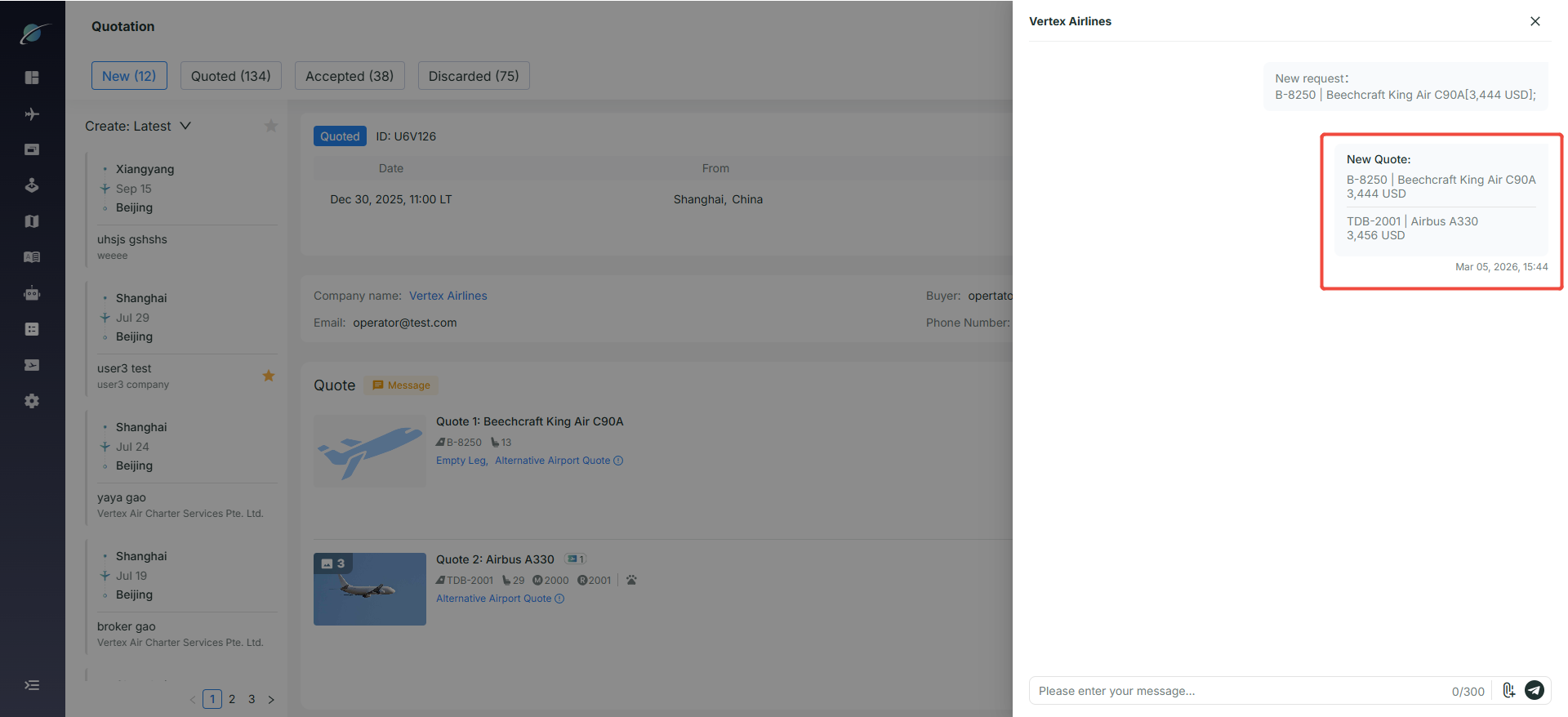
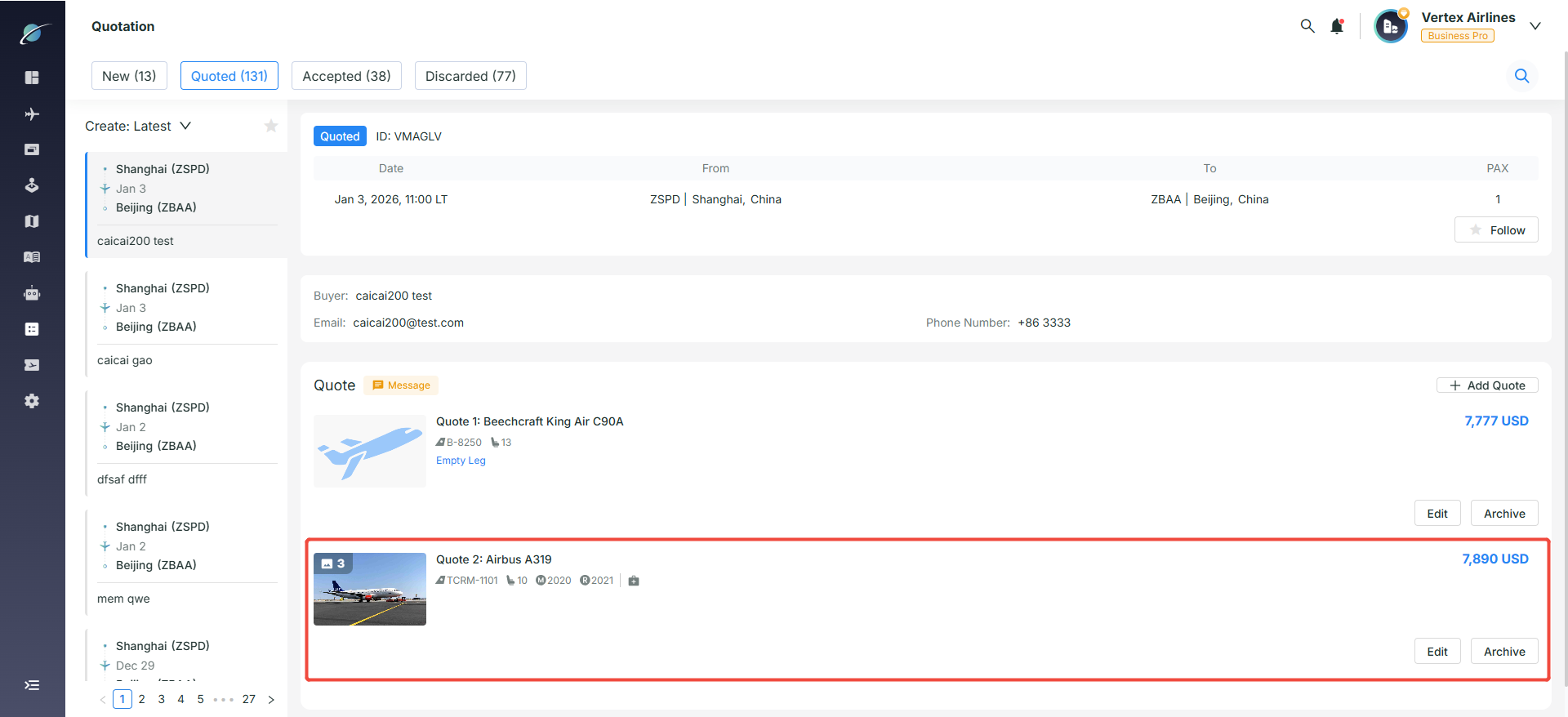
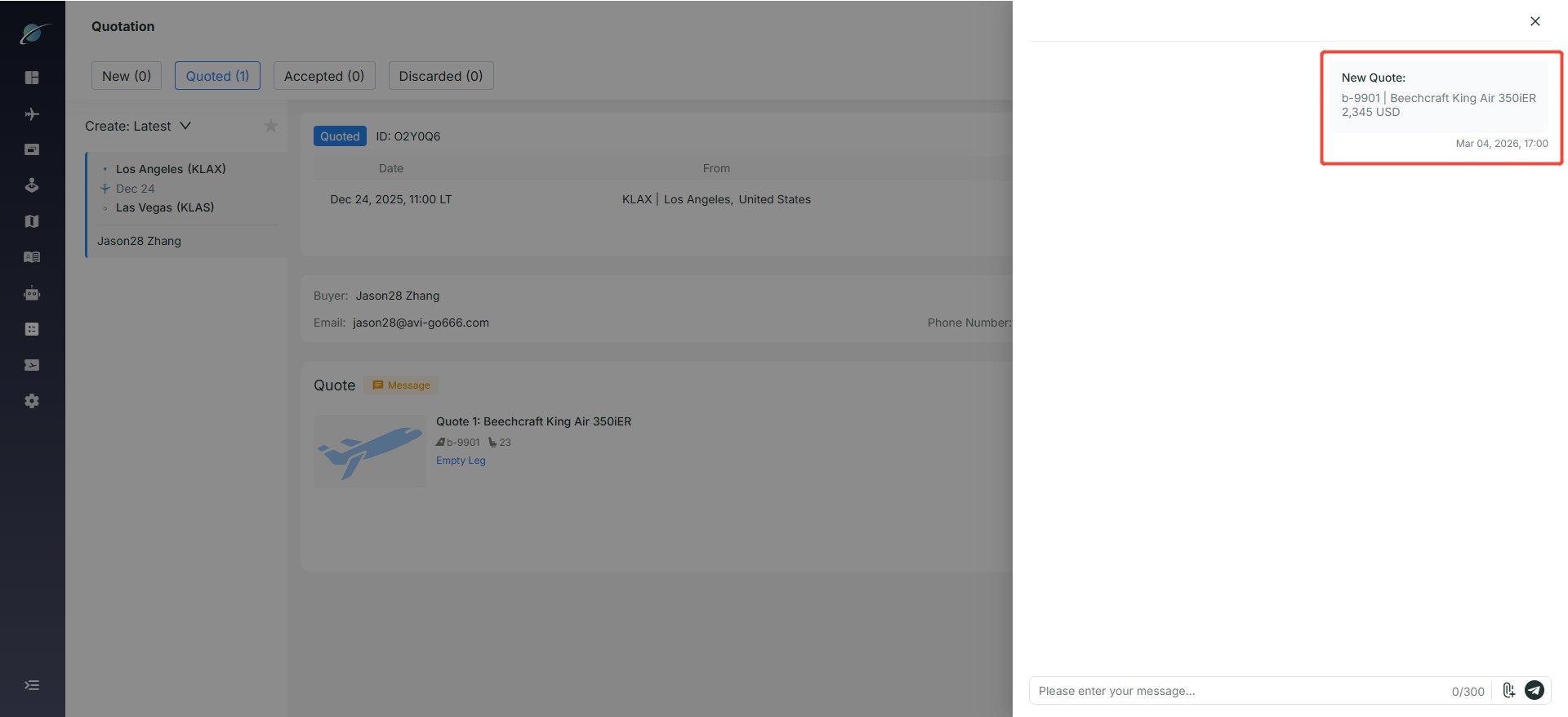
● Quotation Submission: After completing all quotation details, click the “Confirm” button at the bottom to submit the quotation. The quotation will then sync to the order details section and be sent to the customer via IM.
6. Editing and Managing Quotations
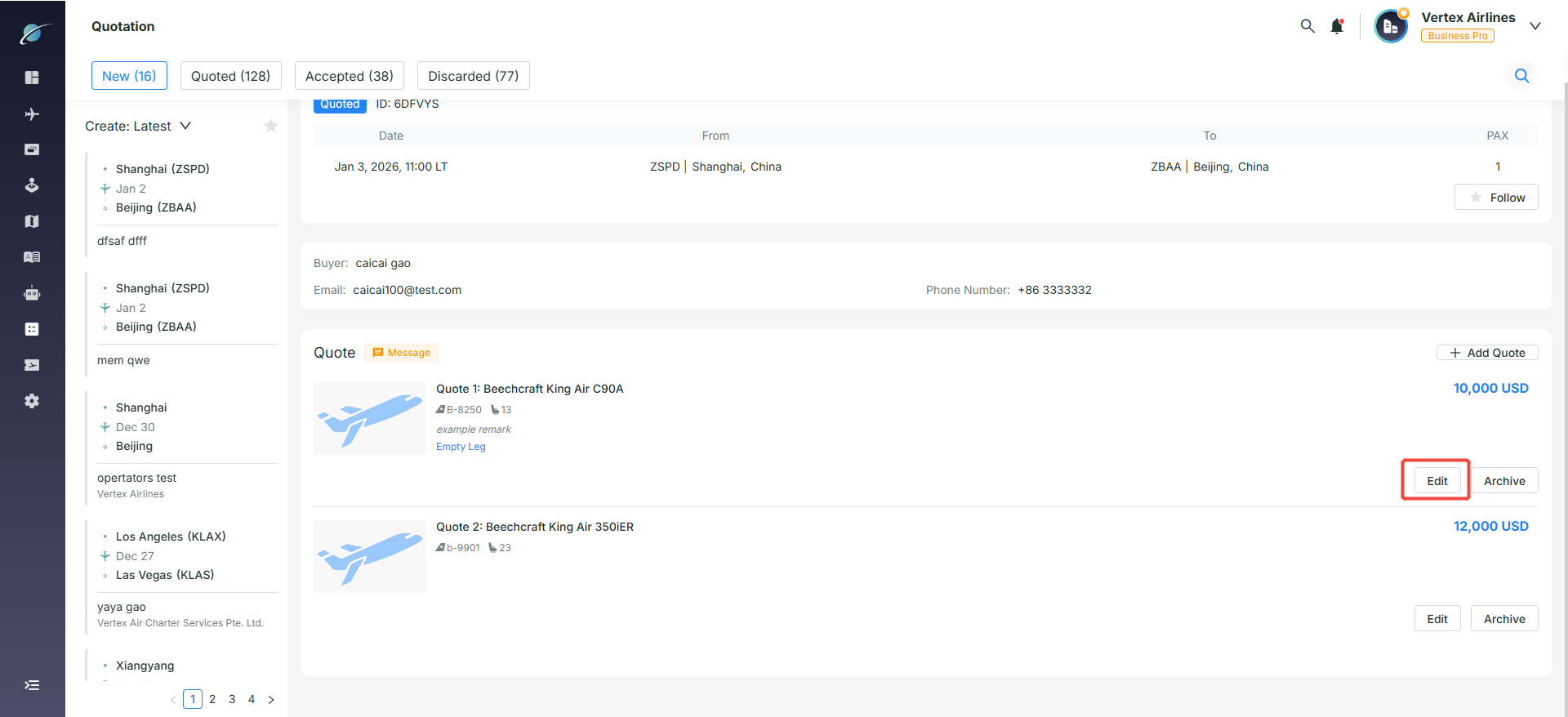
● Quotation Editing: Click the “Edit” button on the right side of an existing quotation option to enter the editing page.
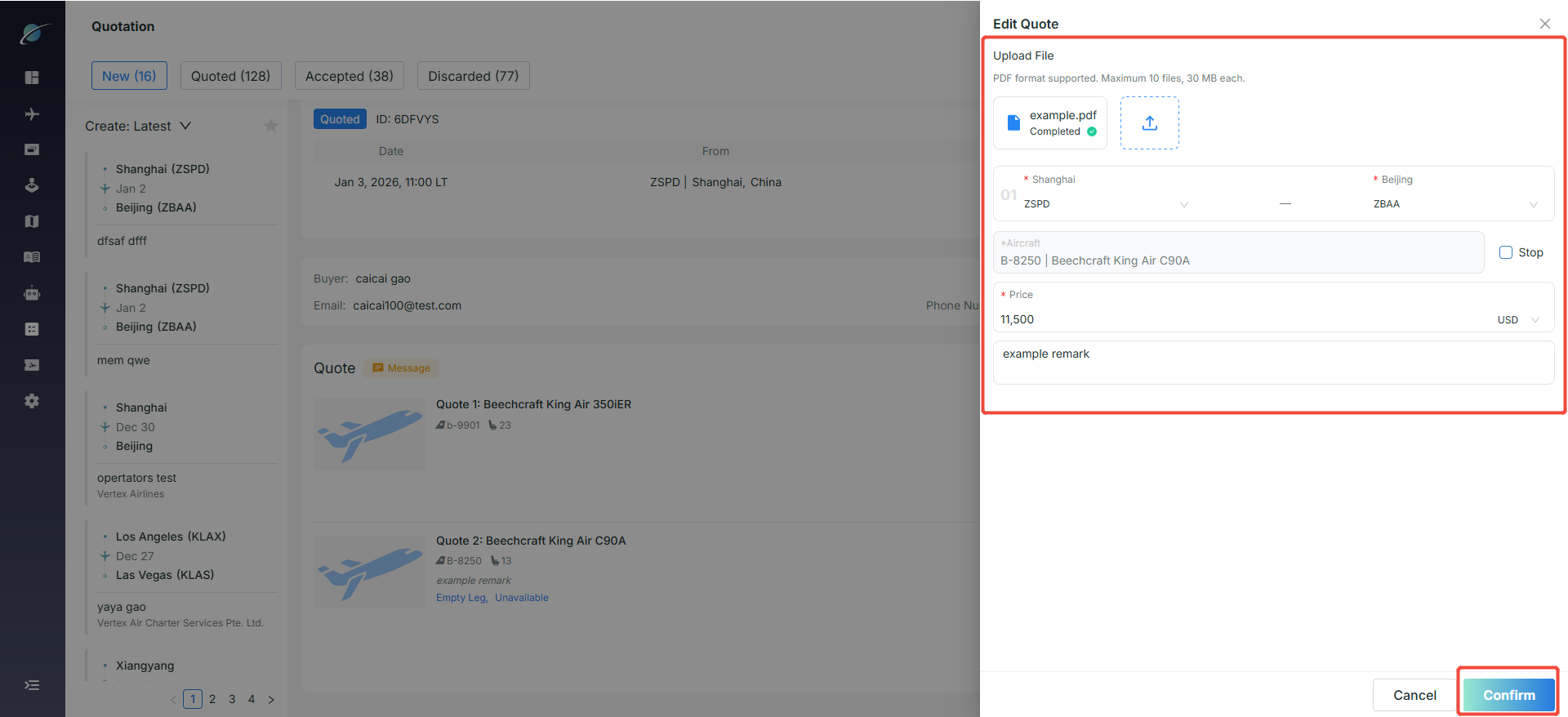
○ Editable Content: You can upload or replace PDF attachments, adjust airports within the same city only, and update the price and remarks. The aircraft or fleet selection cannot be changed.
○ Submit Changes: After making updates, click the “Confirm” button to save them. The revised quotation information will be updated to the order details page in real time.
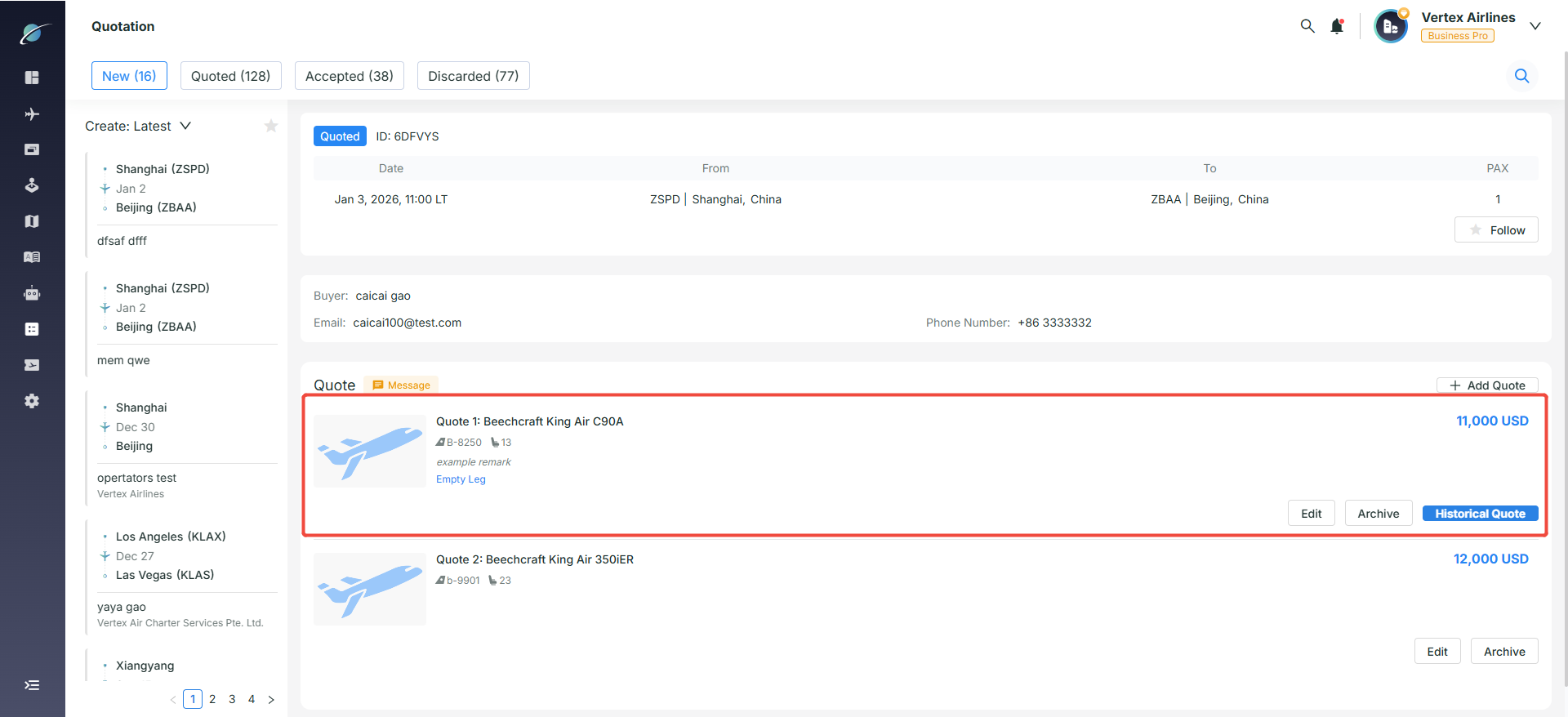
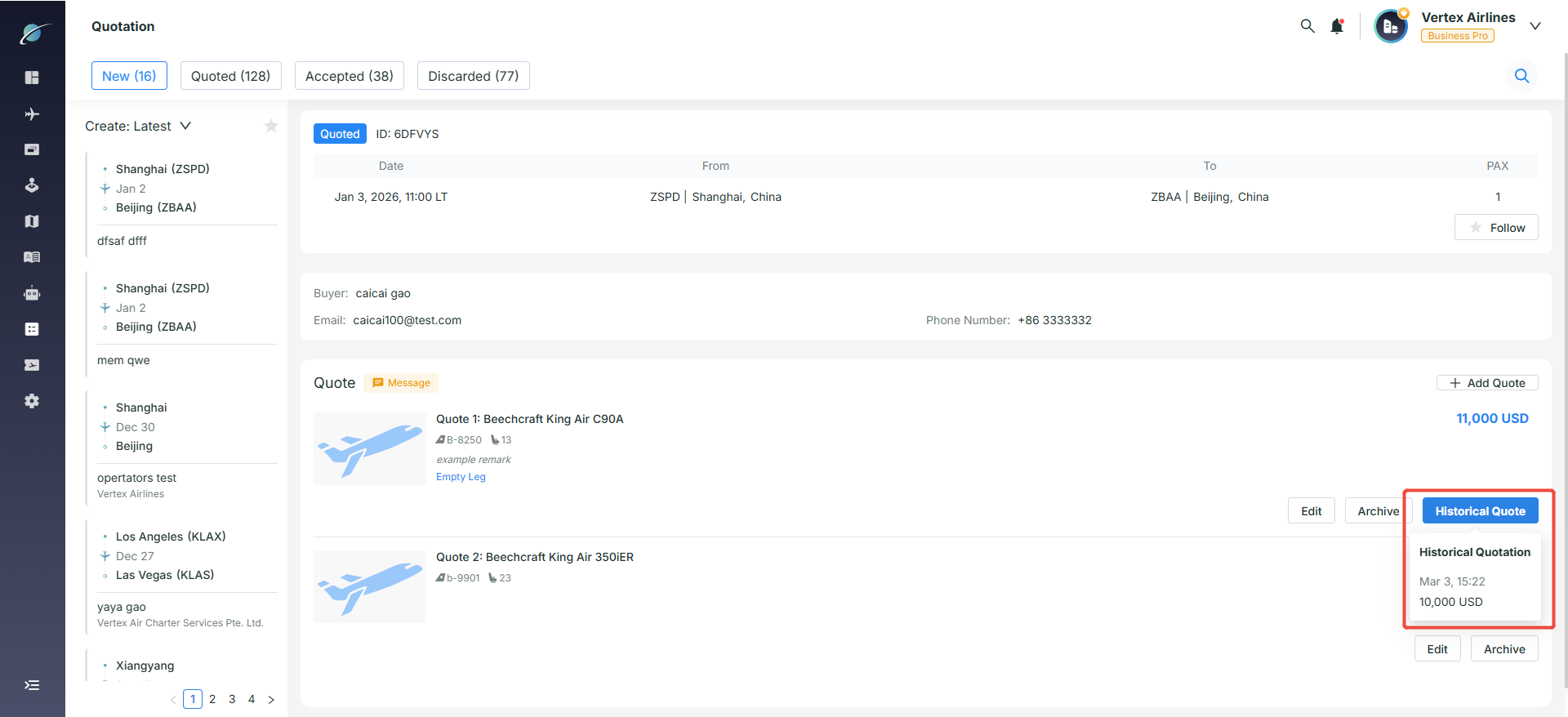
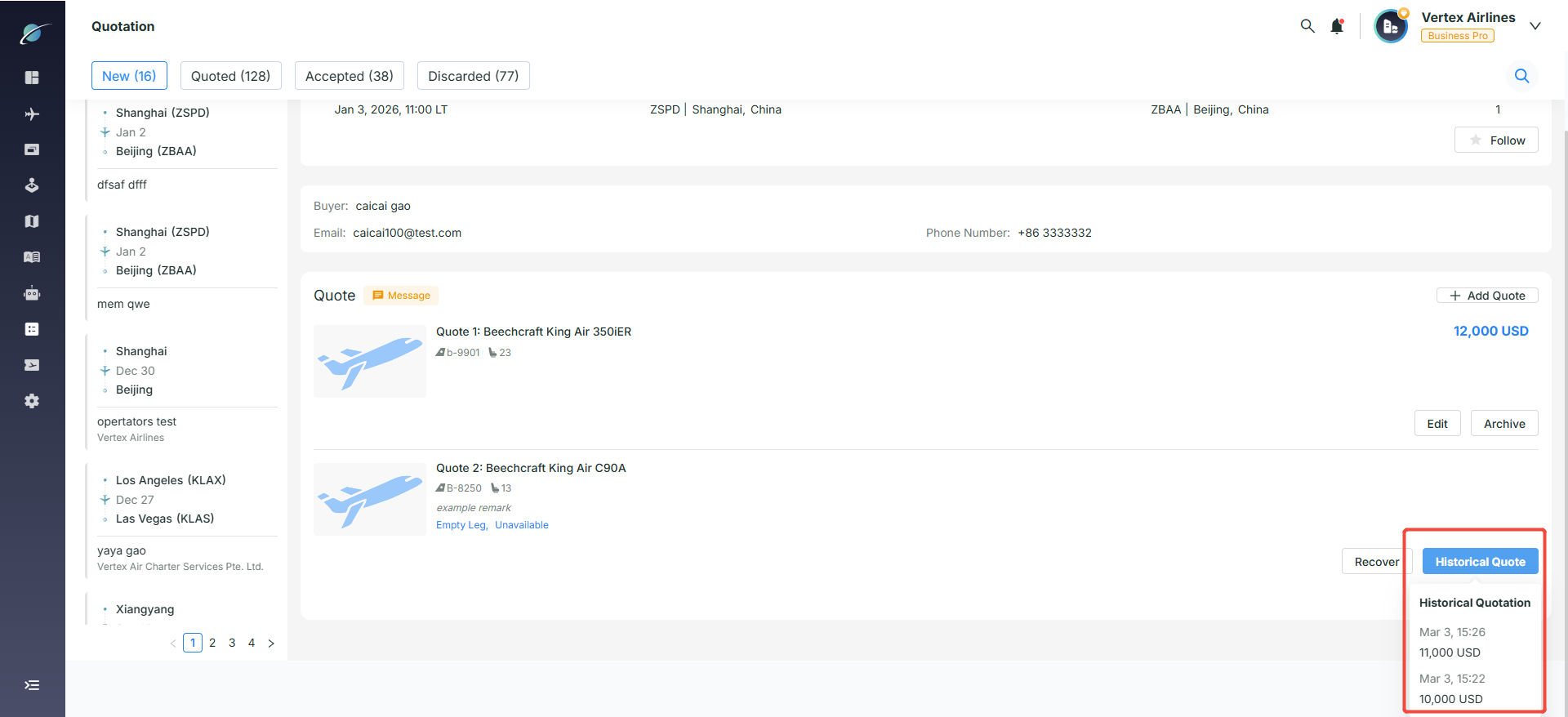
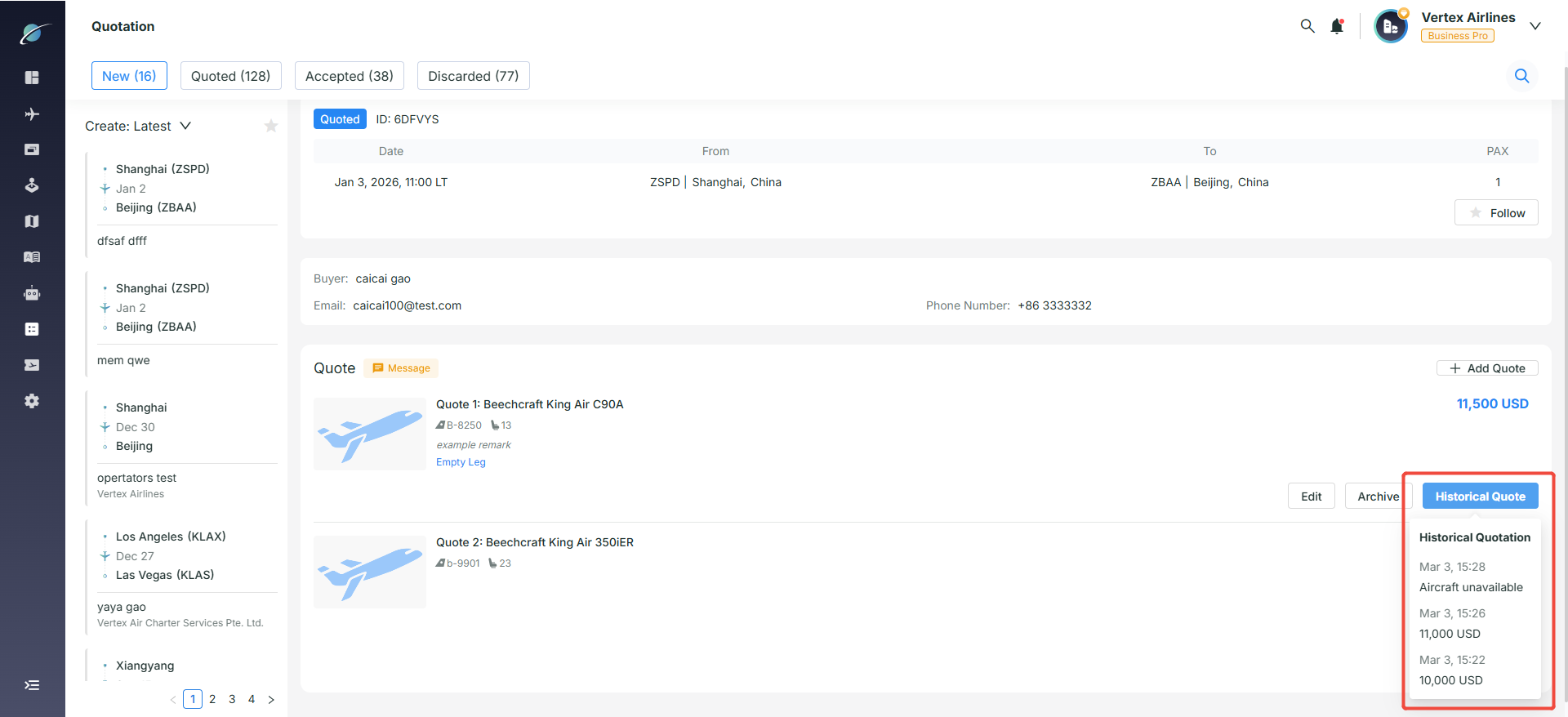
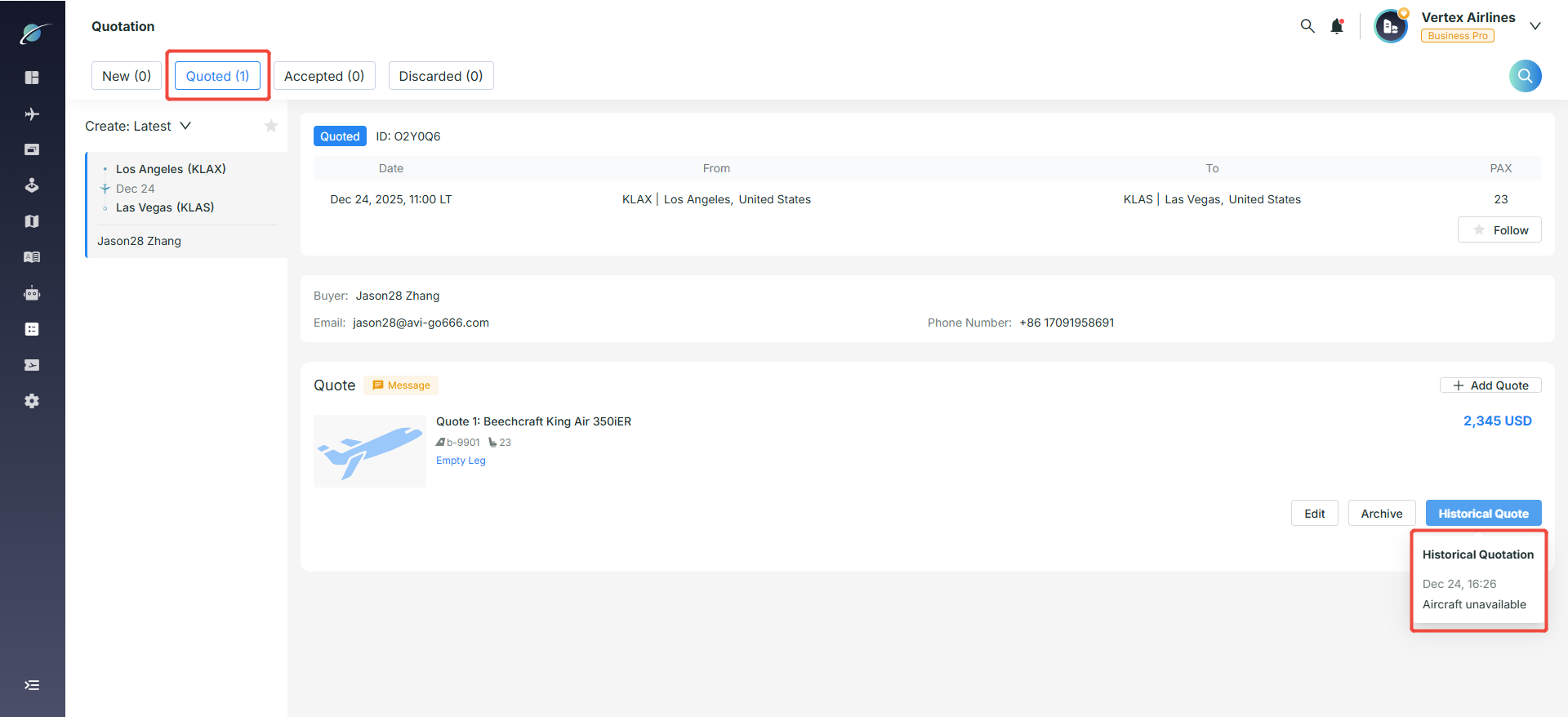
● View Quotation History: Click the “Historical Quote” button to display the record of each quotation revision, including the time and price, making it easier to track and review the quotation adjustment history internally.
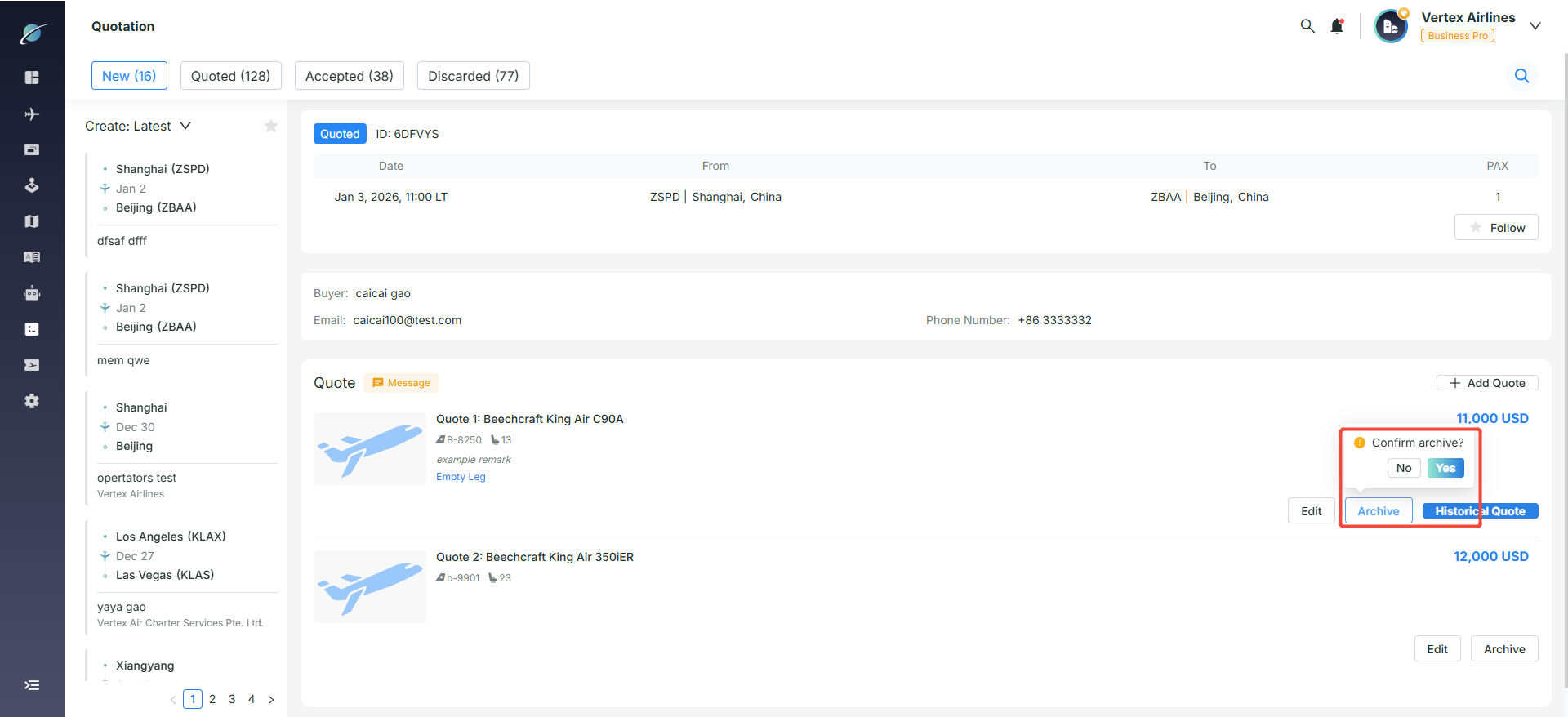
● Quotation Archiving and Recovery
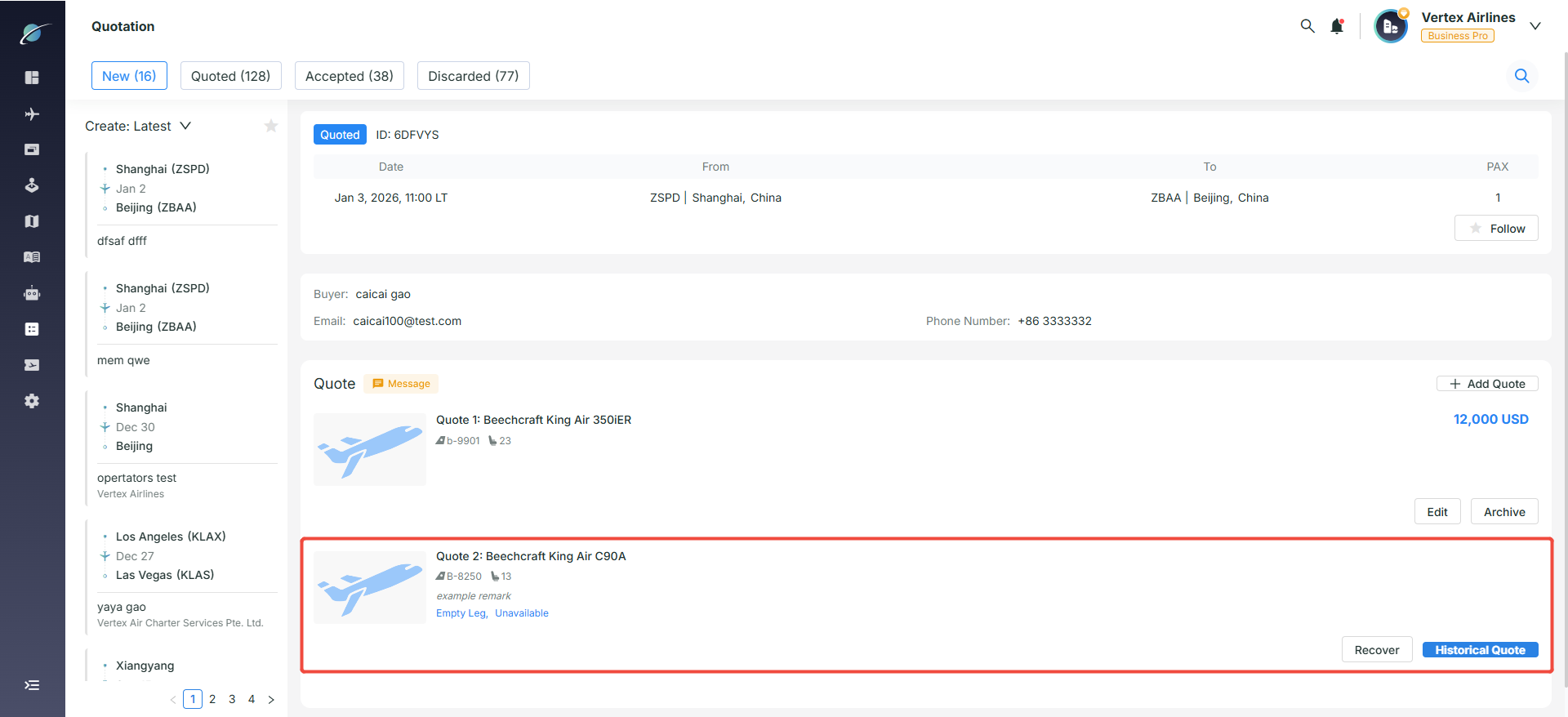
○ Archive a Quotation: Click “Archive” and then “Yes” to complete the archiving process. Once archived, the quotation will be marked as “Unavailable” and will no longer be shown as an active quotation.
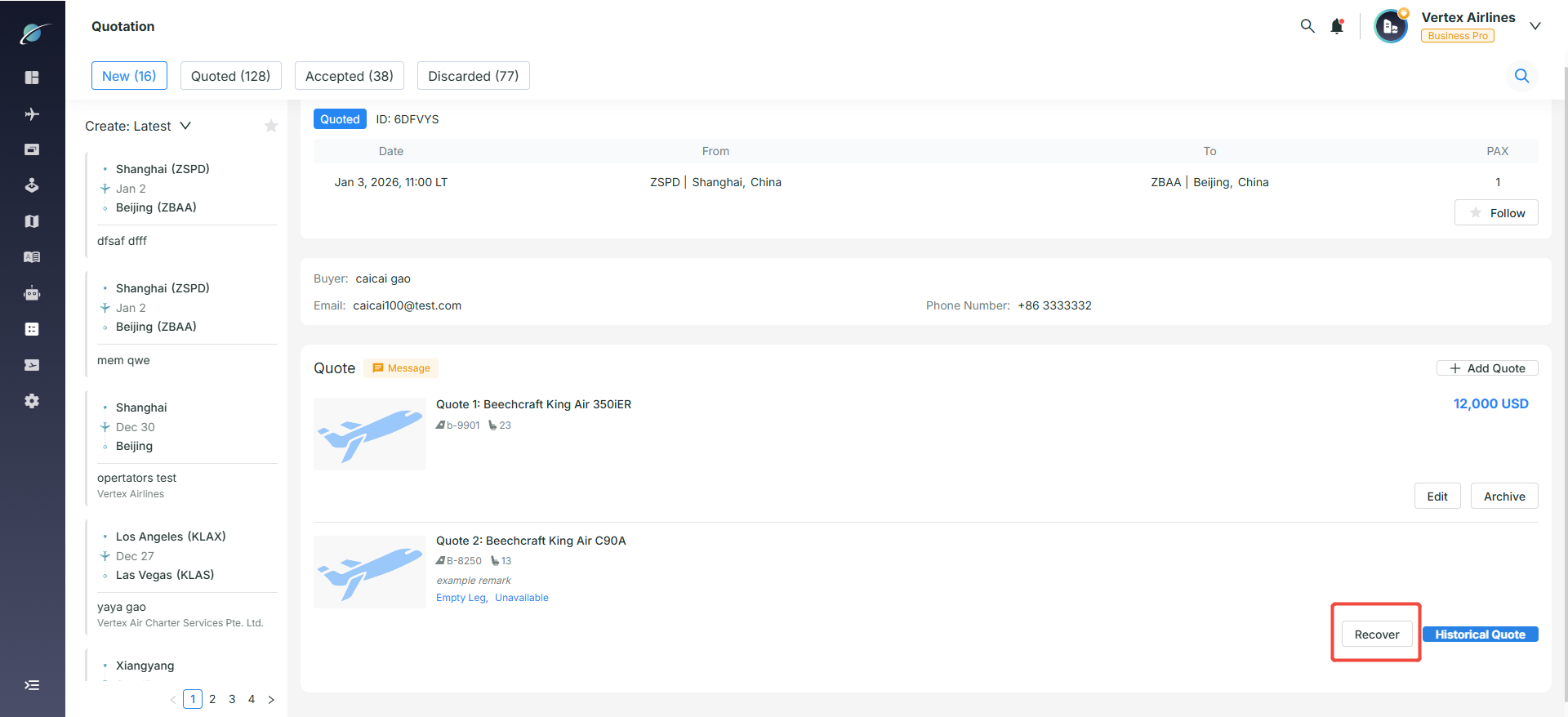
○ Recover an Archived Quotation: Click “Recover” and update the quotation details to restore the archived quotation as available again.
7. Add New Quotations Later
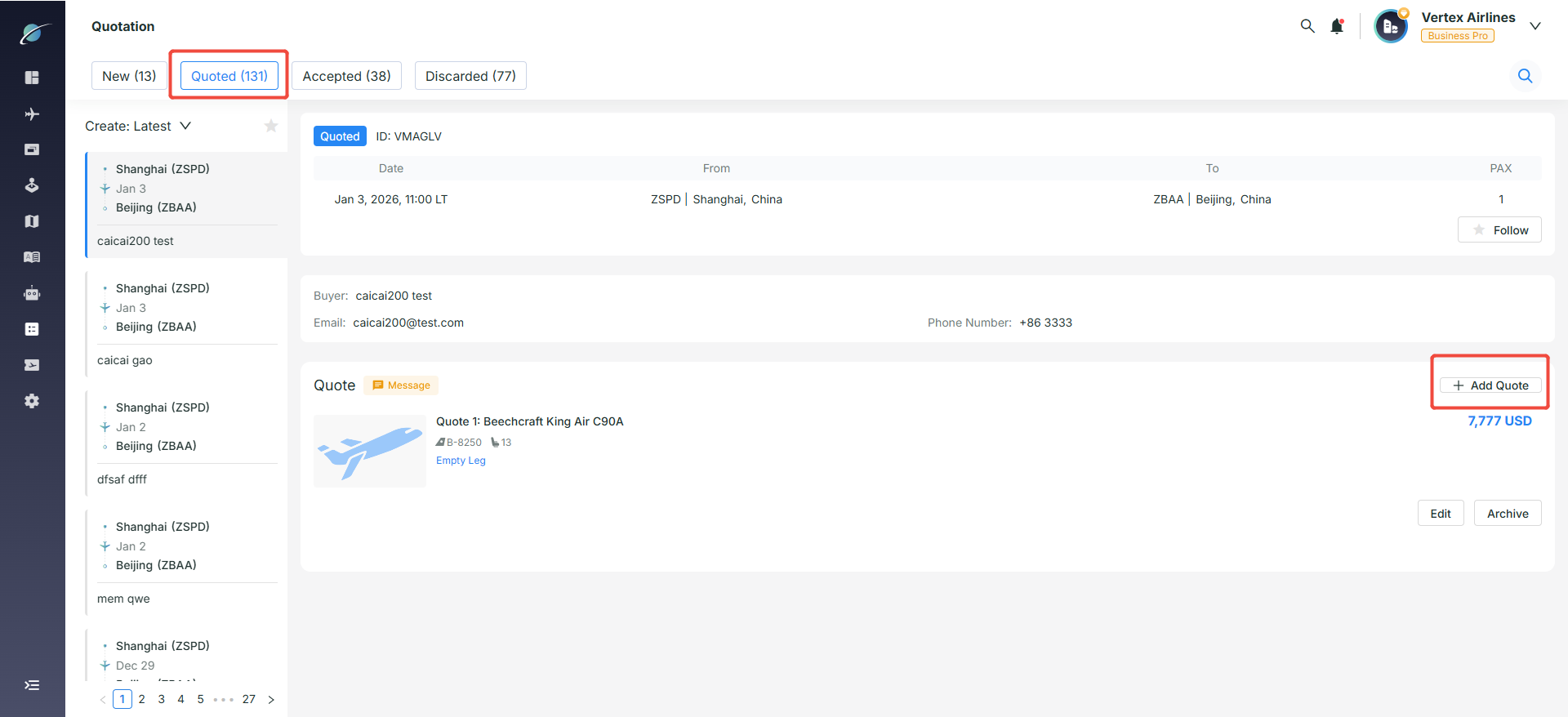
● Switch to the "Quoted / Accepted / Discarded" tabs to view processed inquiries.
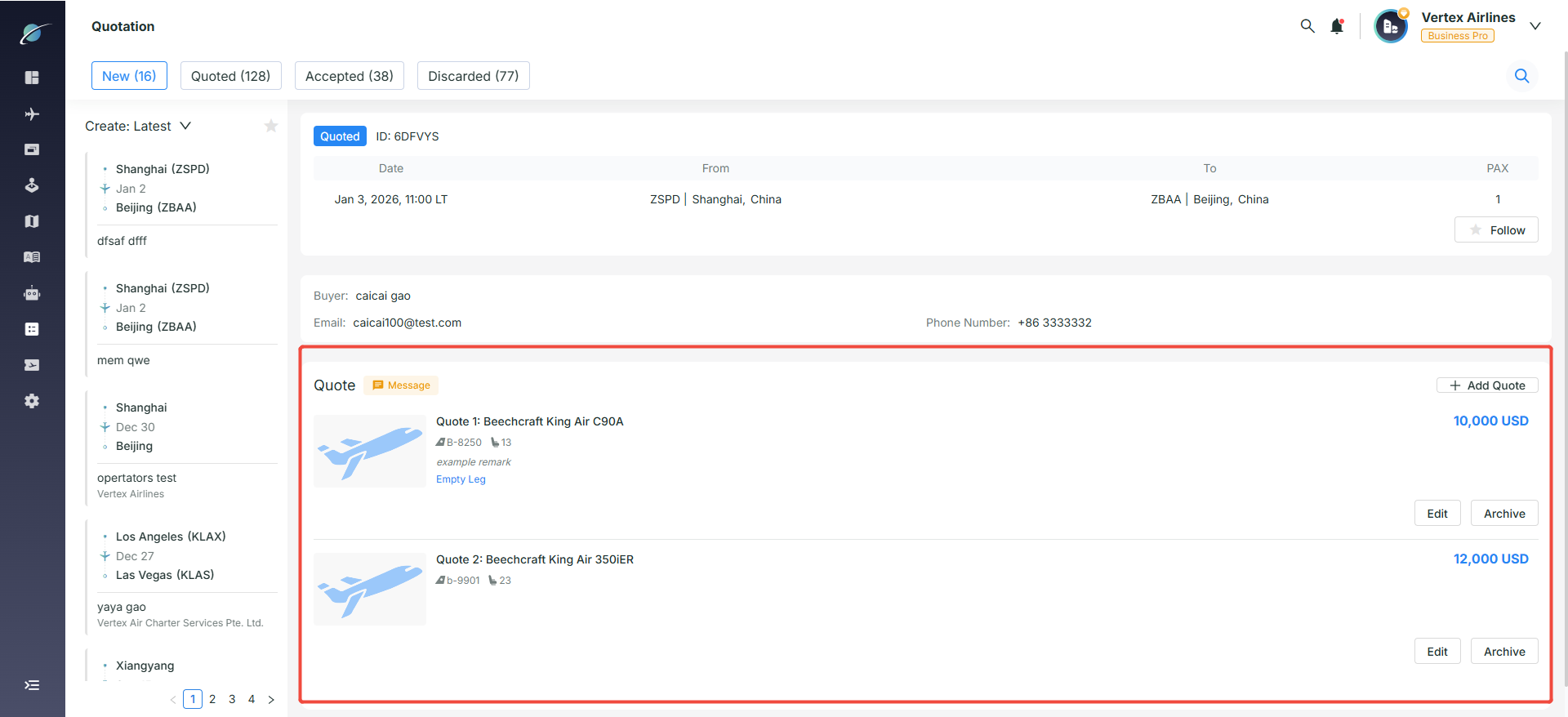
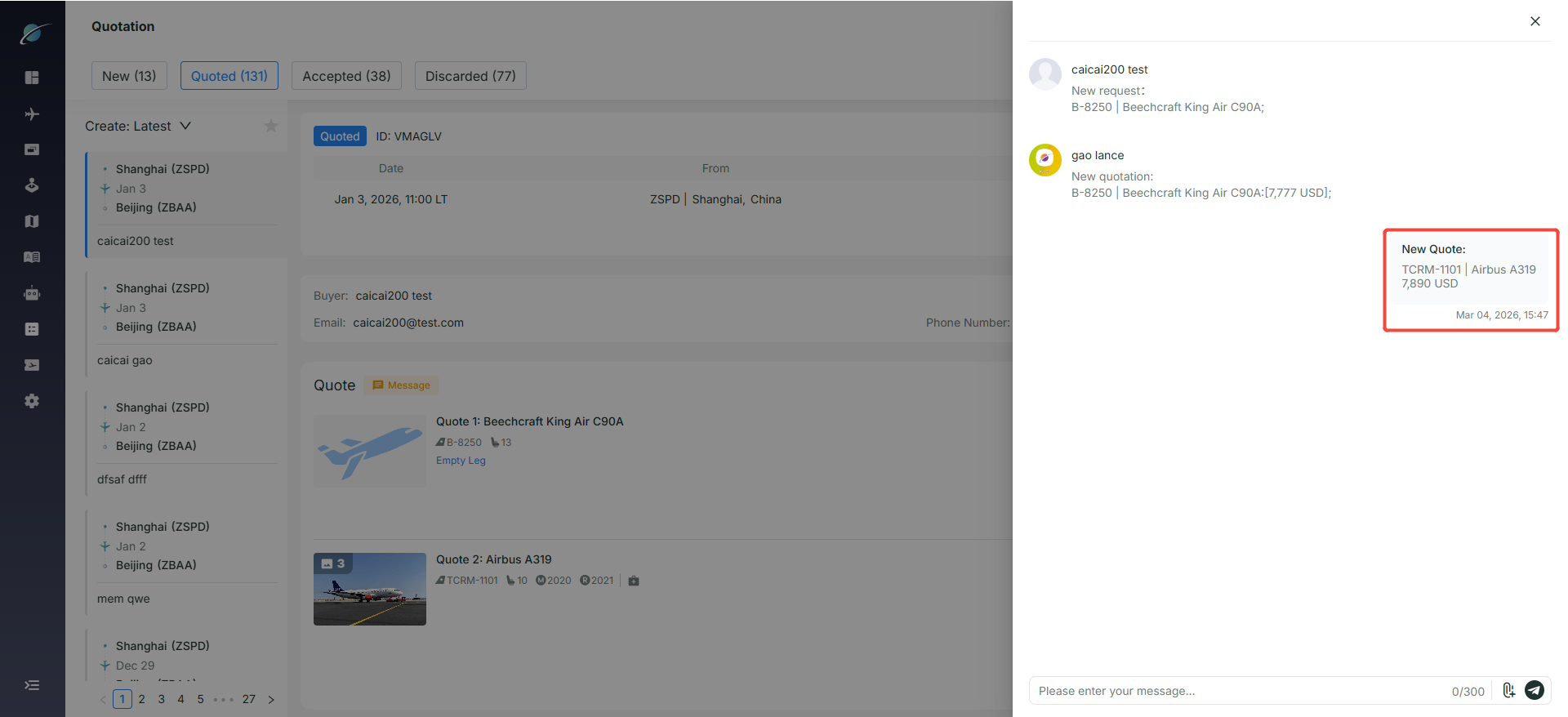
● On the right-side order detail panel, click "+ Add Quote", complete the quotation form, and click "Confirm". The new quotation is synced to the order detail page and the customer is notified.
8. Managing Accepted Quotations
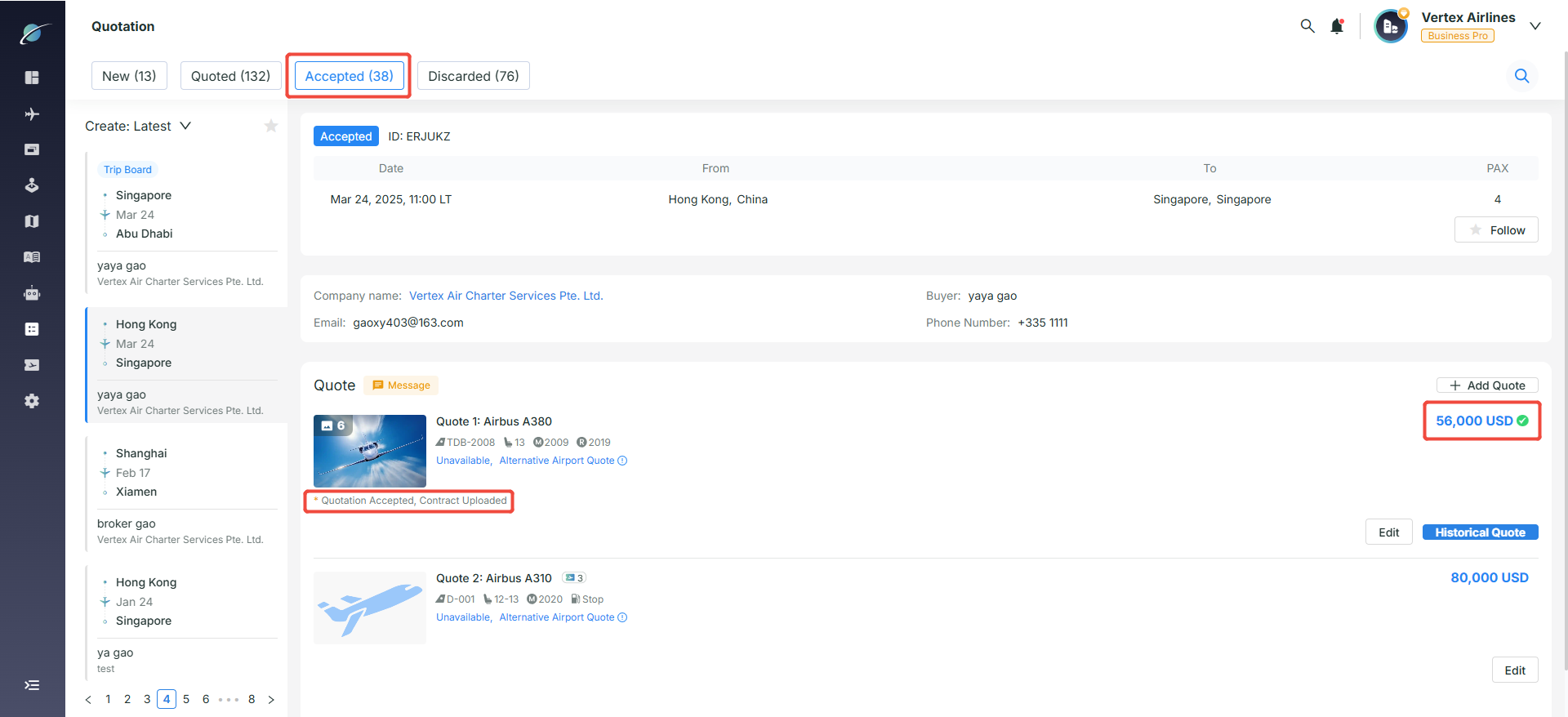
● Switch to the "Accepted" tab to view all quotations that have been accepted by customers.
● Accepted quotations display a green check mark beside the final price and show the status text "Quotation Accepted".
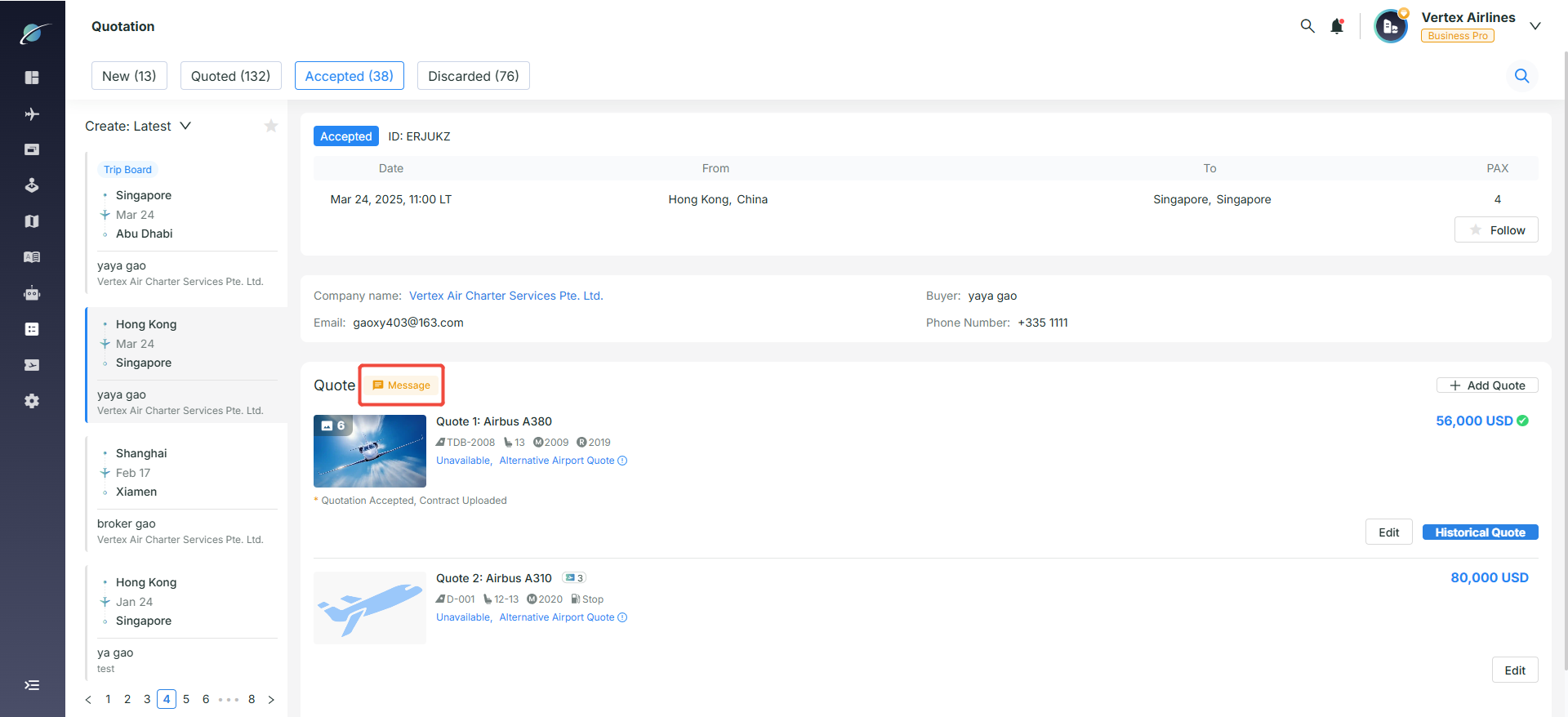
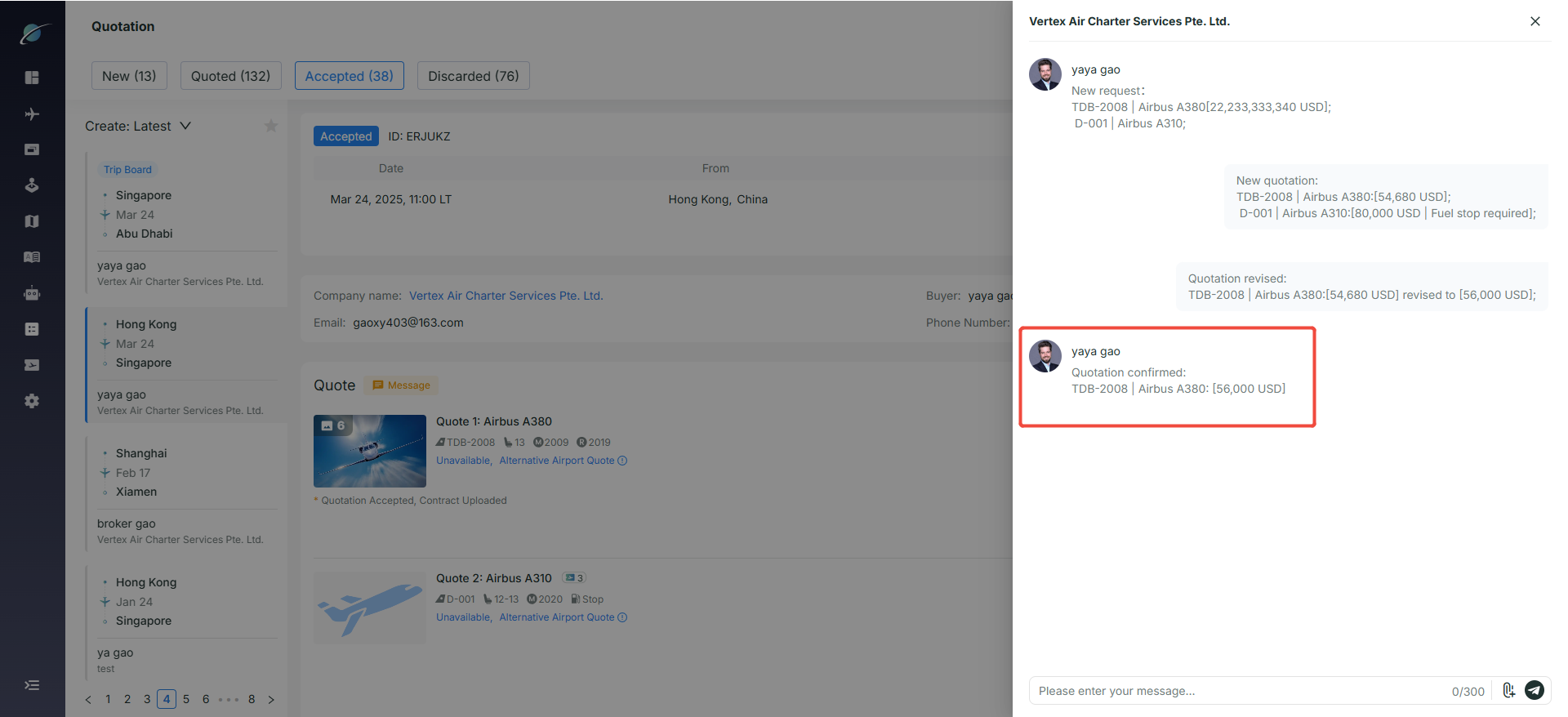
● Click "Message" to open the IM page and review message history.
9. Viewing and Recovering Discarded Orders
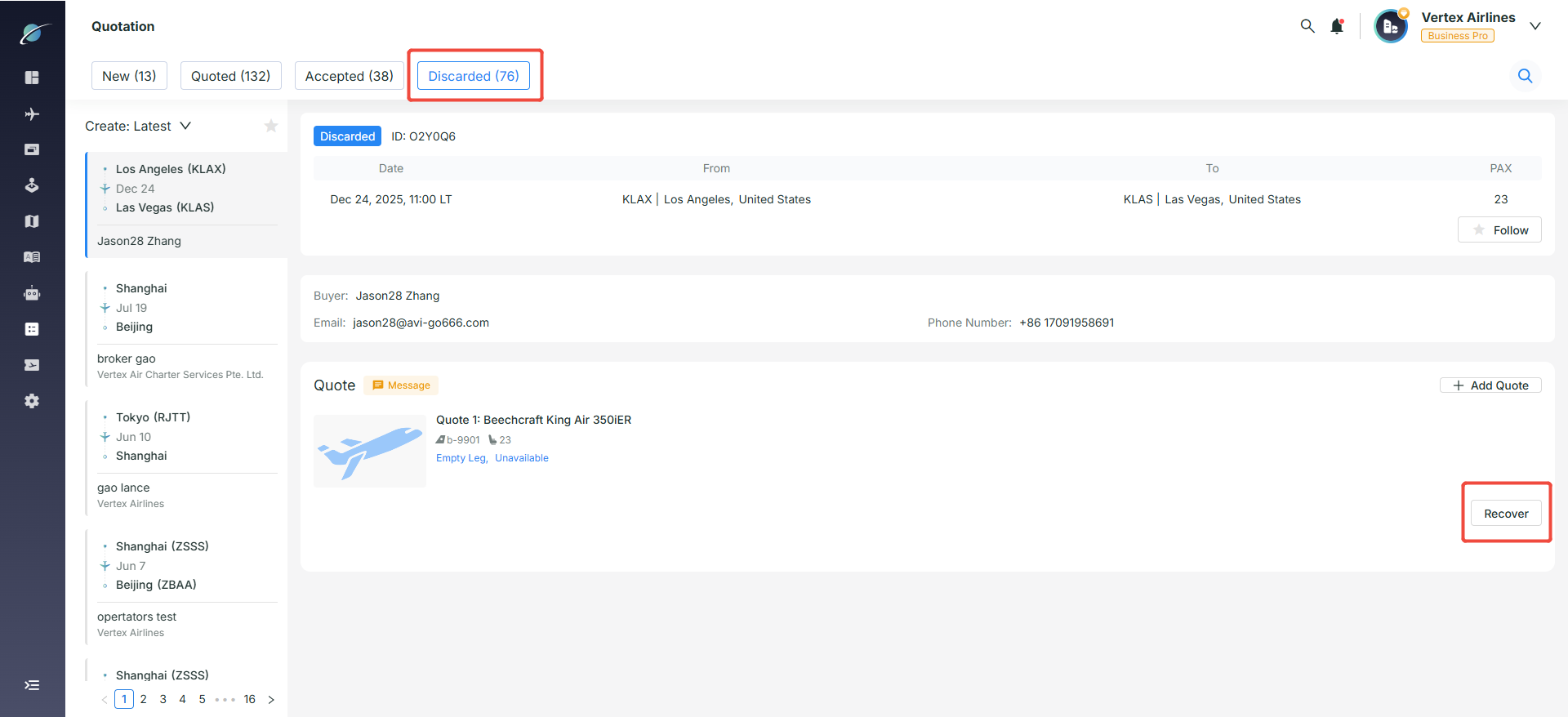
● Switch to the "Discarded" tab to view all archived or invalidated orders.
● Click "Recover", refill the quotation information in the pop-up, and click "Confirm". The order status changes from "Discarded" to "Quoted", and the quotation is sent to the customer through IM.
Subscribe to the Avi-Go Newsletter
Business aviation data, insights, and trends — trusted by 10,000+ professionals worldwide.