
Business Account Overview and Verification Steps
Permissions Instructions
○ Personal Space: This page is viewable by all users within their personal space.
○ Enterprise Space: Only the Super Admin can see the Business function. Other members do not see the Business button.
■ Business function: Only Super admin can view this; other members will not see this button.
■ Business page: Only displays forms for verified enterprises.
Enterprise Space Verification
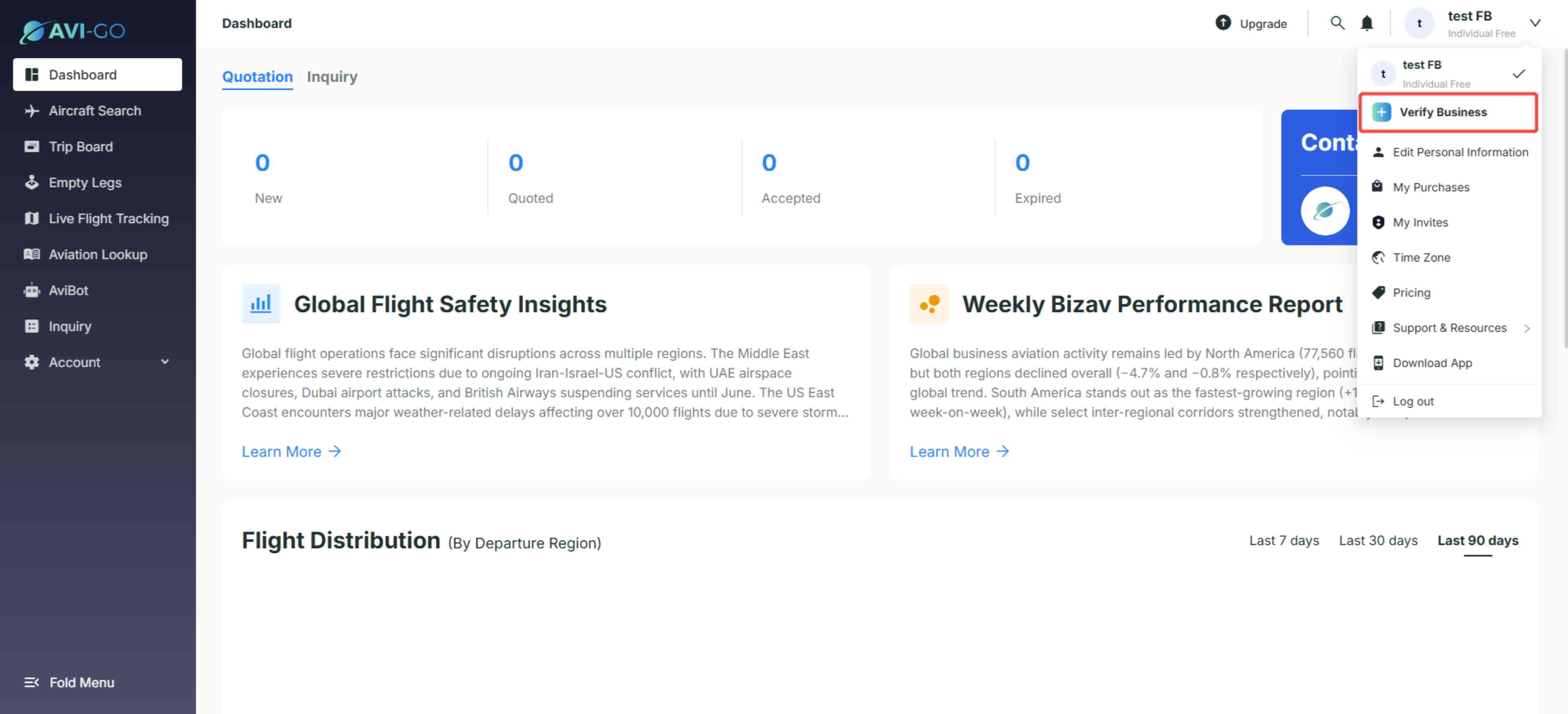
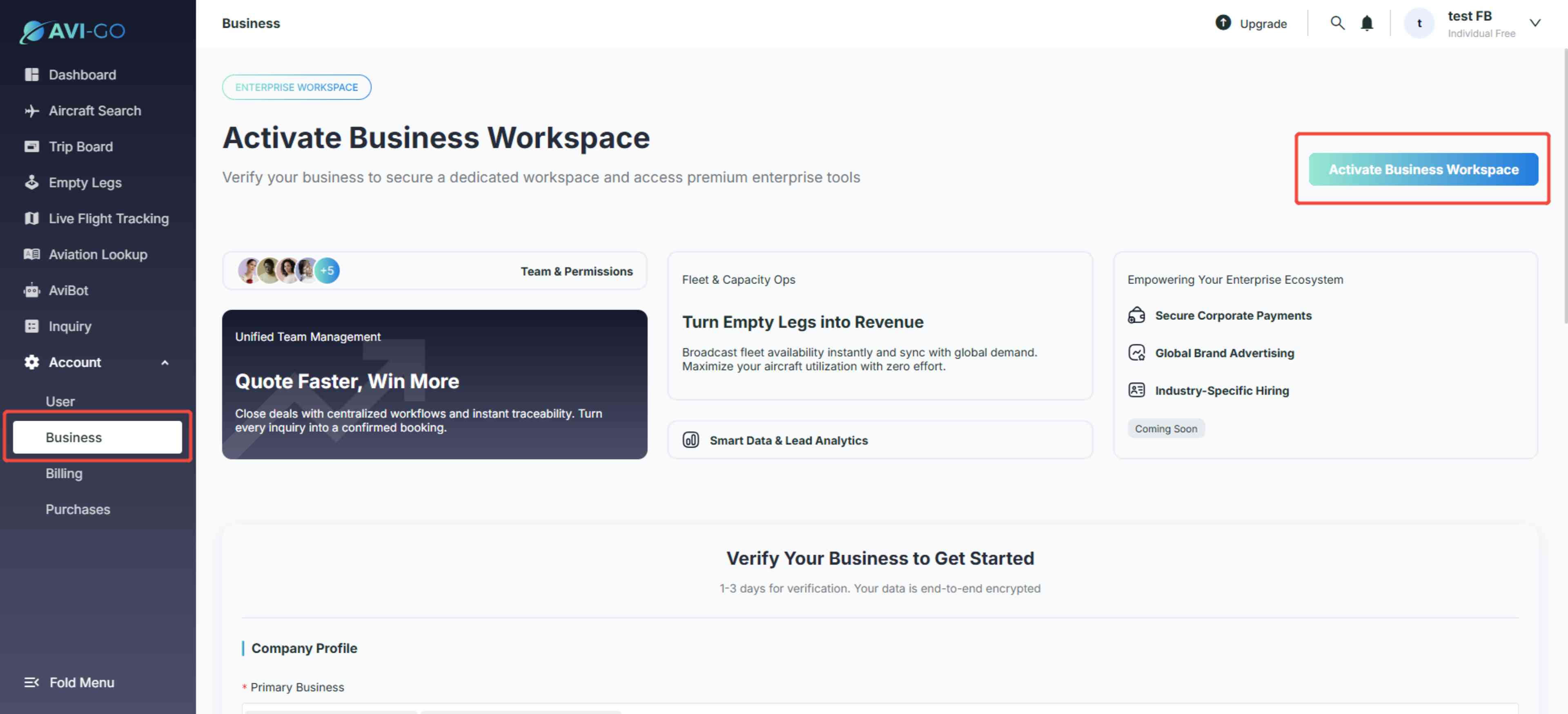
Verification Entry: Click the avatar in the upper right corner of the page and select "Verify Business" from the drop-down menu, or click "Account" → "Business" in the left navigation bar to access the enterprise verification page.
Verification workflow
- Click the “Active Business Workspace” button and slide to the desired location or scroll down the page to the form.
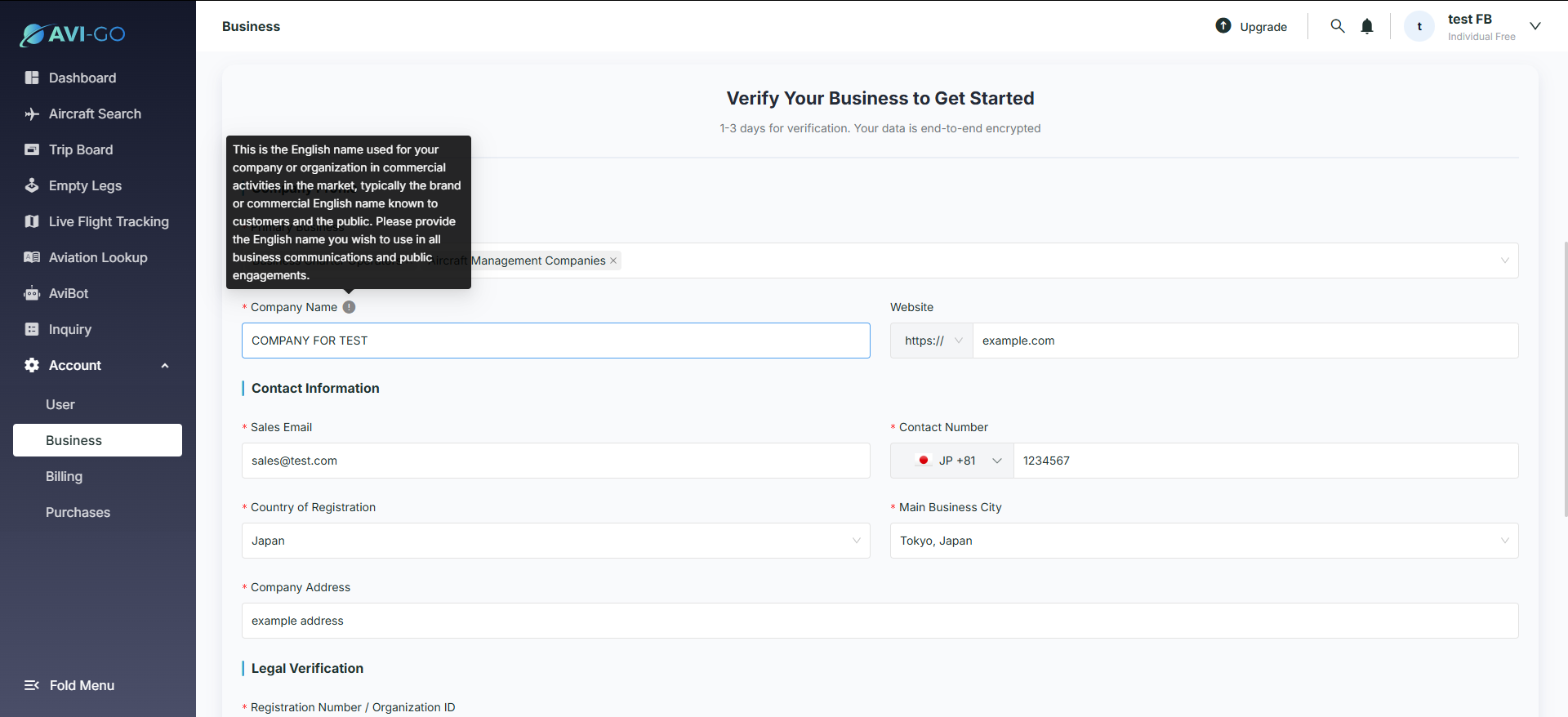
- Form Completion and Submission
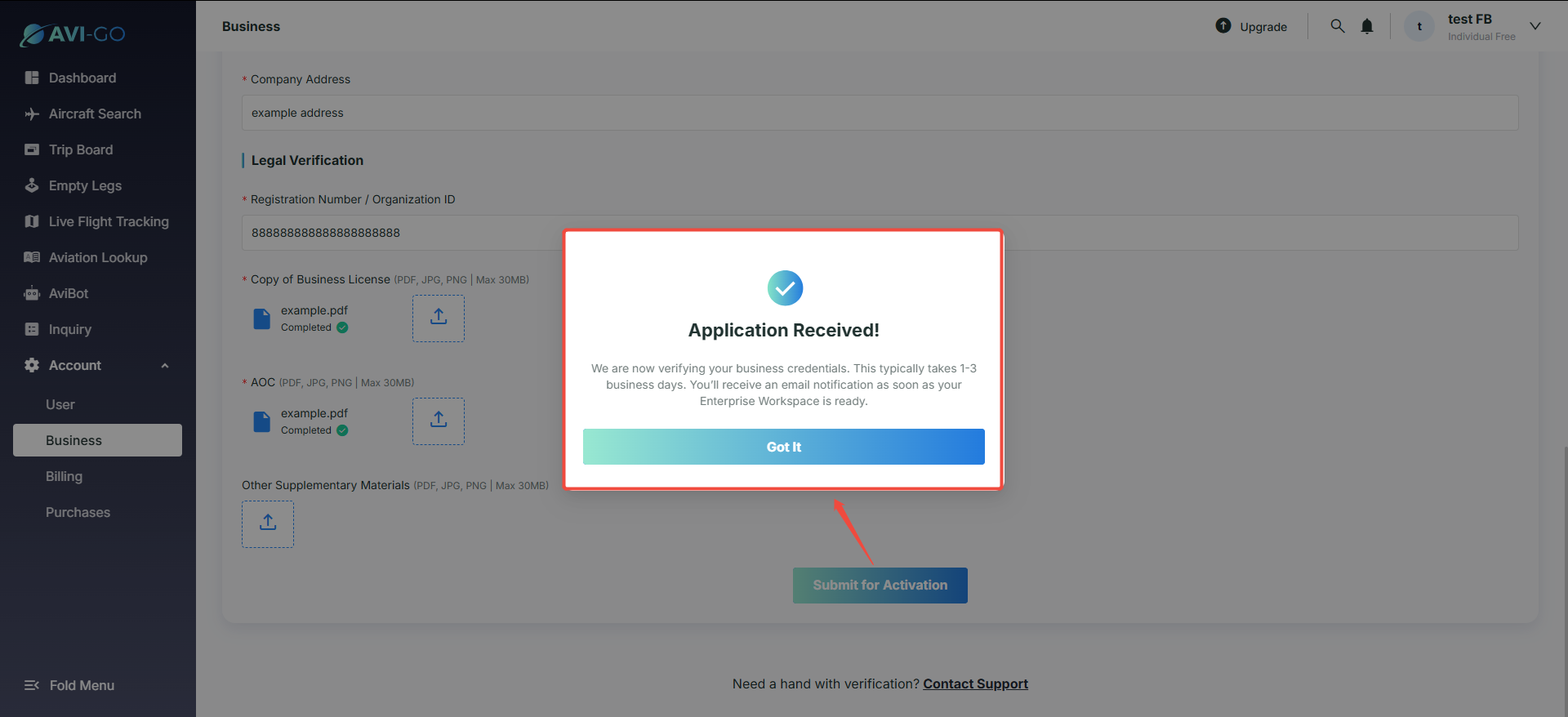
After completing at least the required fields marked with an asterisk (*) on the left, such as company name and sales email, and ensuring the information is in the correct format, you can click the “Submit for Activation” button below to submit the form. If any required fields are not completed, or if there are uncorrected errors, the button will be grayed out and cannot be clicked.
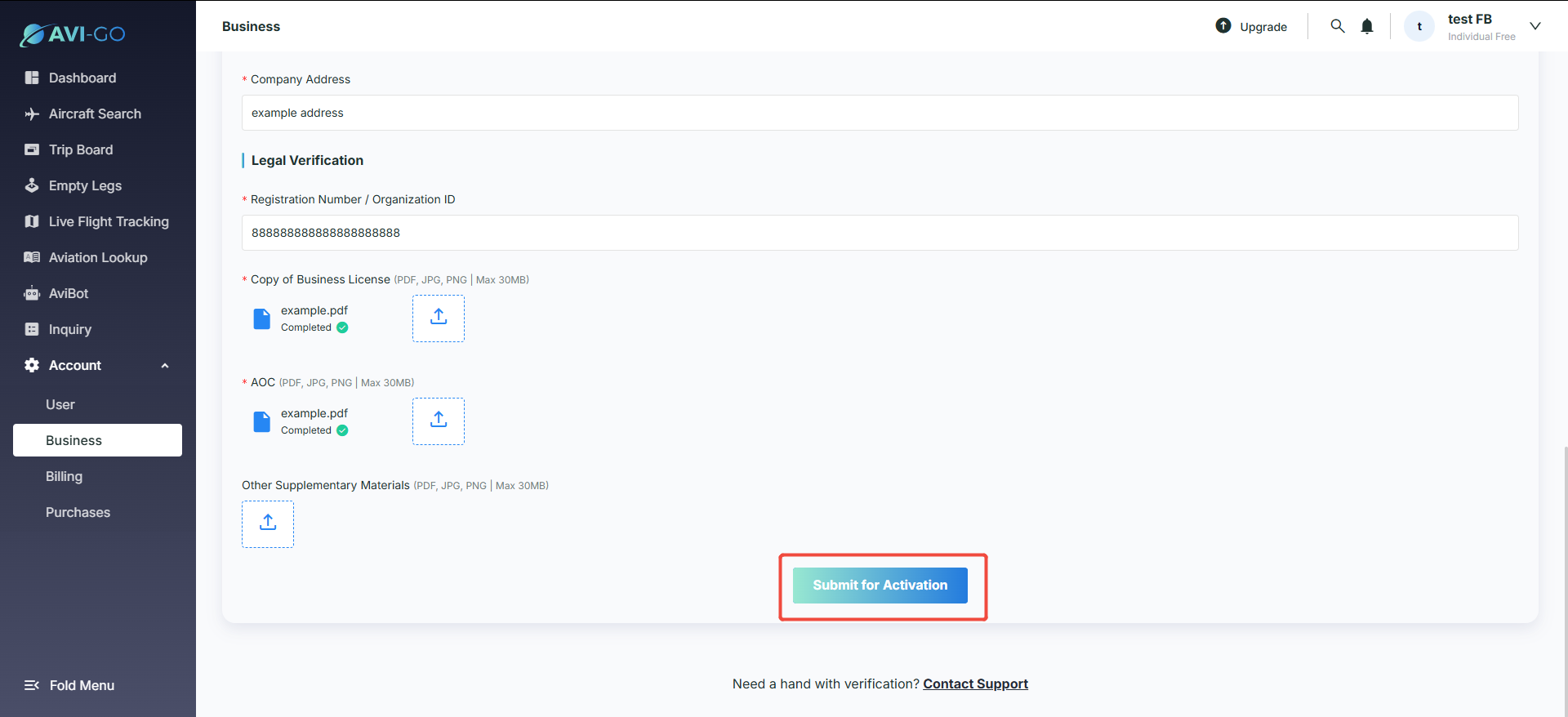
After submitting the form, a pop-up window will indicate that the submission was successful and the form is awaiting review. The form is uneditable during the review process.
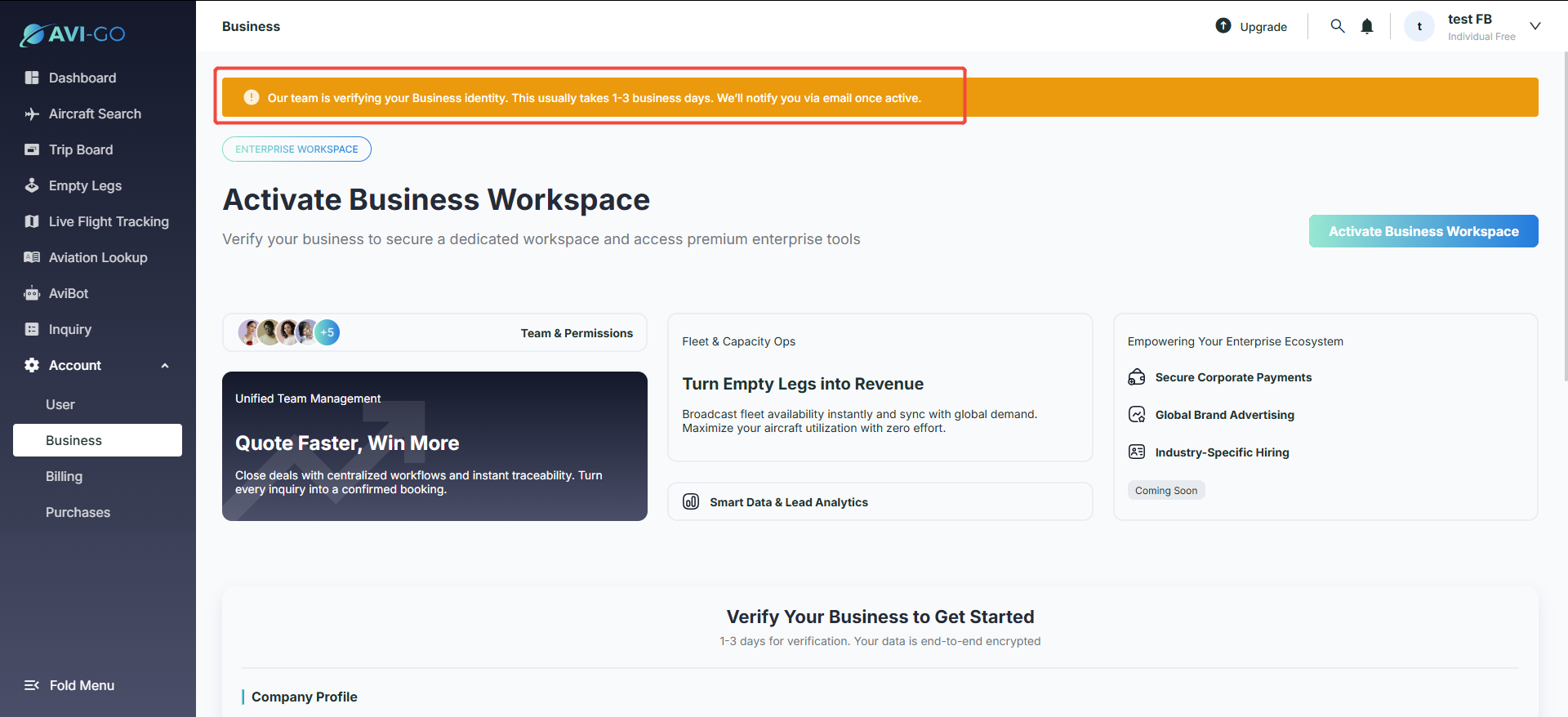
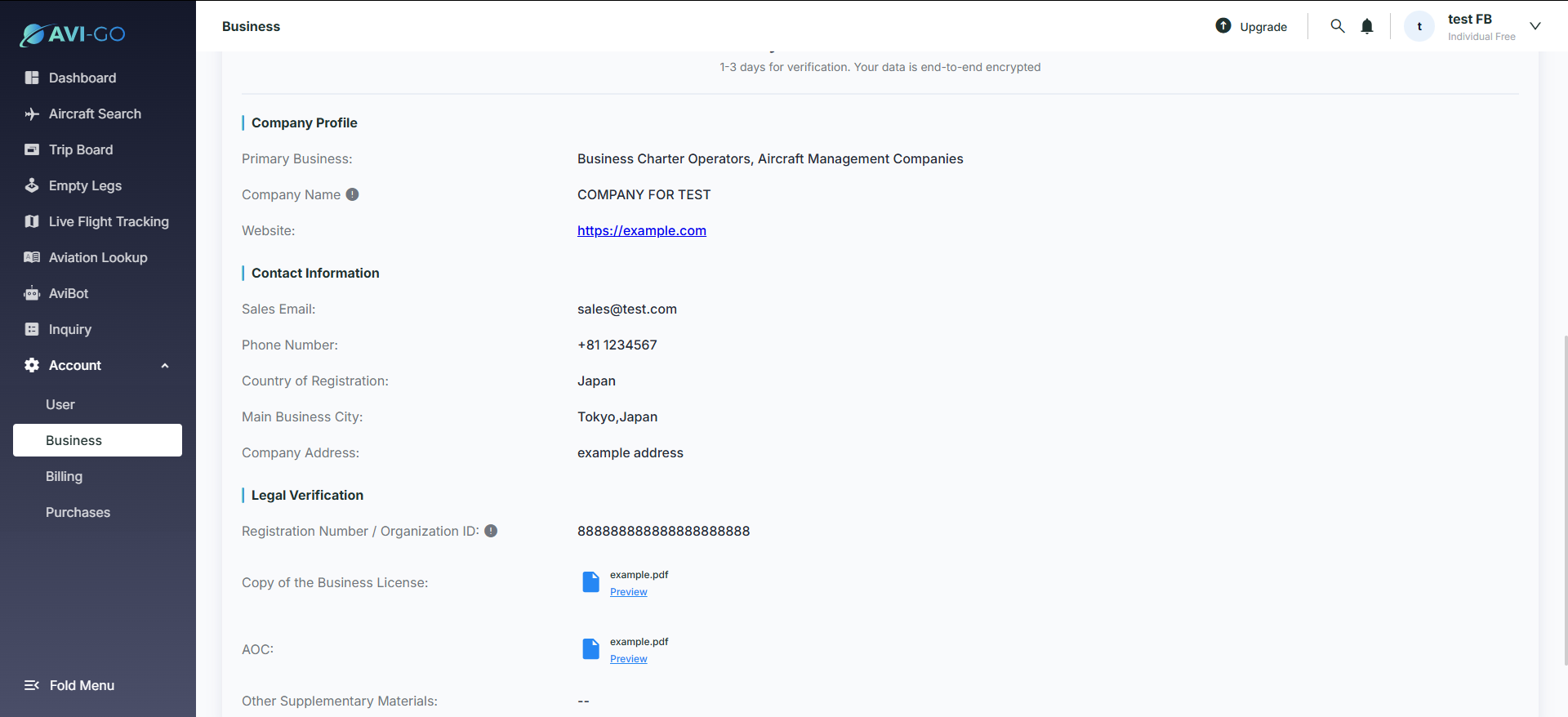
- Conflict scenario: If the assigned sales contact has already submitted materials in the backend and the application is under review, clicking the button shows a message that the sales contact has already assisted. After closing the pop-up, refreshing the page displays the review status and the prefilled form data in read-only mode.
- Sales support: If users encounter issues while completing or submitting the form, they can click "Contact Support" at the bottom of the page to get help from sales.
Verification complete
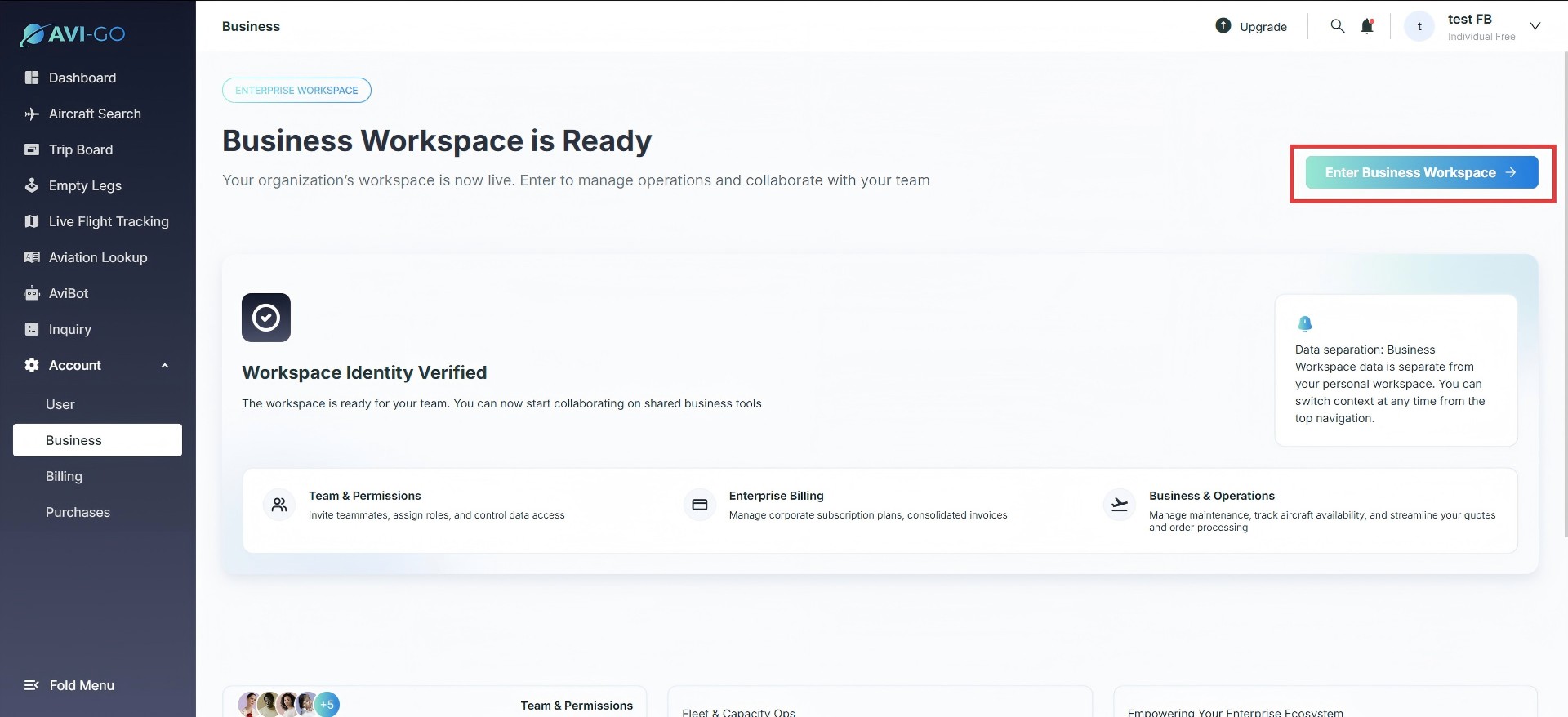
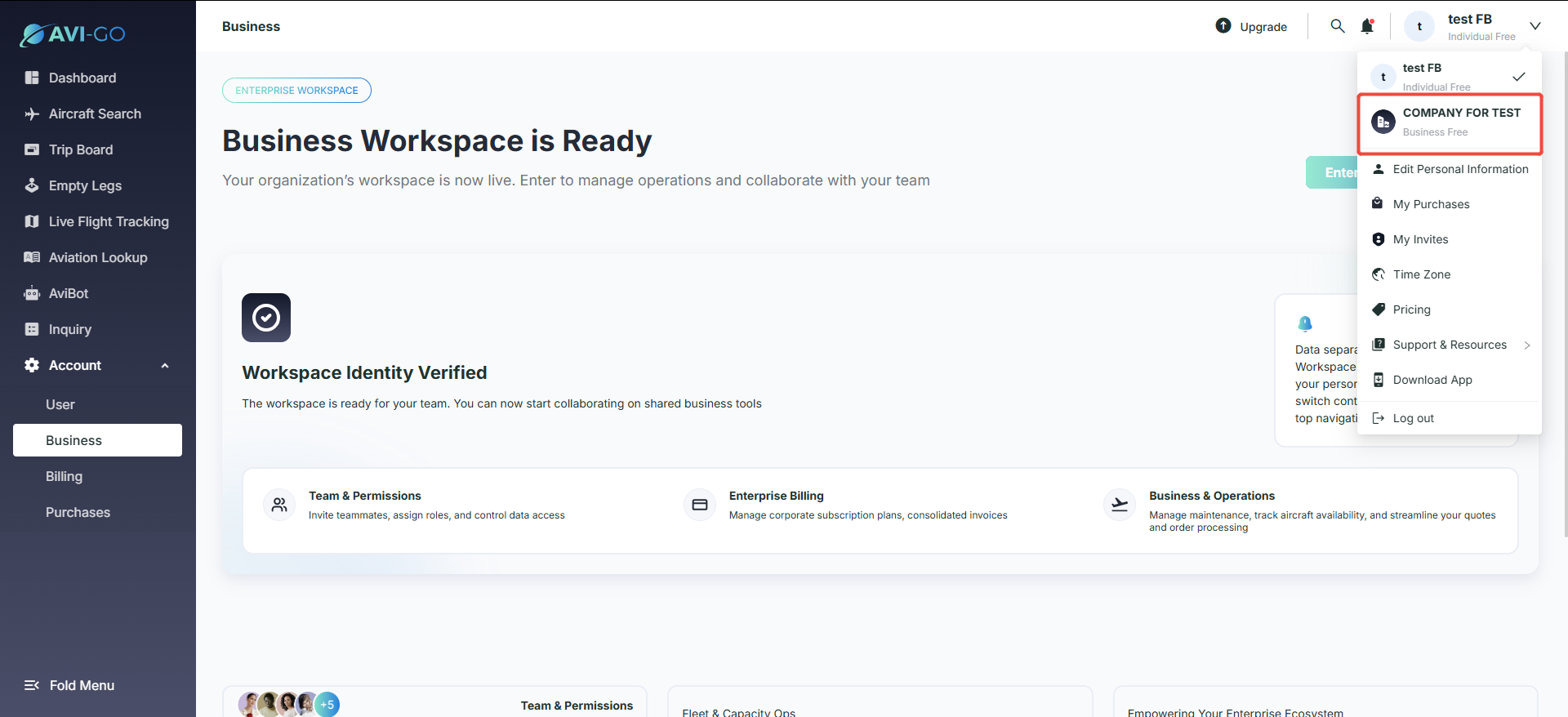
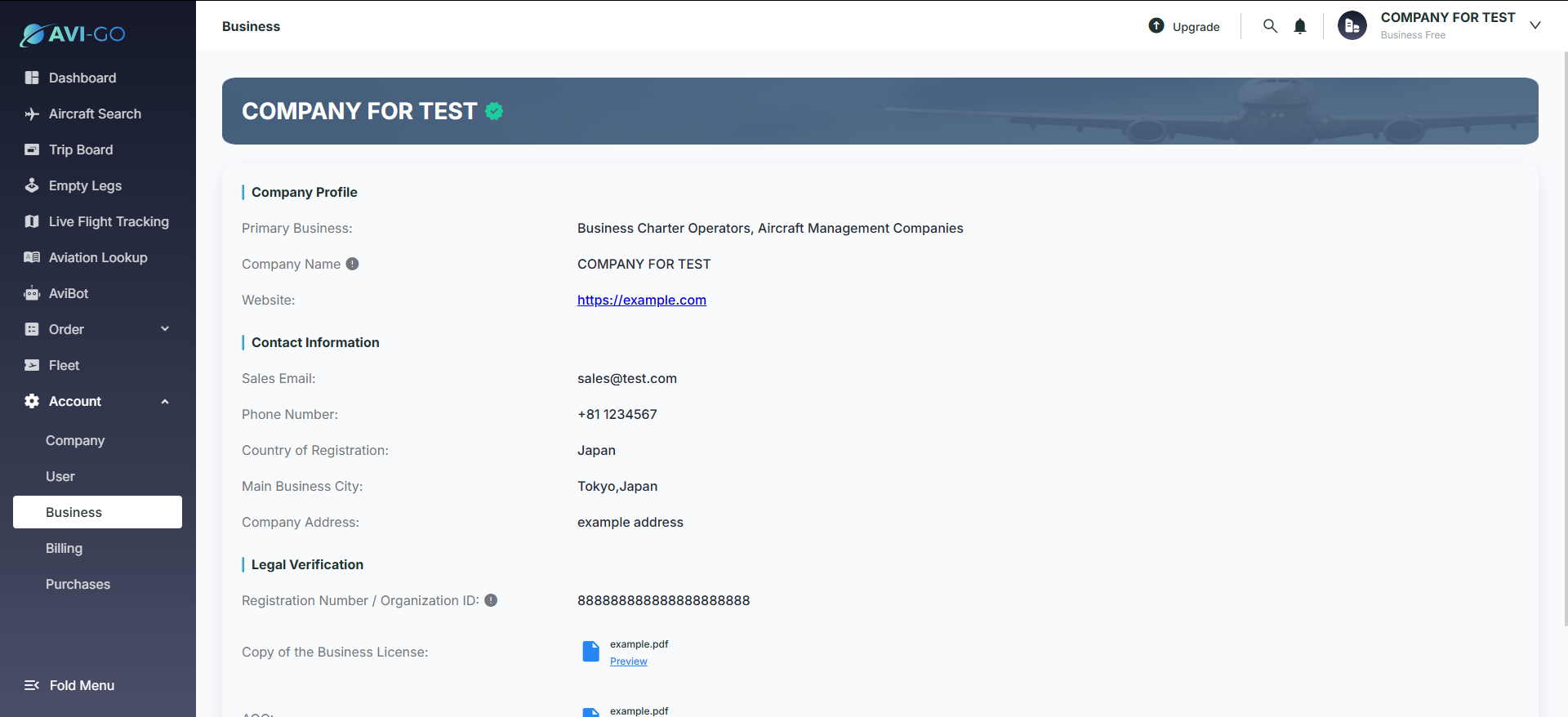
After enterprise verification is approved, log in again. The Business page shows "Business Workspace is Ready". Click "Enter Business Workspace" or choose the enterprise from the avatar menu to switch into the business workspace and access more features.
Subscribe to the Avi-Go Newsletter
Business aviation data, insights, and trends — trusted by 10,000+ professionals worldwide.