
Avi-Go.AI User Guide
Entry point
Click the “Avi-Go.AI” module in the left navigation bar to enter the page.
Sidebar features
- New Chat: Create a new Avi-Go.AI conversation session.
- Search History: Search past conversation records, making it easy for users to find previous questions or analysis results.
- Insight Center: Enter the Avi-Go.AI Insight Center to view system-generated industry insights, market trends, and analysis reports.
- Chats: Displays the user’s list of historical chat records. Users can click any record to continue a previous conversation or review past content.
Conversation actions
- Enter a question: Type your question into the input box in the center of the page.
- Voice input: Click the microphone icon on the right side of the input box to ask Avi-Go.AI questions by voice.
- Upload files: Click the “Add Files” button on the left side of the input box to upload files for Avi-Go.AI to analyze.
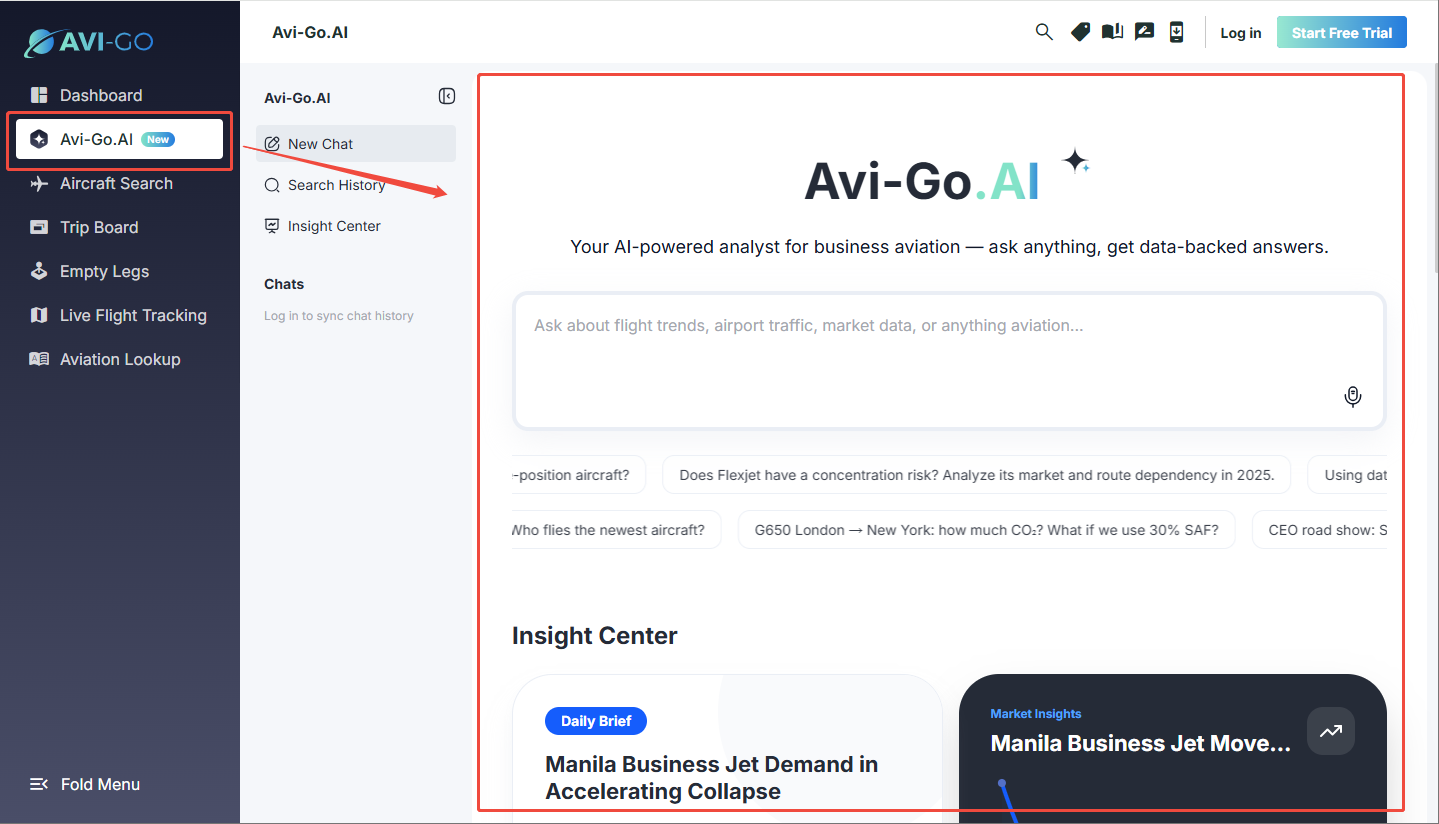
1. Logged-out page
Users who are not logged in can only view overview information. To use interactive features such as asking questions or follow-up questions, they need to log in first.
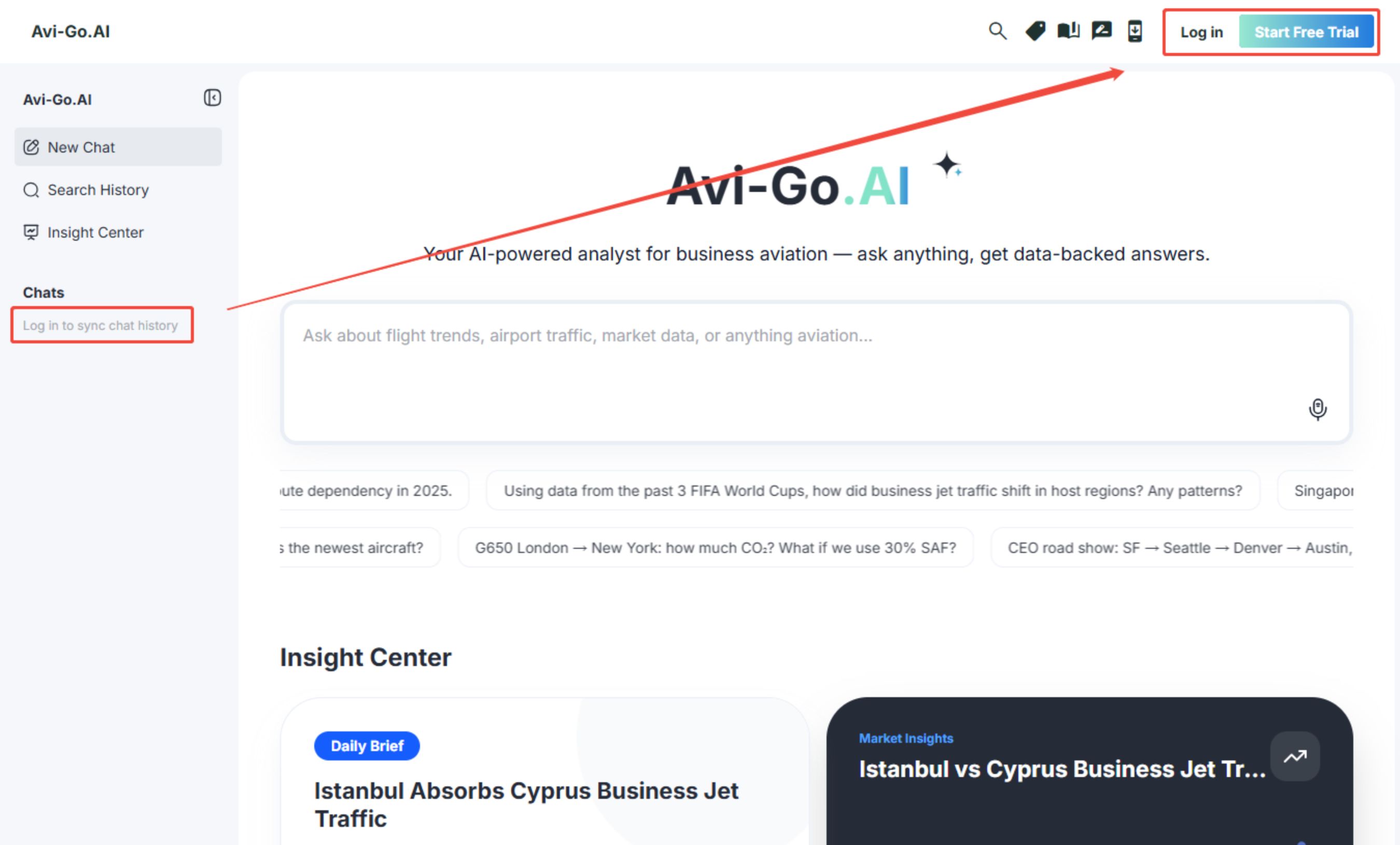
2. Logged-in page
After logging in, the system will automatically sync historical conversation records and display them in the Chats list on the left sidebar.
- History management: In the historical conversation list, users can manage sessions by renaming or deleting them.
- Usage quota display: The current account usage quota is shown in the lower-left corner of the page.
- Quota upgrade: Click the Upgrade button to upgrade the account plan and get a higher usage quota.
Quota details:
- Each question consumes 1 credit. Once all credits are used up, users need to wait 24 hours for refresh.
- Free users: Receive 10 Avi-Go.AI credits refreshed daily.
- Individual Pro users: Receive 50 credits refreshed daily.
- Enterprise Pro users: Have no limit on the number of calls.
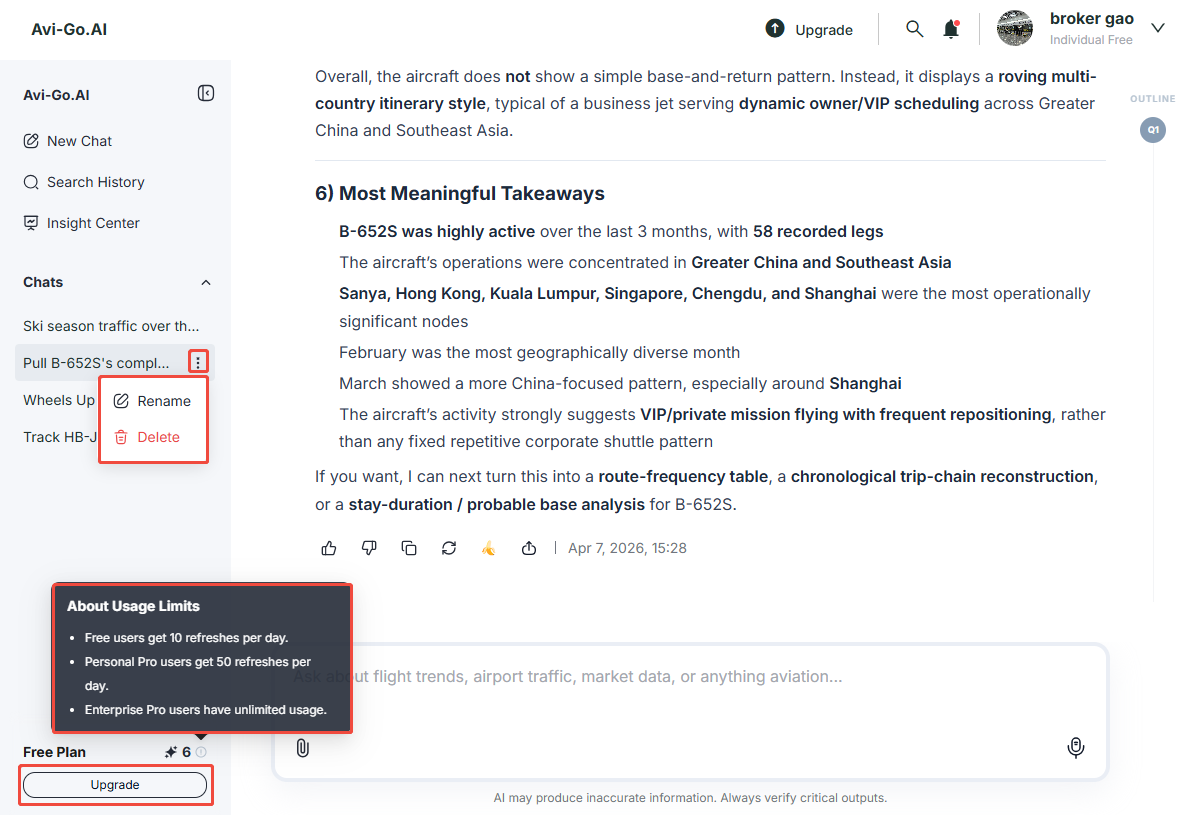
3. Conversation page
The conversation page is used to ask the system questions and obtain business aviation–related analysis results, including route analysis, aircraft recommendations, market trends, and more.
- Question directory navigation: On the right side of the conversation page, the system automatically generates a directory of questions from the current conversation. Users can click any question in the directory to quickly jump to the corresponding section, making it easier to locate content in long conversations.
- Reply feedback and actions: Below each reply, there are action buttons for thumbs up, thumbs down, copy, and regenerate, allowing users to provide feedback or take actions based on the response. Clicking “Create Image” automatically generates a related image based on the current analysis content. Clicking “Export” allows users to export the current reply for saving or sharing.
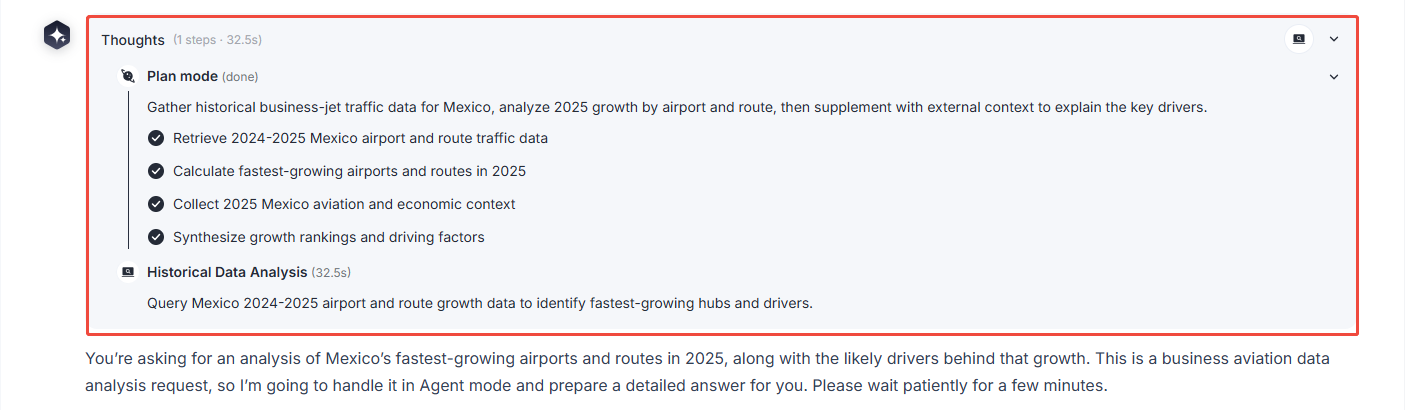
- Deep Thinking: In complex question scenarios, the system can invoke external tools during the analysis process to perform deeper analysis and generate more comprehensive results. At the same time, the page will display thinking progress indicators.
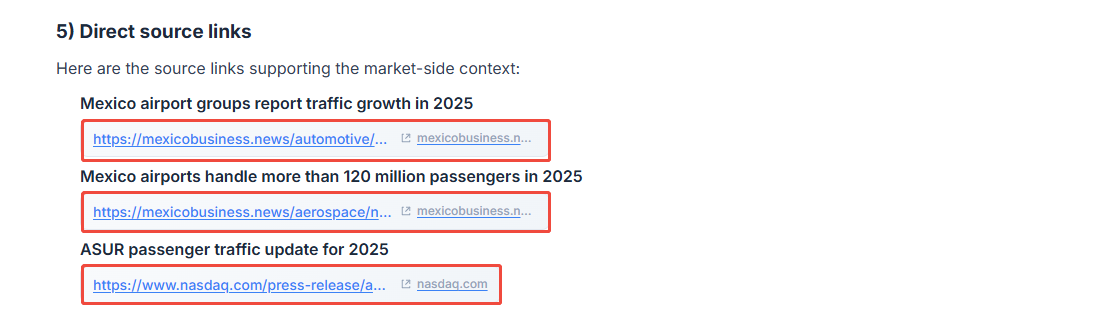
- Link navigation: Some analysis results include data sources or external links. Users can click them to jump to and view the related content.
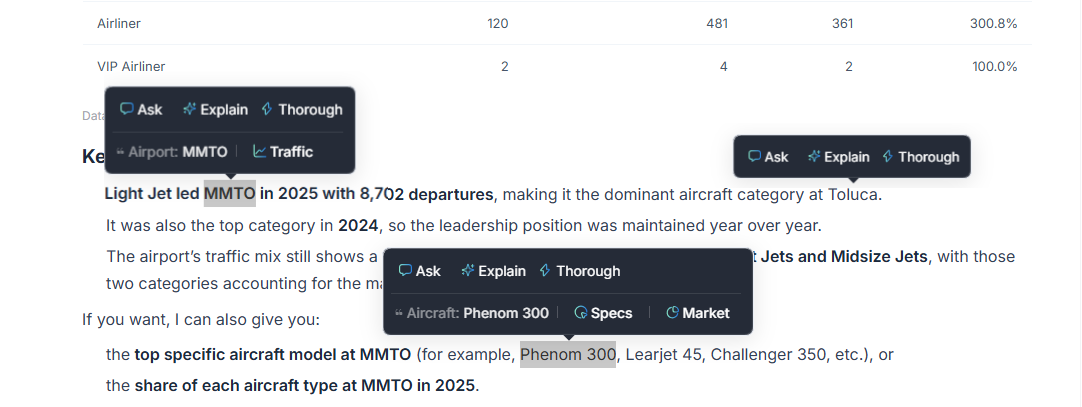
- Smart keyword actions: In the reply content, the system provides quick analysis options based on the keywords selected by the user, such as airport traffic, operator fleets, and regional business aviation markets. It also offers the following basic quick-action tools:
- Ask: Continue asking questions around the selected keyword.
- Explain: Provide further explanation of the selected content.
- Thorough: Generate a deeper and more comprehensive analysis.
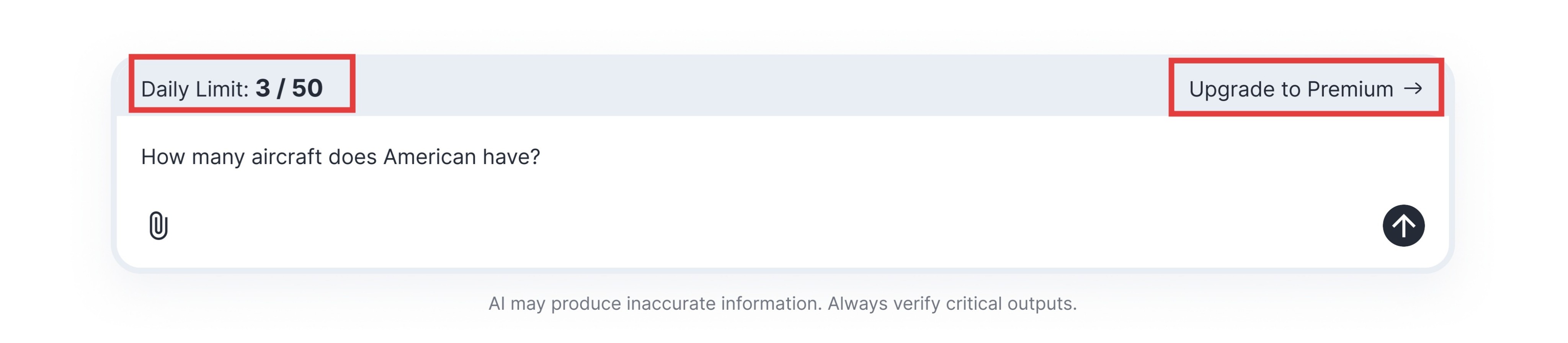
- Usage quota display: At the bottom of the conversation page, the system shows the current account’s daily used / total available usage count. Users can click the “Upgrade to Premium” button on the right to upgrade their account and gain more usage quota.
4. Visualized analysis
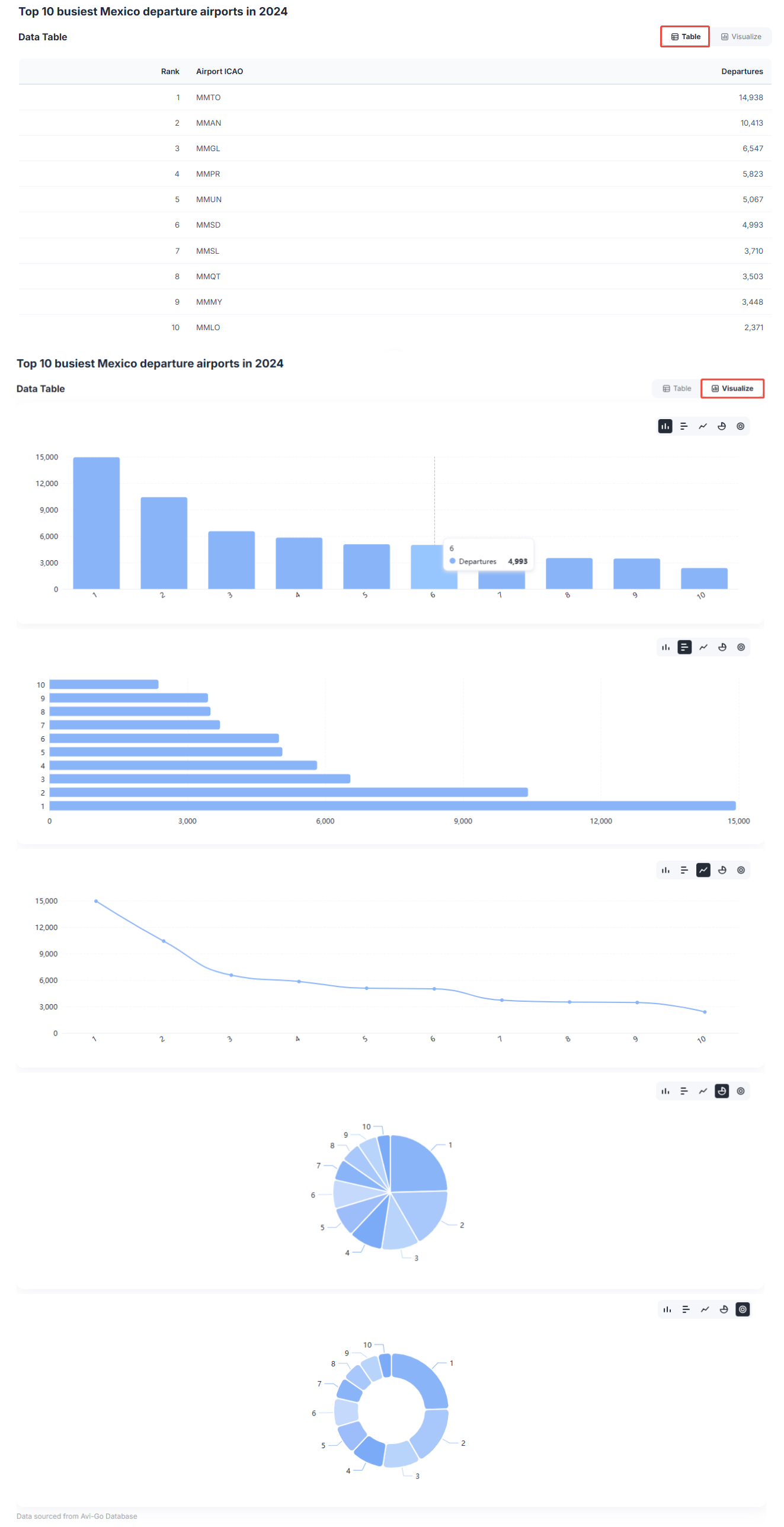
- Chart generation: After completing data analysis, Avi-Go.AI automatically generates corresponding visual charts to present the analysis results and data trends. It supports multiple chart types, including bar charts, line charts, and doughnut charts, and visually shows data changes across different time periods, helping users quickly identify growth trends or market shifts.
- Chart interaction: Users can switch between different display formats in the data module, such as tables or visual charts, to view analysis results in different ways. This helps users understand the results more intuitively and supports business decision-making.
5. Insight Center
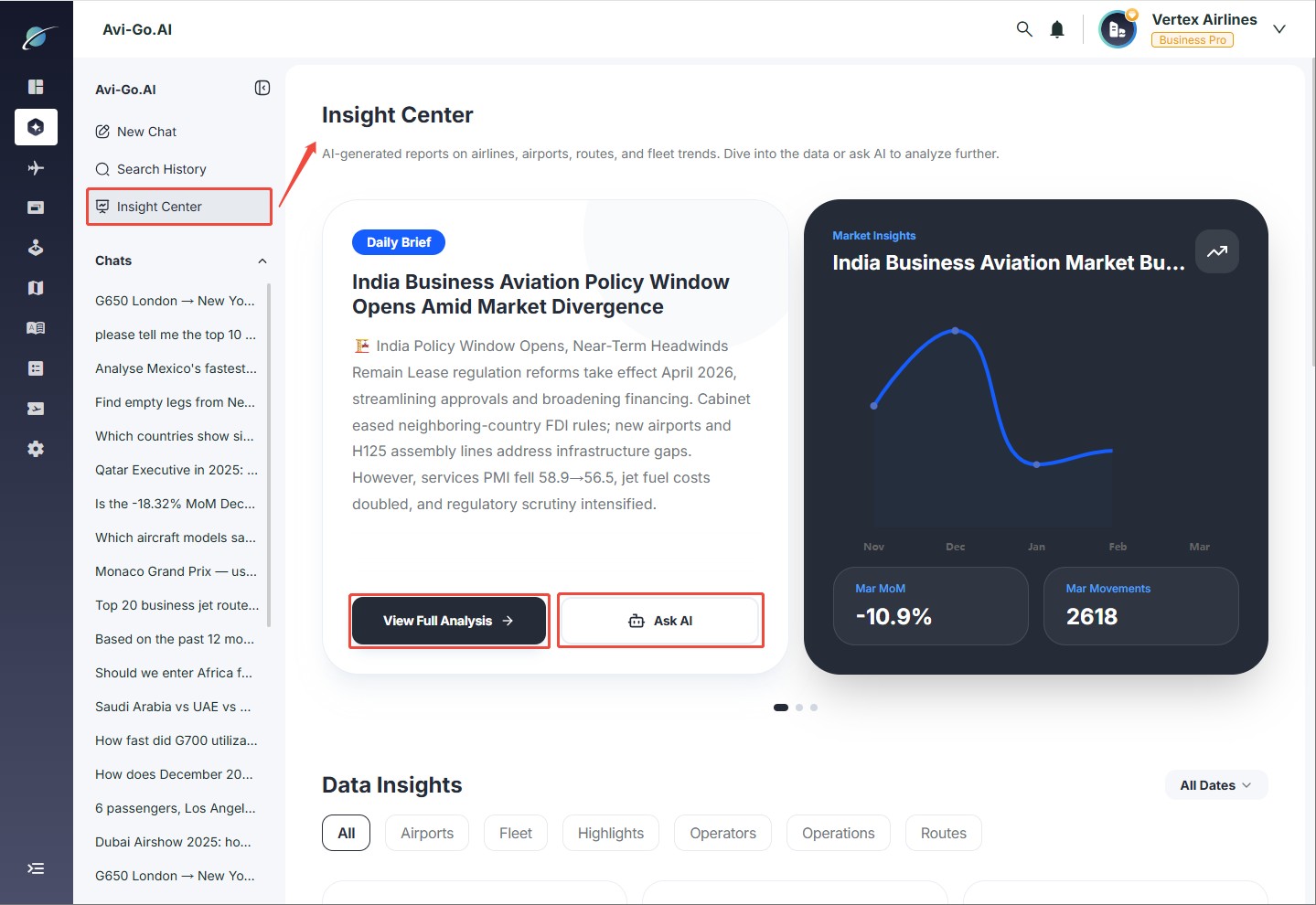
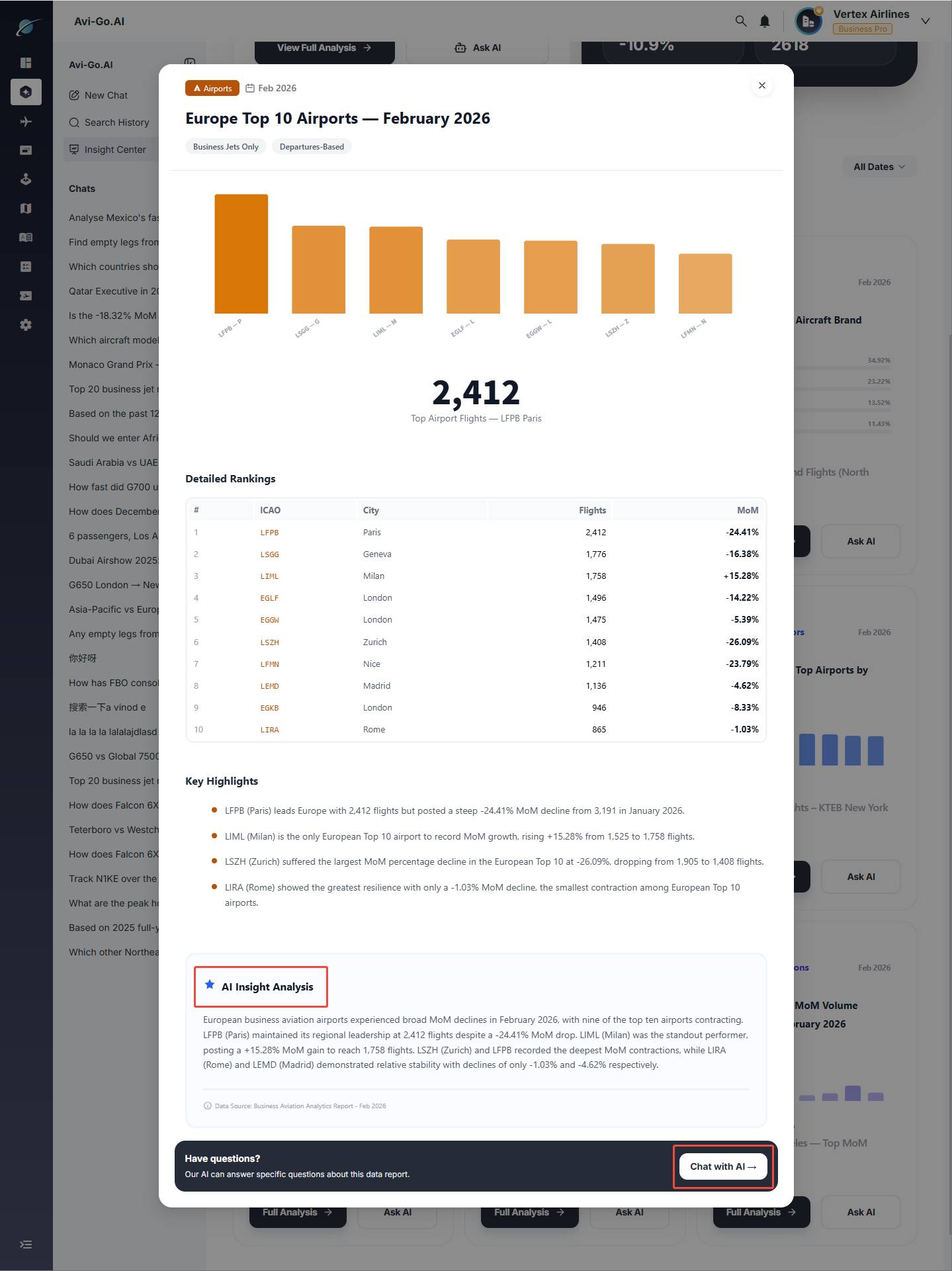
- The Insight Center brings together industry reports and data insights generated by Avi-Go.AI, showcasing aviation market trends, operational metrics, and industry analysis. Users can browse analysis content across different topics through data cards, and use “Full Analysis” to view the complete report or “Ask” to continue asking the AI questions.
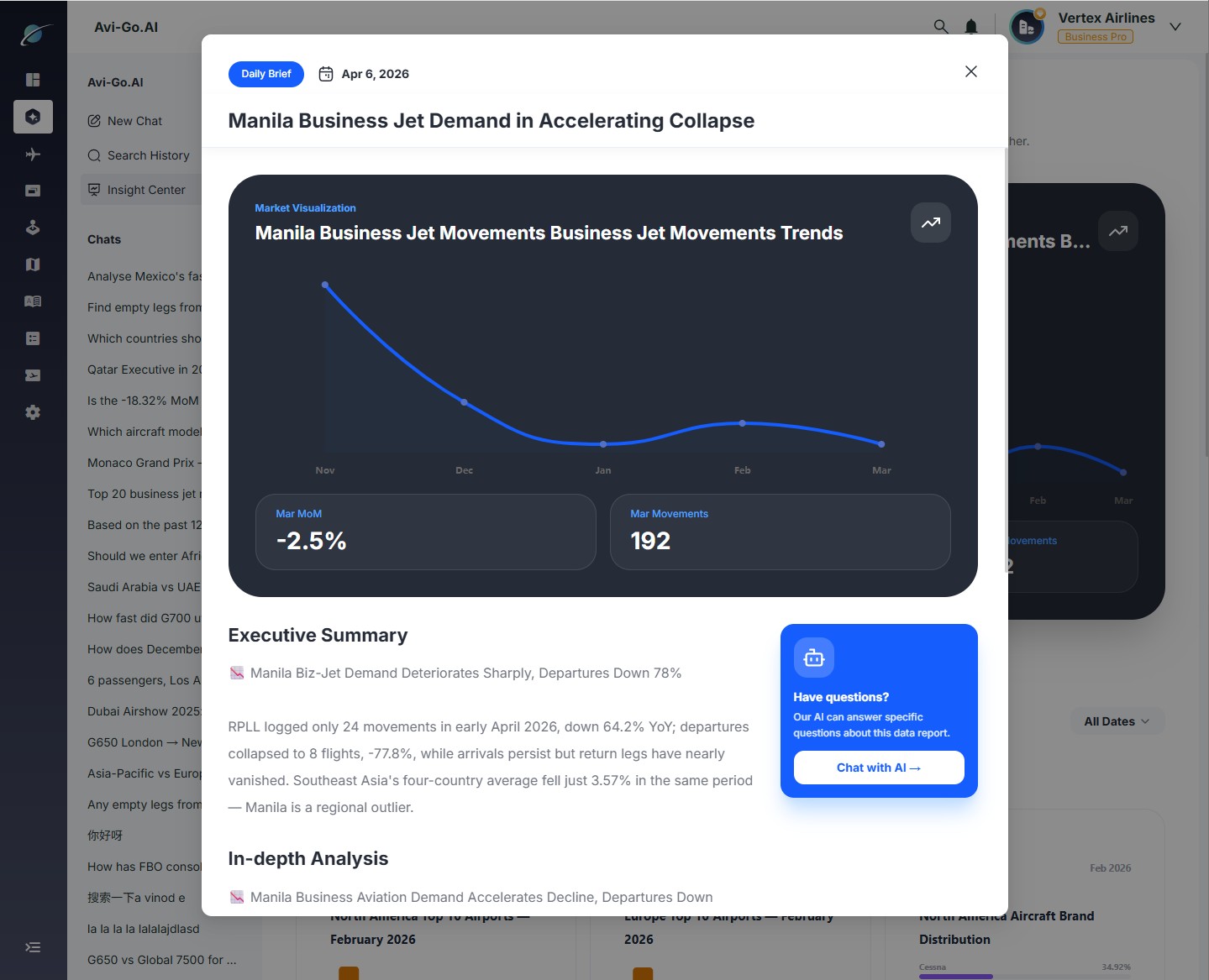
- Daily report details: Click “View Full Analysis” to enter the daily report details page. The report provides daily market trend charts, industry development summaries, and in-depth market analysis. Users can click “Chat with AI” to ask further questions based on the current report content.
Data Insights
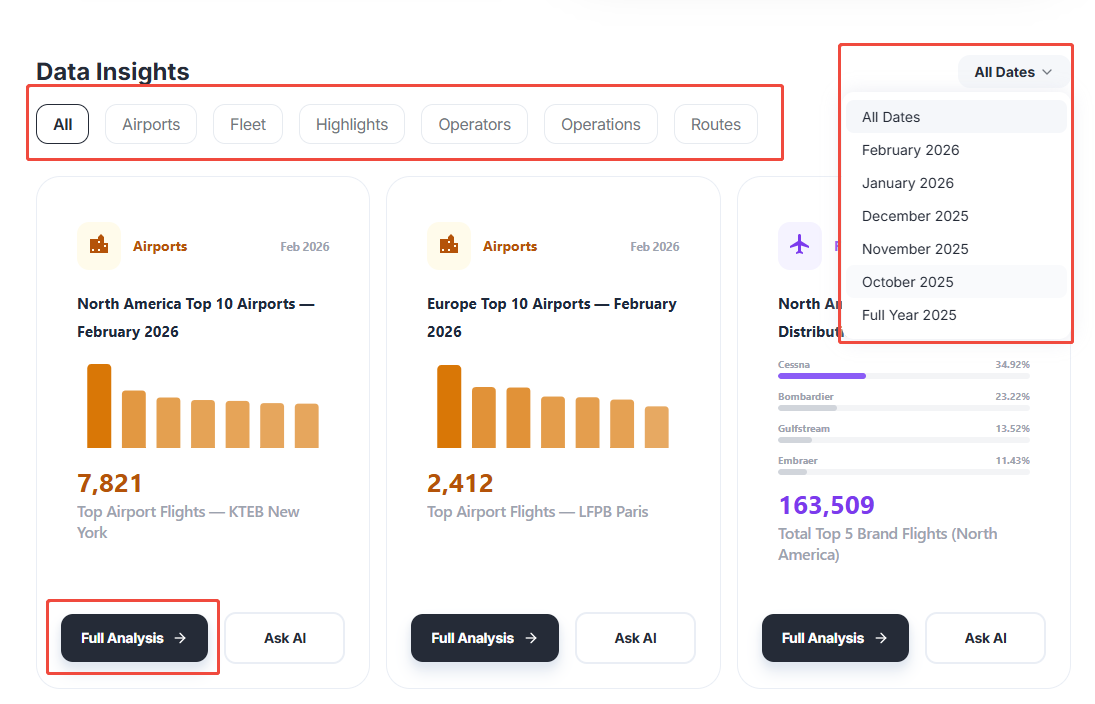
- The Data Insights module is used to display AI-generated industry data analysis reports. It helps users understand aviation market trends through charts and data analysis across multiple dimensions, including Airport, Fleet, Highlights, Operators, Operations, and Routes. Users can click “Full Analysis” to view the complete report.
- AI insight analysis: Avi-Go.AI summarizes changes in the data and provides interpretations of industry trends as well as optimization suggestions. Users can click “Chat with AI” to continue asking questions based on the current report content and obtain deeper data analysis.
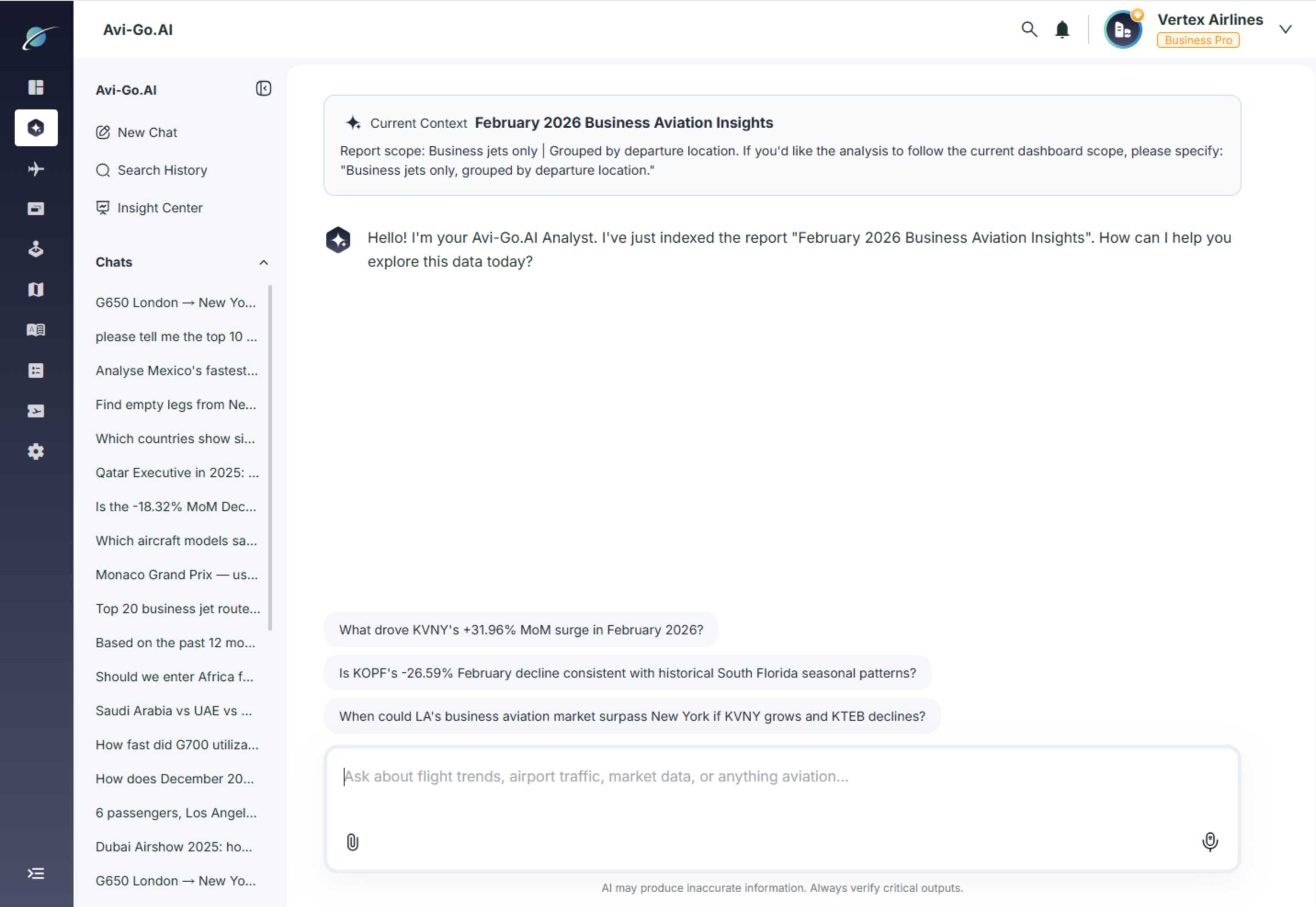
- Chat with AI follow-up experience: Users can quickly ask follow-up questions by clicking the recommended questions displayed above the input box.
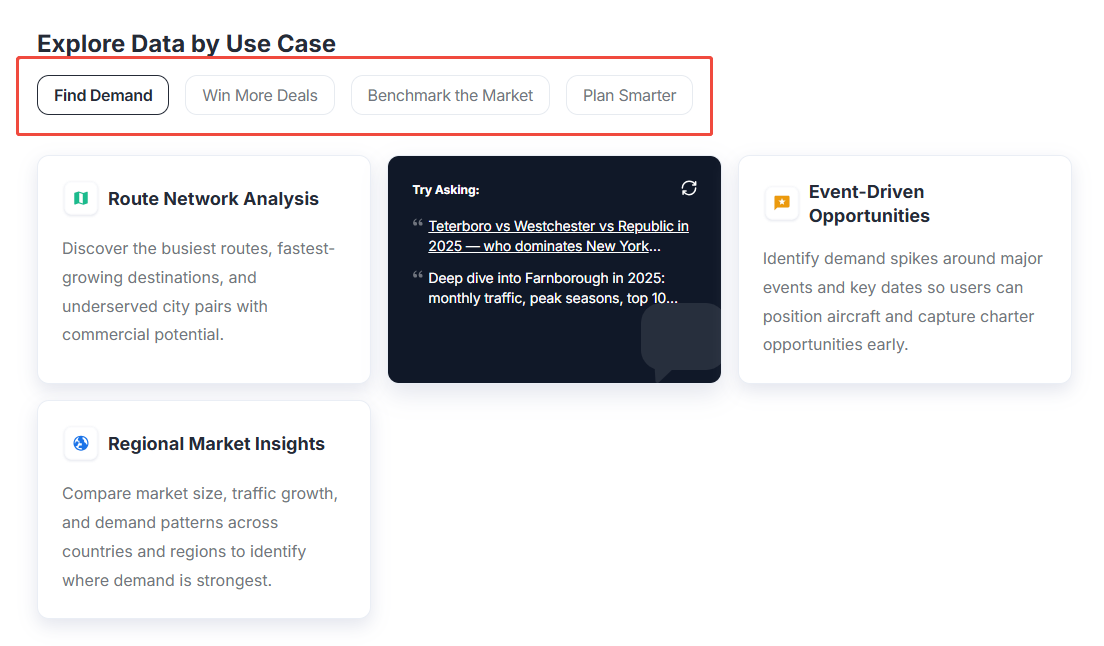
- Explore the value of data by scenario: Powered by Avi-Go.AI’s analytical capabilities, the platform delivers multidimensional aviation data insights across application scenarios such as demand, transactions, and markets, helping users quickly access industry information and support business decision-making.
- Page interaction: When users hover over a card, they can see preset questions for the corresponding scenario. By clicking these preset questions, users can quickly experience Avi-Go.AI’s capabilities.
Subscribe to the Avi-Go Newsletter
Business aviation data, insights, and trends — trusted by 10,000+ professionals worldwide.
I agree withTerms & Conditions and Privacy Policy

Empowering Your Aviation with Data & AI








Get the latest updates and most exciting news.
Follow Updates